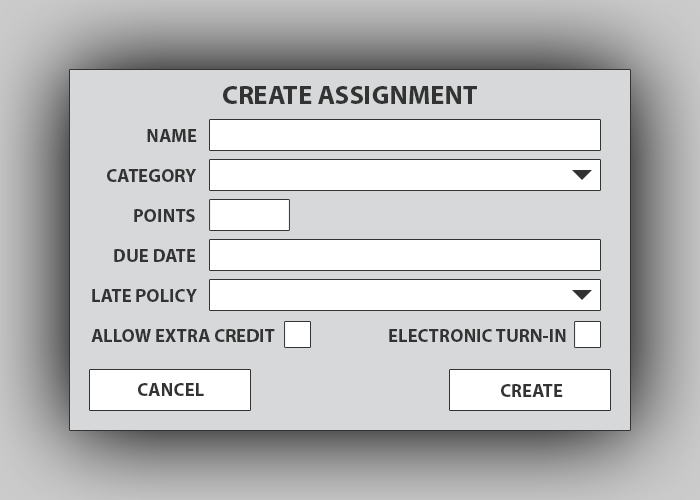
Figure 2.3.2.1 shows the "Create Assignment" view's initial state. This is where instructors may add an assignment to the gradebook.
Figure 2.3.2.1: Create Assignment view.
Name: Instructor can choose any name for the assignment. This will appear on the gradebook to students and the instructor. Name will be entered manually into the text box. Ex. “Homework 1”
Category: This option will be a drop down selector. The instructor may select from any pre-created category. A category must be selected. Ex. “Homework, Quizzes, Tests, etc.”
Points: The point total for the assignment. This may be any numerical value and will be inputted by the instructor. Ex. “50 pts”
Due Date: This will be the due date for the assignment. This field is optional, because a due date is not necessary. Ex. “10/5/12”
Late Policy: This will be the late policy for the assignment. The drop down selector will select from several options such as none, decay, custom, etc.
Allow Extra Credit: This is a checkbox that represents whether or not extra credit will be allowed.
Electronic Turn-In: This is a checkbox that represents whether or not the assignment will be turned in online. If so, the student must submit the assignment online by the due date.
Cancel Button: This will cancel the addition of an assignment. View will return to the basic view with the main menu, class menu, and gradebook. The assignment will not be added to the gradebook.
Create Button: This button will create the assignment. All students will initially be given a score of 0. The view will return to the gradebook view and the new assignment will be visible.
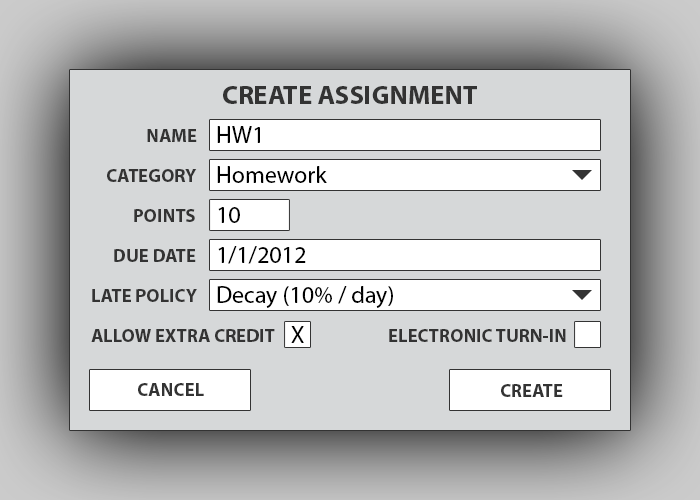
Figure 2.3.2.2: Create Assignment view (Complete).
Once the "Create" button is pressed, assignment will be added to the assignment list, and the pop-up will close. The user will be sent back to the Assignment Tab View, and the new assignment will be visible in the list, as shown in Figure 2.3.2.3
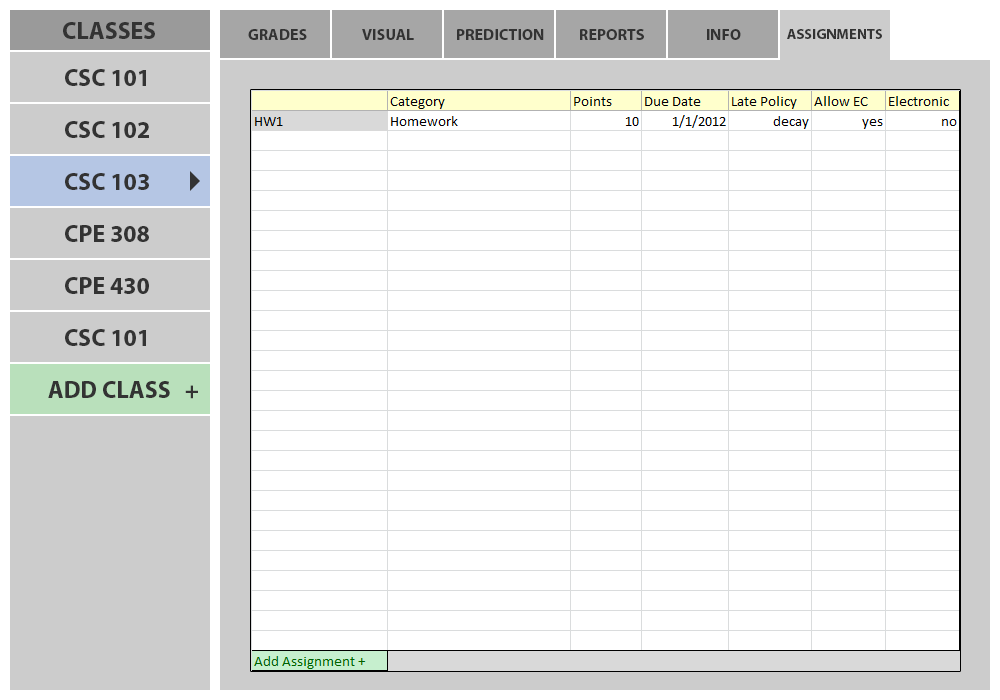
Figure 2.3.2.3: Assignments Tab with one assignment added.
The user can then press the "Add Assignment" button again to create another assignment. Figure 2.3.2.4 shows the addition of a "Final Exam" assignment.
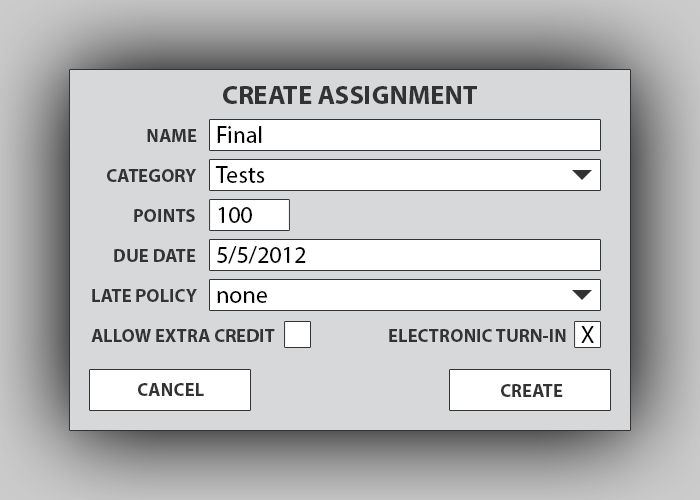
Figure 2.3.2.4: Create Assignment view (Complete with different information).
After several assignments are added, the Assignments Tab table will be more populated. Figure 2.3.2.5 shows the Assignments Tab with a populated Assignments Table.
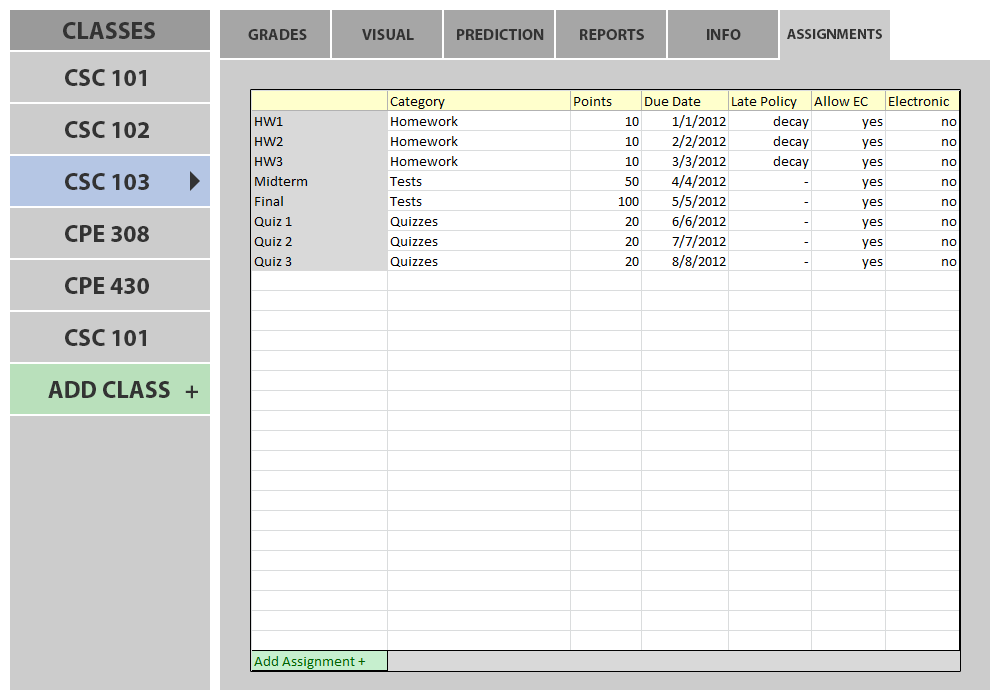
Figure 2.3.2.5: Assignments Tab with a populated Assignments Table
The Assignments Table will grow to fit and keep track of all assignments added. It's fields provide a quick overview of each assignment and the details associated with it.
*NOTE* The process of removing an assignment should have been added to this section, but was never discussed with professor in class or in feedback sessions, and so was never created.