The most significant error in polling is the student neglecting to put in an answer before the time limit is reached. When this happens, this error will appear to the student and not to the instructor. The score for that student's question will be 0 by default.
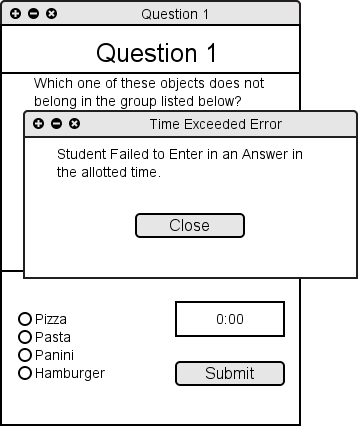
Figure 2.11.1: Time Exceeded Error
For Recording, there are two errors that can happen. The first is saving the recorded lecture for the instructor. The file location could be protected or there could be a file with the same name. In order to avoid a confusing error, the system can auto generate a folder location and name in order to prevent errors.
The other error is a corrupt or missing file. If the file has one of these conditions, then this error will show up.
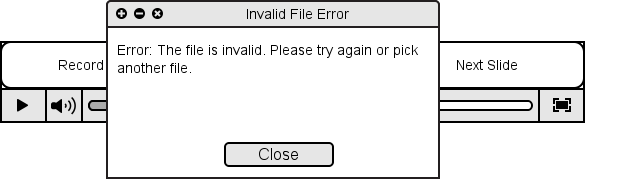
Figure 2.11.2: Invalid File Error
When importing a presentation, E-Class displays an error if invalid HTML syntax is encountered, including the line number and an excerpt of the invalid code. (If meaningless tags or attributes are encountered, they will simply be ignored.)
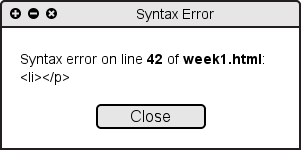
Figure 2.11.3: HTML syntax error popup.
There are two error conditions that exist when using the Export Dialog. (See section 2.4.4 for more information on exporting layers.) The first exists when the user inputs an invalid folder name to export the layers to. Invalid means that either the folder indicated does not exist or the file specified is not a folder. When this occurs, an error dialog appears, as seen in Figure 2.11.4.
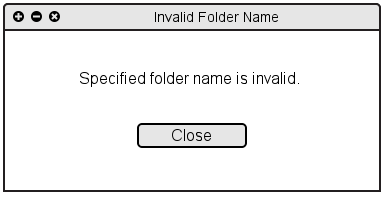
Figure 2.11.4
The second error occurs when a user inputs an invalid name for the layers folder. This occurs when the specified folder already exists. When this occurs, a dialog appears as seen in Figure 2.11.4.
In the navigation bar, an error occurs when anybody enters a slide number that doesn't exist. For example, if a user types a non-number character in the go-to slide box, they receive an error, "Please enter a numeric slide number." If they enter a number, but there is no slide in presentation with that number, they receive the error, "The entered slide number is invalid."
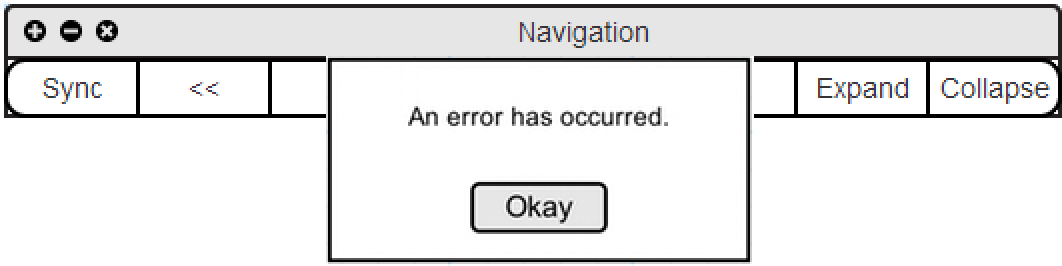
Figure 2.11.5
When importing a class roster , the user specifies a Roser file from which to import. If the specified roster file is invalid (does not exist or is in an unknown format), an error dialog appears.
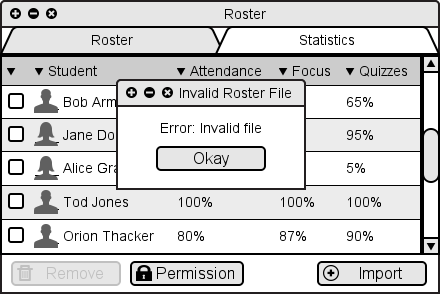
Figure 2.11.6