2.2.2. Importing a Presentation
To import presentation content from another file format, the instructor selects the 'File > Import...' command. This opens a file-selection dialog allowing the instructor to select an HTML file. The file's contents are converted into a presentation document. If the presentation currently displayed is the initial presentation shown when E-Class is opened, the new presentation replaces this one. Otherwise, the new presentation is displayed in a new window.
2.2.2.1. Details of Imported Format
Specific tags in the HTML document correspond to topics and other elements of the presentation content.
The HTML <ol> and <ul> list structures are used to mark up the outline of the presentation, with each <li> element corresponding to a topic, and nested <ol> and <ul> elements corresponding to sub-topic lists. Topics within <ol> elements will be labeled with numbers or letters depending on their depth: Roman numerals (I, II, III) at the top level of topics, followed by capital letters (A, B, C), Arabic numerals (1, 2, 3), and lowercase letters (a, b, c). Topics within <ul> elements will not be numbered; when they appear as sub-topics on a slide, they will be bulleted.
When importing a presentation, a topic will be placed on a new slide when it does not fit on the previous slide. Topics whose name and associated content do not fit in the standard viewport for a slide will cause that slide to be displayed with a scrollbar.
Images accompanying a topic correspond to <img> tags within a topic's <li> element. Similarly, additional paragraphs of content accompanying a topic correspond to <p> elements.
Topics whose content (accompanying images and paragraphs, as well as subtopics) is initially hidden but can be expanded while viewing a presentation correspond to the syntax <li collapse>
Topics that start a new slide correspond to the syntax <li slide-break>
Standard HTML formatting tags including <b>, <i>, <font> and <br> are supported within topic content and accompanying paragraphs. However, the effects of these will not appear in the outline navigator.
A summary of this correspondence is shown in Figure 2.2.2.1.1.
| HTML tag | Presentation element |
|---|
<ol> | Numbered list of topics |
<ul> | Unnumbered (bulleted) list of topics |
<li> | Topic |
<li collapse> | Topic with content initially hidden |
<li slide-break> | Topic starting a new slide |
<img> | Image accompanying topic |
<p> | Paragraph accompanying topic |
Figure 2.2.2.1.1: HTML tag mapping
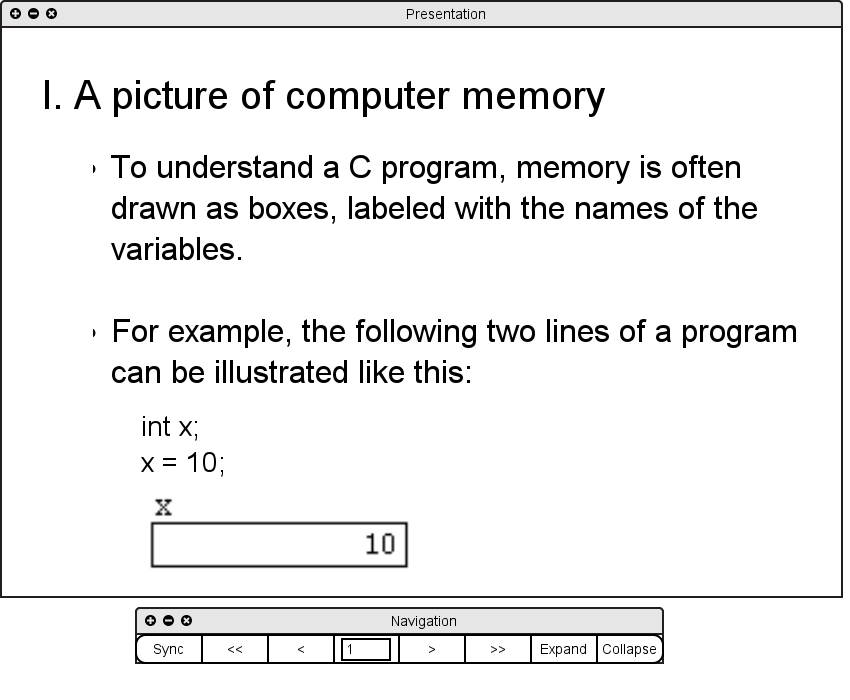
An example HTML document and the resulting slide are shown in Figure 2.2.2.1.2.
<ol>
  <li>A picture of computer memory
    <ul>
      <li>To understand a C program, memory is often drawn
          as boxes, labeled with the names of variables.</li>
      <li>For example, the following two lines of a program
          can be illustrated like this:
        <p>int x;<br>x = 10;</p>
        <img src="x-mem-picture.gif">
      </li>
    </ul>
  </li>
</ol>
|
|
Figure 2.2.2.1.2: HTML example
Prev: Adding Elements to a Presentation
| Next: Starting a Presentation Session
| Up: Preparing Presentations
| Top: index