There are two user interfaces to E-Class. One interface is for an instructor to create and present presentations. The other is for students to participate in presentations. Both interfaces also allow playing back recorded presentations.
When an instructor starts E-Class, the screen appears as shown in Figure 2.1.1.
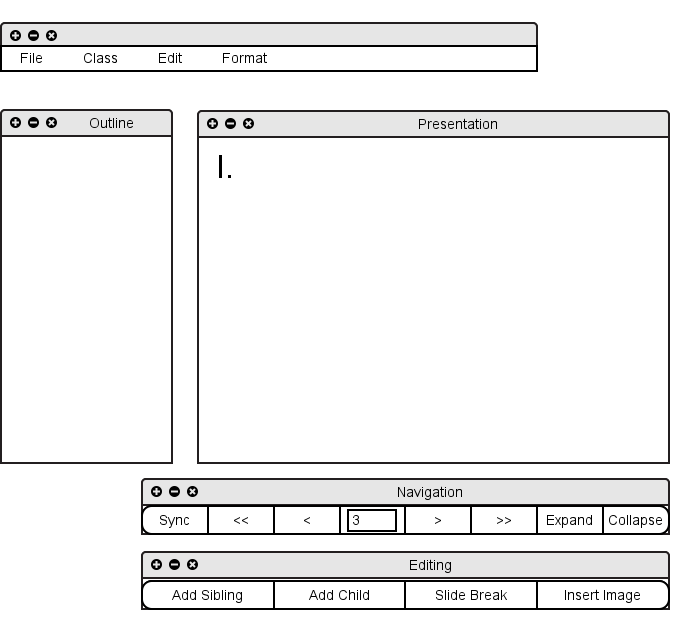
Figure 2.1.1: Initial user interface for instructors.
The initial display consists of the following windows:
When a student starts E-Class, they are prompted to log in, then to choose among classes in which they are enrolled that have a currently active session. These dialogs are shown in Figure 2.1.2. A menu bar provides alternative access to these actions as well as less common commands.
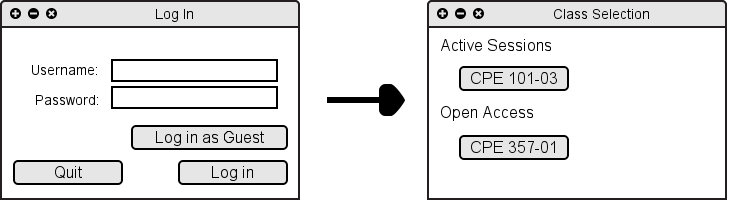
Figure 2.1.2: Initial prompts to student users.
The following commands are available in a menu bar:
File
	New
	Import...
	Open...
	Save
	Save As...
	Export...
	Exit
Class
	Open Class...
	Start Presentation
	Enrollment...
Edit
	Undo
	Redo
	Cut
	Copy
	Paste
	Delete
	Select All
	Find...
Format
	Bold
	Italics
	Style...
The File menu contains typical commands for manipulating presentation data files and performing other system-level functions. 'File > New' opens a new presentation document in a new window. 'File > Import' allows for importing an HTML file. 'File > Open' opens an existing presentation document. 'File > Save' saves the currently active presentation document. 'File > Save As' allows the current presentation document to be saved on a different file from which it was opened or most recently saved upon. 'File > Export' includes options to save annotated slides in PDF format. 'File > Exit' exits E-Class.
The Class menu contains commands for managing the class. 'Class > Open Class' allows the instructor to connect to the database of information about a class they are teaching. 'Class > Start Presentation' starts a presentation session with the active presentation document and the active class. 'Class > Enrollment' opens the class roster window.
The Edit menu contains commands for manipulating data during editing. 'Edit > Undo' undoes the most recently completed editing commands. Repeated successive invocations of 'Undo' will undo successively earlier commands. 'Edit > Redo' redoes the most recently undone commands. Repeated successive invocations of 'Redo' will redo the series of undone commands in reverse order. 'Edit > Cut' removes and copies the currently selected data in the current window. 'Edit > Copy' copies the currently selected data without removing it. 'Edit > Paste' inserts the most recently cut or copied data at the currently selected edit point in the current display. 'Edit > Delete' removes the currently selected data without copying it. 'Edit > Select All' selects all editable data in the current display. 'Edit > Find' performs a search for a given text string; successive invocations of search with an unchanged search string searches for further occurrences of the string until all occurrences are found.
The Format menu contains basic commands for formatting text in presentation content or the chat window. 'Format > Bold' toggles whether the selected text is shown in a bold font. 'Format > Italics' toggles whether the selected text is shown in italic type. 'Format > Style...' opens a dialog for configuring CSS style rules for the presentation.
The editing toolbar, described in more detail in section 2.2.1, contains four commands: 'Add Sibling' and 'Add Child' to add new topics to the presentation, 'Slide Break' to organize the presentation into slides, and 'Insert Image' to add an image to the presentation.
The navigation toolbar, described in more detail in section 2.4.1, contains commands to change which slide of the presentation is currently displayed, and to expand and collapse the content of topics within a slide.
The following commands are available in a menu bar:
File
	Open...
	Connect to Session...
	Exit
'File > Open...' opens a recorded presentation session from a file. 'File > Connect to Session...' opens a dialog allowing the student to select a class they are enrolled in with a currently active presentation session. 'File > Exit' closes E-Class.