The instructor has two different options to move between topics in a presentation. The first option is the navigation bar. The instructor may simply click the "Next" button in the navigation bar, as seen in Figure 2.4.1.1. When the instructor presses the "Next" button, the next set of information is displayed as per the defined slide breaks or E-Class's dynamic "slidifying." The "First," "Last," and "Previous" buttons also perform their respective actions in regards to navigating through the slides. The "Go To" field is a field in which the user can input a number, n. The presentation then naviagates to the nth slide in the presentation.

Figure 2.4.1.1
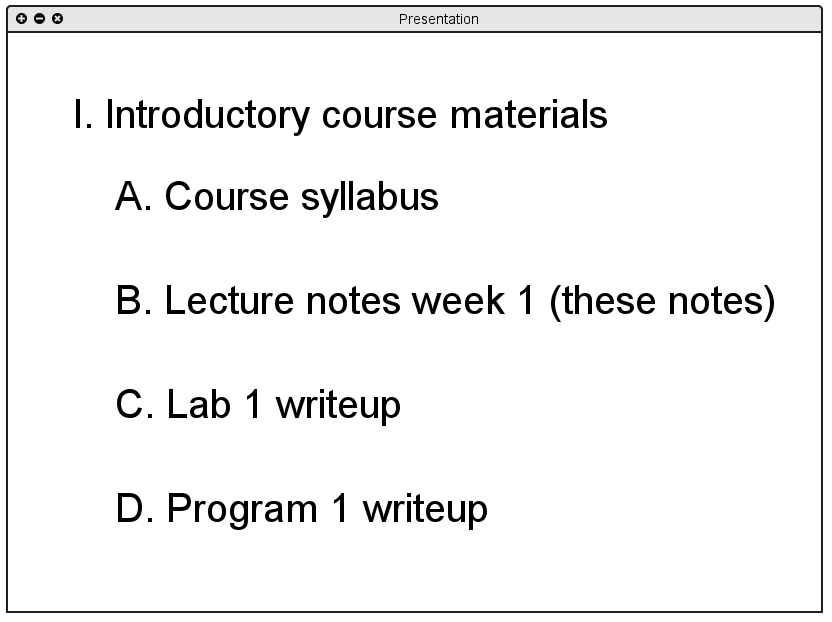
Figure 2.4.1.2
For example, if the instructor is viewing the presentation above (Figure 2.4.1.2), pressing the "Next" button advances the presentation to the first slide associated with topic II, "What is a program?". The result of this action is shown below, in Figure 2.4.1.3.
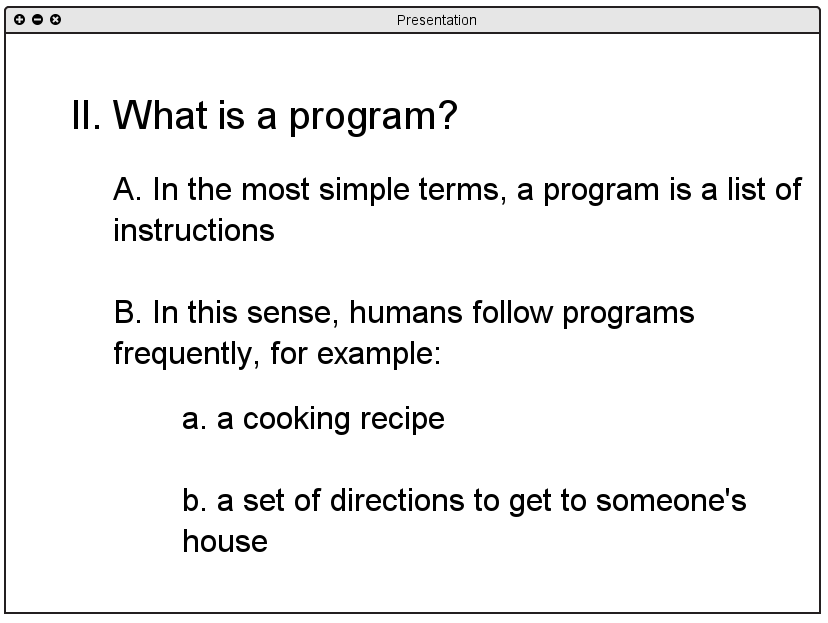
Figure 2.4.1.3
The "Expand" and "Collapse" expand and collapse the associate outline point within the slide. This is exlained in further detail in section 2.4.3.
Another tool the instructor has to move between topics is the outline. When the user clicks a section header or subsection in the outline window (shown in Figure 2.4.1.4), the presentation window navigates to the first associated slide. Particularly, if the lecture is in a looser format or if someone brings up previous or upcoming information for discussion, using the outline to make large jumps between big-picture material is useful; the outline makes moving between distinct ideas and showing the hierarchical relations between them easier and more efficient.
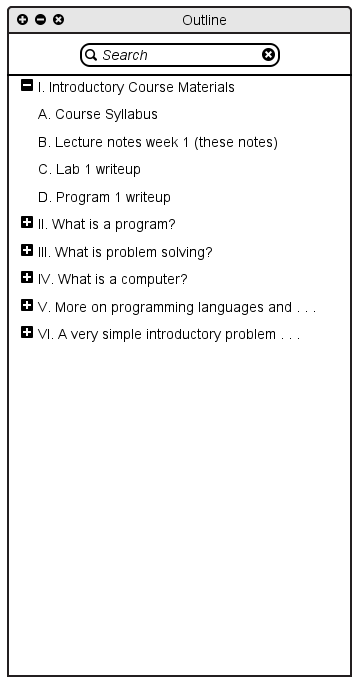
Figure 2.4.1.4
In continuing the previous example, if the instructor is done viewing the topic "What is a program?", the instructor has the ability to press "What is the computer?" in the outline. This advances the presentation to the first slide associated with that topic. The result of this action is shown below, in Figure 2.4.1.5.
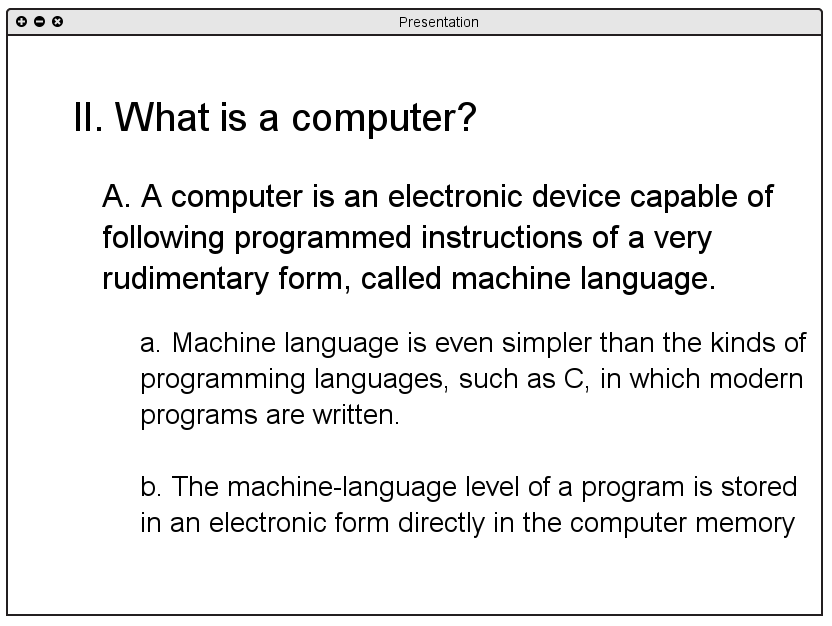
Figure 2.4.1.5