Using the layers window (shown in the previous subsection), the instructor can reorder students' layers, change their transparency, or change default annotation colors (helpful for distinguishing separate students' work).
2.3.4.1. ReorderingTo change the ordering of layers, the instructor can just click and drag the layer to the desired location in the layers window relative to the other visible layers. Layers higher up in the layers window are placed above layers lower in the layers window.
2.3.4.2. TransparencyTo alter a student's layer's transparency (or, inversely, its opacity), the instructor may slide the transparency slider next to the student's layer in the layers window anywhere between 0% transparent (completely visible) or 100% transparent (completely invisible). Before and after images are shown in Figures 2.3.4.2.1 and 2.3.4.2.2 where the instructor increases the transparency of student A's layer.
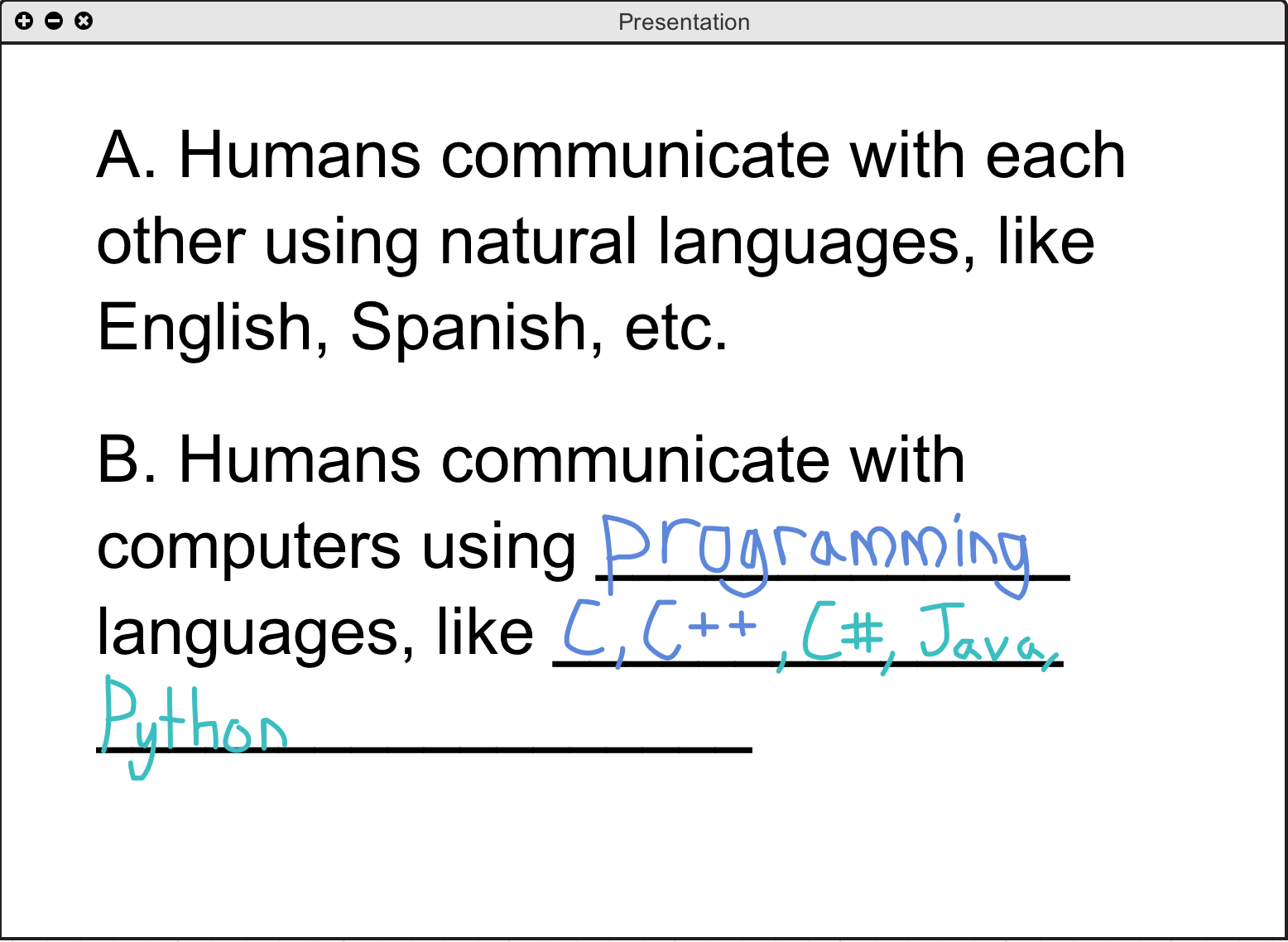
Figure 2.3.4.2.1: A slide annotated by two students
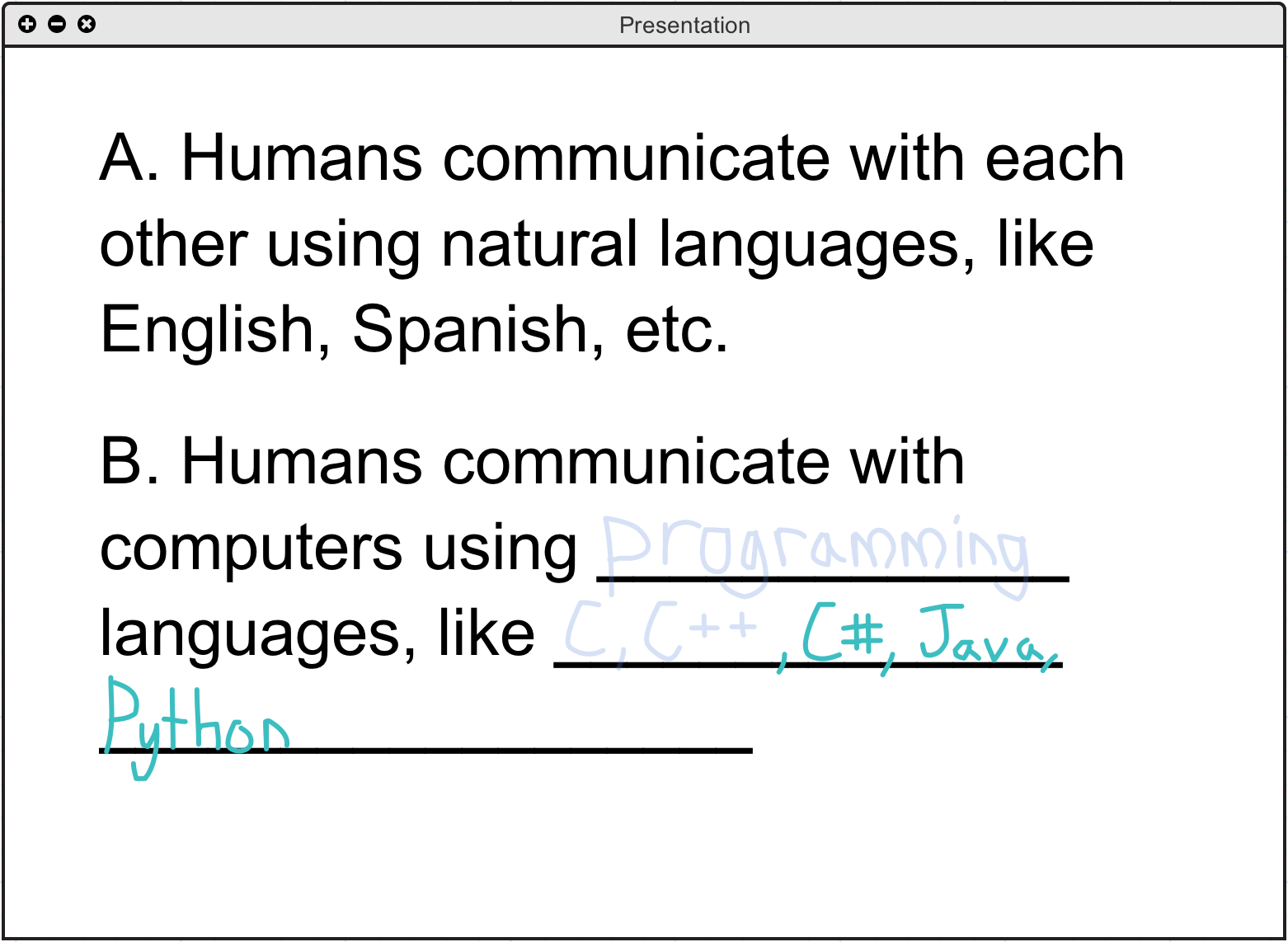
Figure 2.3.4.2.2: An annotated slide with one student's layer's transparency increased
To help differentiate between the annotations and drawings of different students, the instructor has the option of designating a specific color for a student's layer. By default, students' chosen colors are displayed to the rest of the class, but to override that, the instructor may click the colored box next to their layer, choose a new color from the dropdown selector (shown in Figure 2.3.4.3.1), and then all of the elements in the student's layer will be shown in that color. A resulting example is shown in Figure 2.3.4.3.2 where the instructor changes the color of Student B's annotations to stand out more from Student A's work.
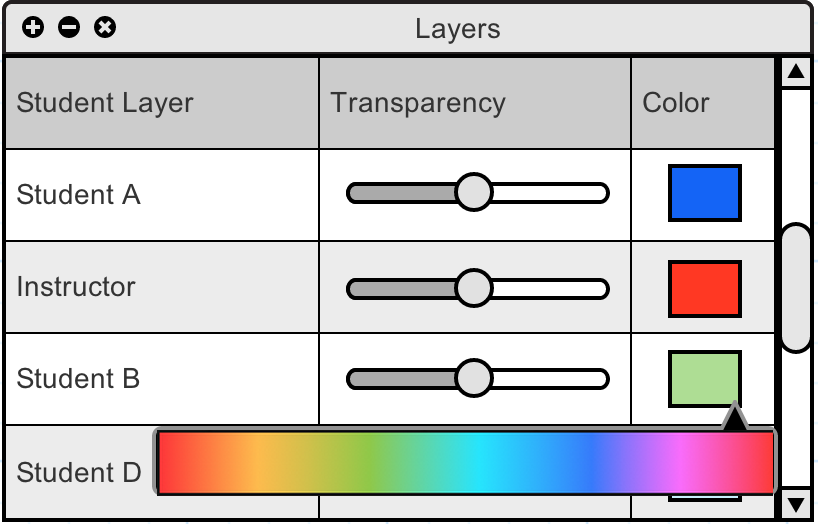
Figure 2.3.4.3.1: The instructor's layers window showing the color selector
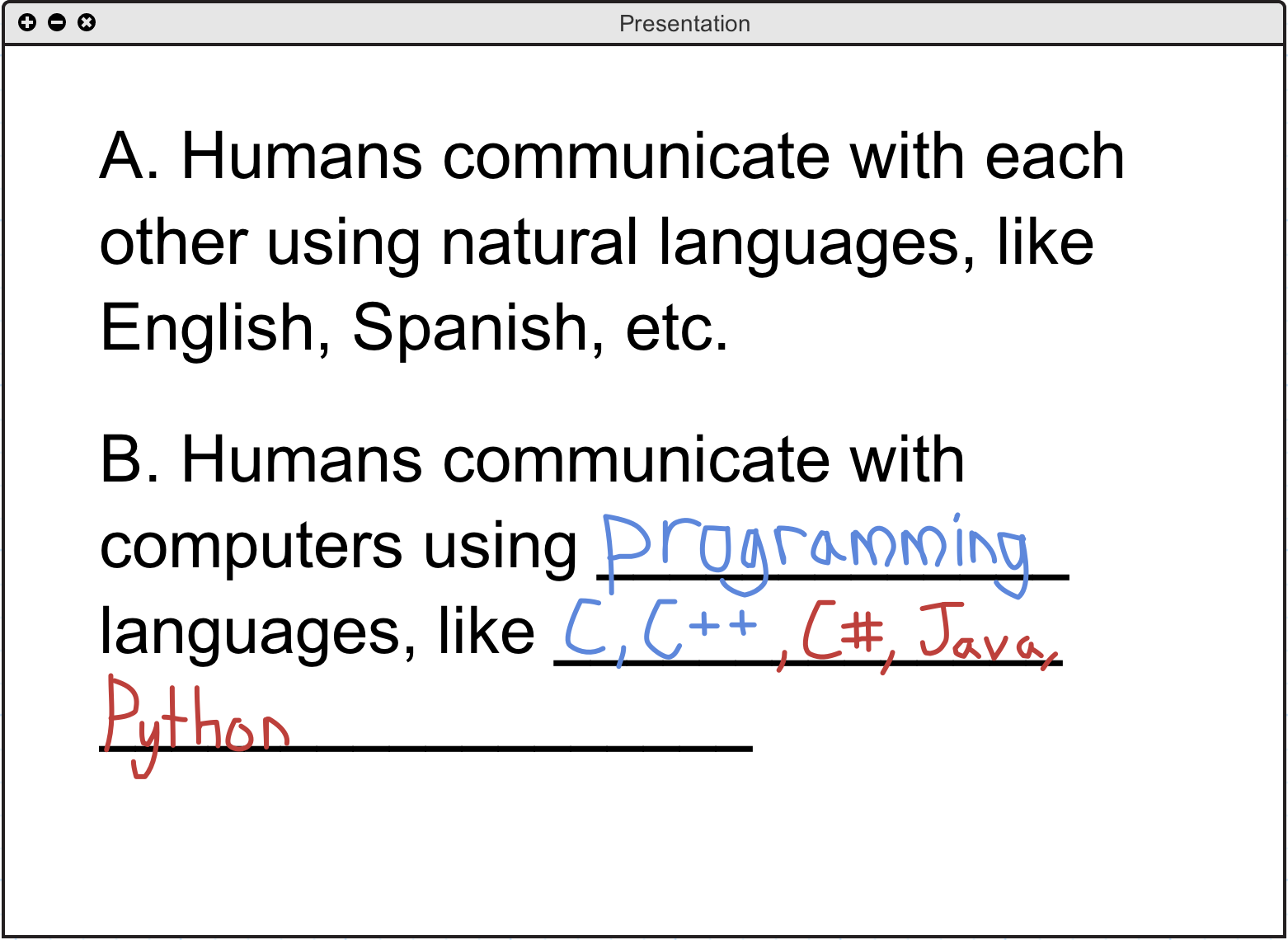
Figure 2.3.4.3.2: An annotated slide with one student's layer's color altered by the instructor