For an instructor to display a specific student's public layer to the entire class (possibly because of the student requesting such by raising their hand), the instructor must find the student in the participants window (if the student raised their hand, they will automatically be at the top of the window) and right-click on their name and click "Show" (shown in section 2.5.1). This will place their public layer at the top of the instructor's layers window, displaying the annotations to the entire class. To hide a student's layer, the instructor unchecks the "Show" checkmark for the student in the participants window, or they right-click the student's layer in the layers window and select "Hide". This can also be accomplished by clicking on the layer and pressing the "Delete" key. The layers window is shown in Figure 2.3.3.1
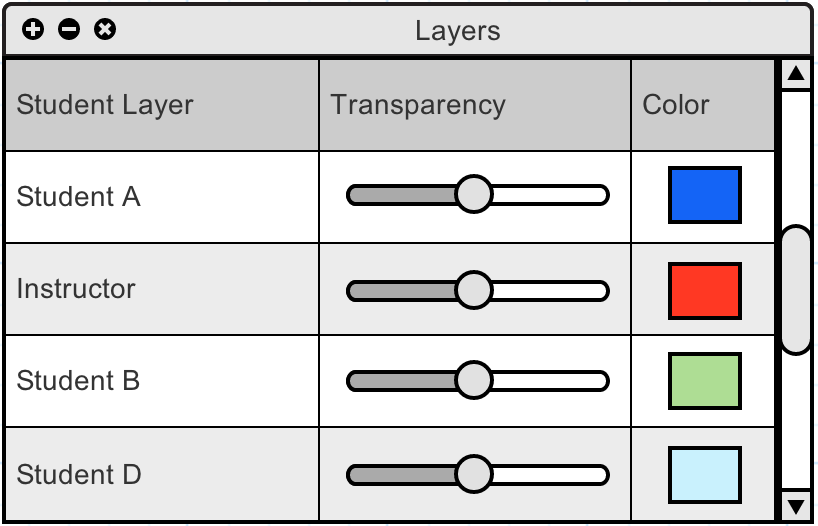
Figure 2.3.3.1: The instructor's layers window
An example in this scenario is shown in Figures 2.3.3.2 through 2.3.3.4. In this case, the instructor is asking students to fill in a missing term and some examples analogous to English and Spanish for computers (Figure 2.3.3.2). Students add answers to their public layer as described in the previous subsection. To see what Student A has written as an answer, the instructor displays their layer, as just described, for discussion with the class (Figure 2.3.3.3). In order to interact with more of the class, the instructor can hide Student A's answer (by hiding their layer) and show Student B's layer, or they could ask Student B to annotate, directly, Student A's answer to show a correction or variation, as shown in Figure 2.3.3.4.
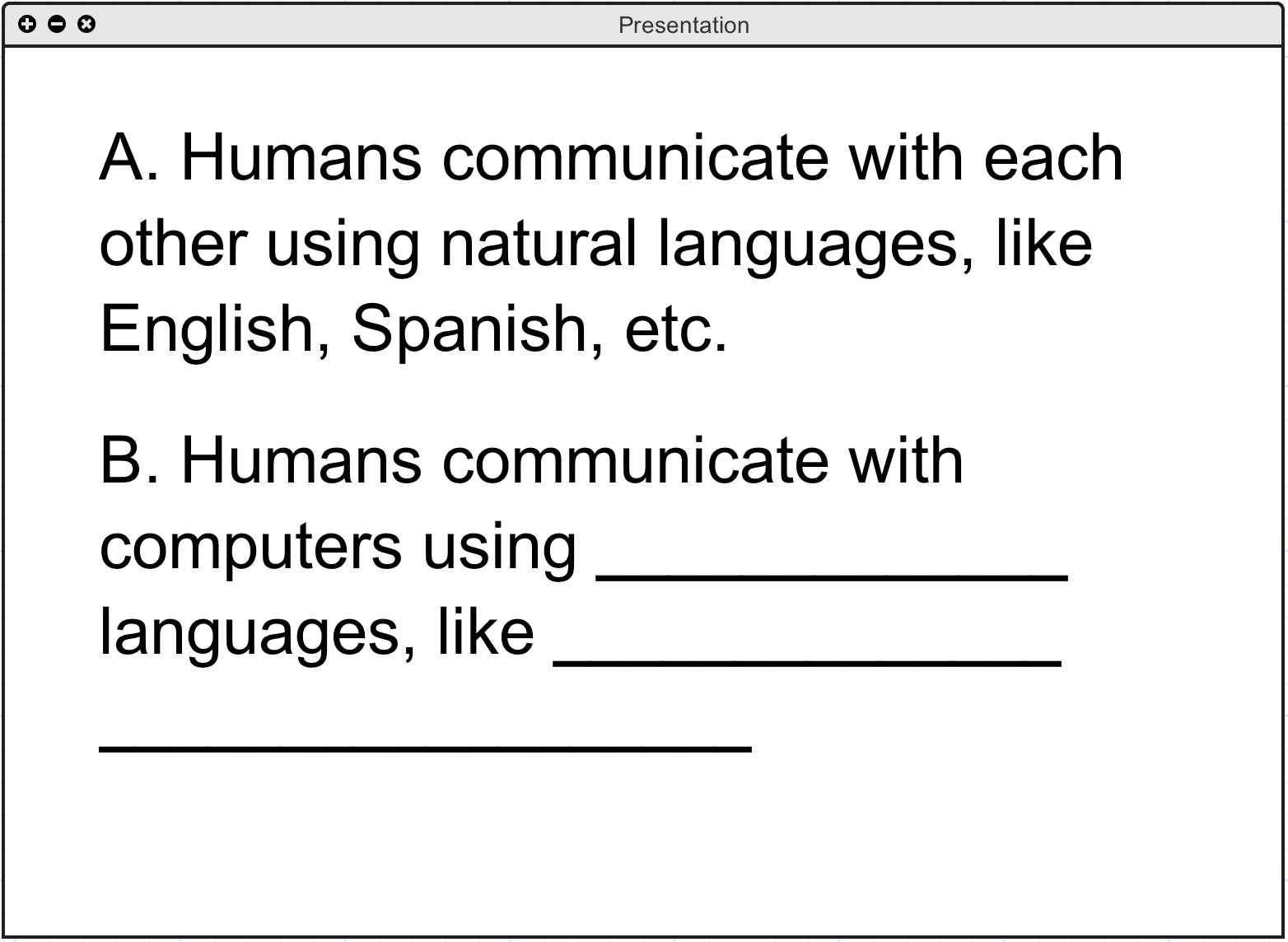
Figure 2.3.3.2: An un-annotated slide presented by the instructor
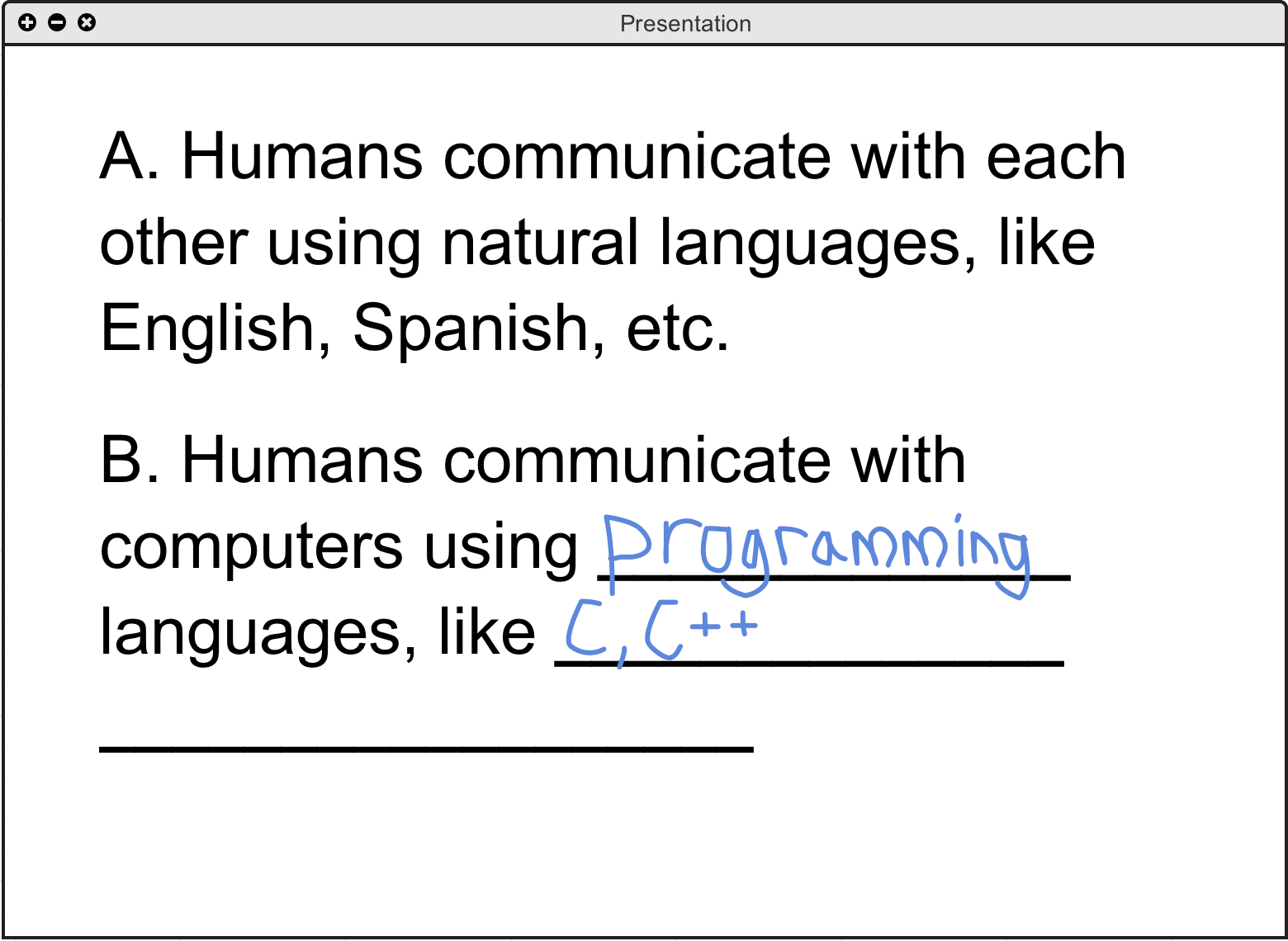
Figure 2.3.3.3: A slide annotated by one student
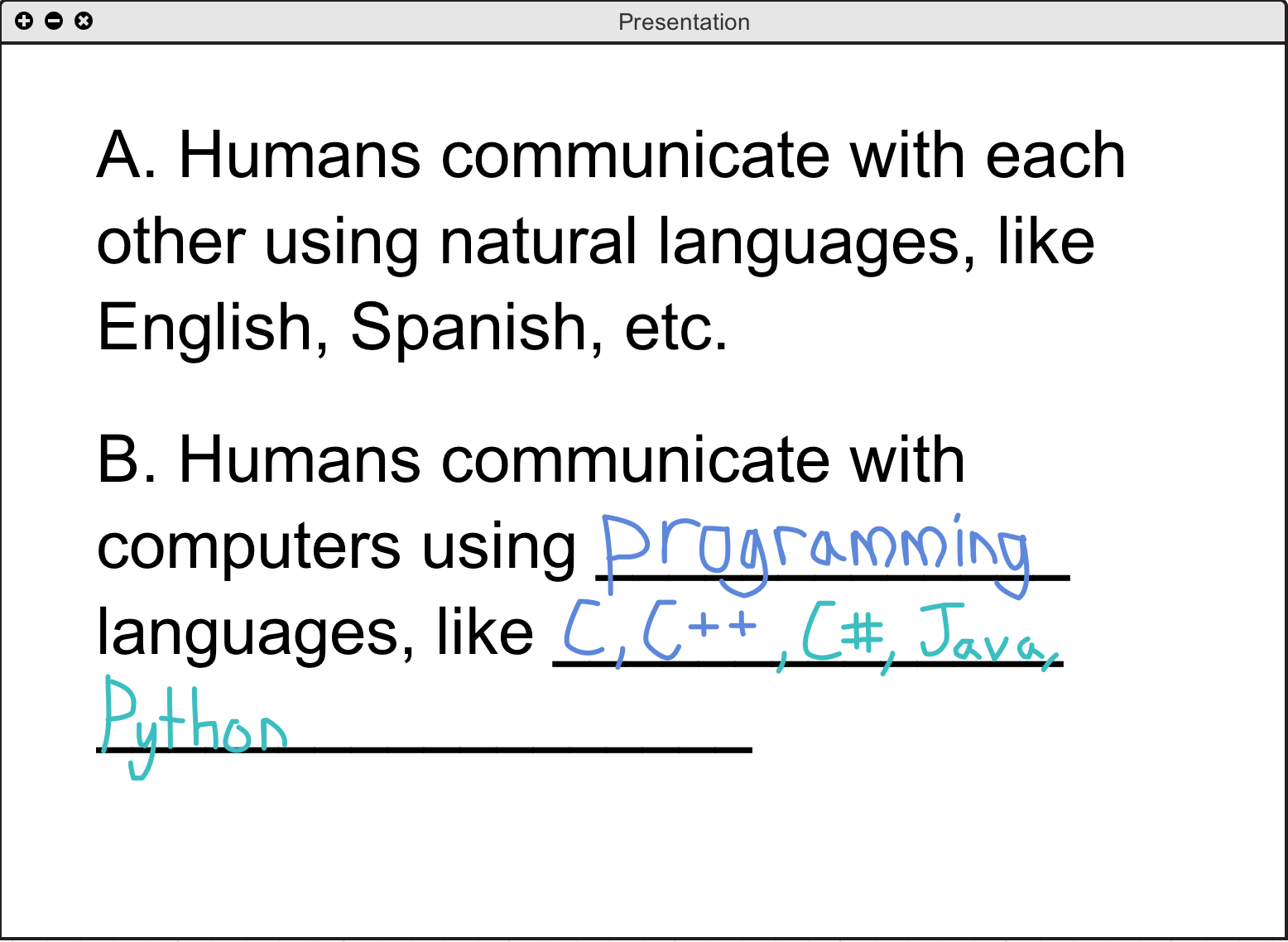
Figure 2.3.3.4: A slide annotated by two students