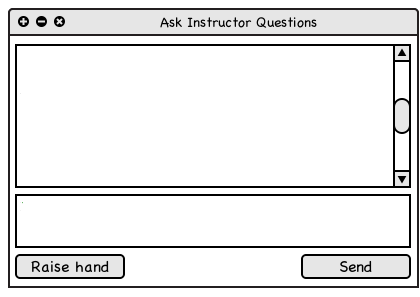
Figure 2.5.1.1: An empty Chat window
This scenario shows multiple students interacting by drawing on their public layer, with new students joining by either asking the instructor questions or "Raising" their hand.
The instructor's point of view is shown throughout the scenario to demonstrate how the instructor can control and fasilitate interactions through the Participants Window, the Layers window, and the Chat window, shown below in Figure 2.5.1.1.
Figure 2.5.1.1: An empty Chat window
The Participants window and Layers window initially look like those in Figure 2.5.1.2 and Figure 2.5.1.3, when no student is sharing a public layer.
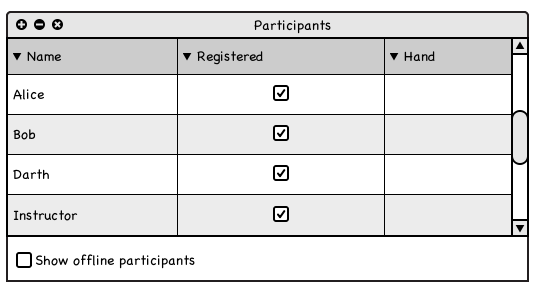
Figure 2.5.1.2: The participants
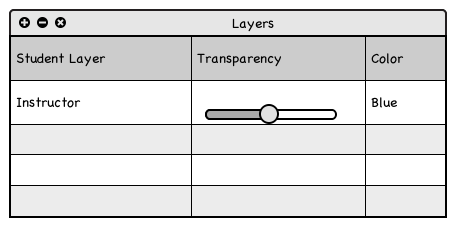
Figure 2.5.1.3: A Layer window with no students
In the middle of a presentation with this lecture as showin in Figure 2.5.1.4. Alice is wondering how the code works, so she asks the instructor by typing a question in the Chat window as shown in Figure 2.5.1.5. By default, the instructor is the receiver of messages in the Chat window.
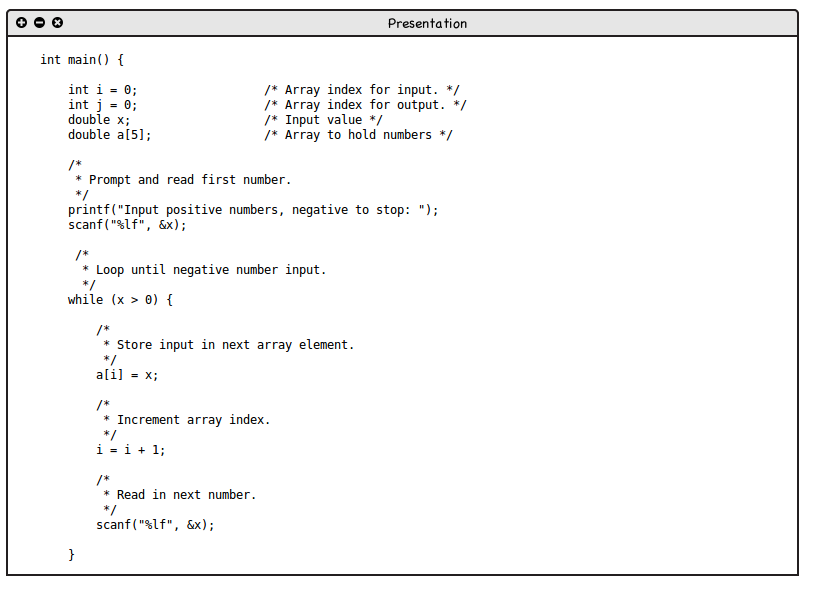
Figure 2.5.1.4: The presentation
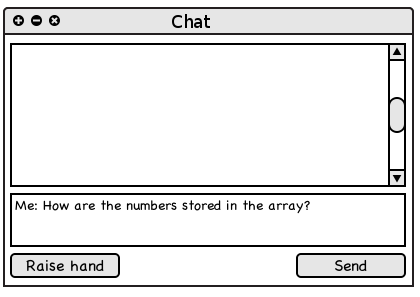
Figure 2.5.1.5: Alice asks the instructor a question
The instructor, receiving Alice's question responds and asks Alice if she wants to trace the code by drawing on her public layer.
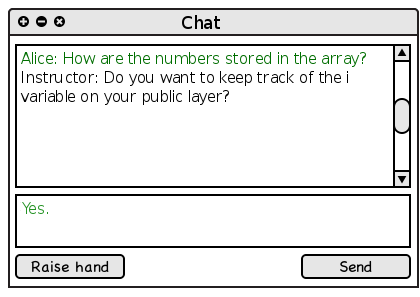
Figure 2.5.1.6: The instructor responds to Alice's question
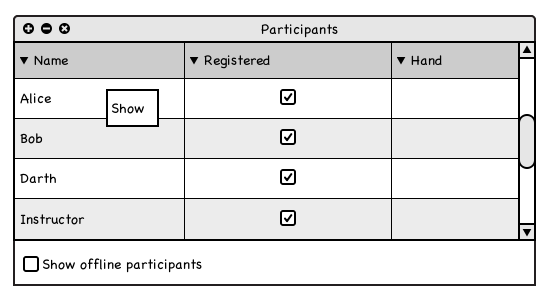
Figure 2.5.1.7: Sharing Alice's public layer with the class
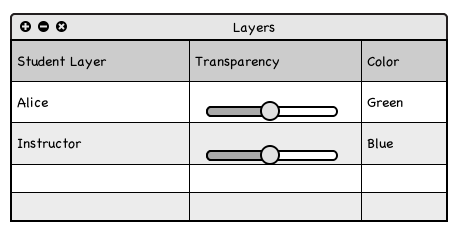
Figure 2.5.1.8: Alice's public layer in the Layers window
Alice begins making annotations on the slide, drawing a representation of the array as shown in Figure 2.5.1.9 below.
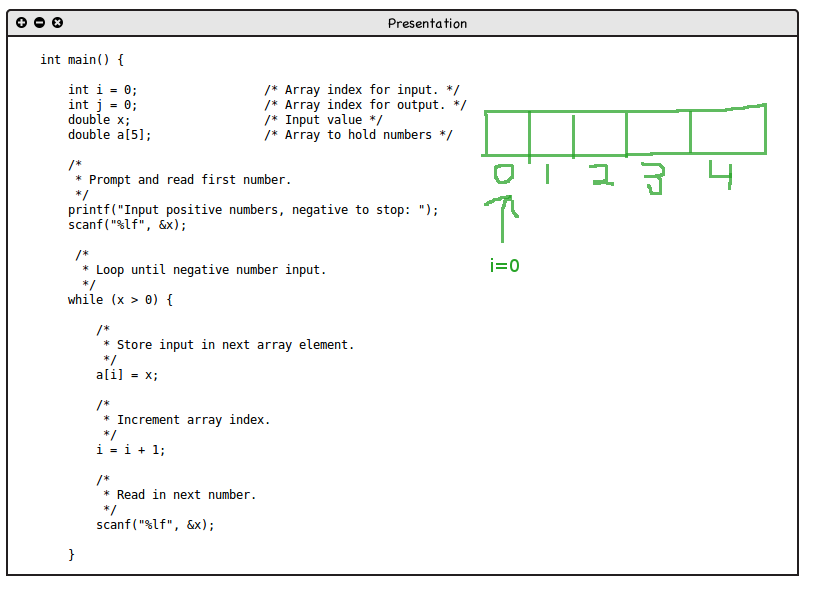
Figure 2.5.1.9: Alice makes annotations
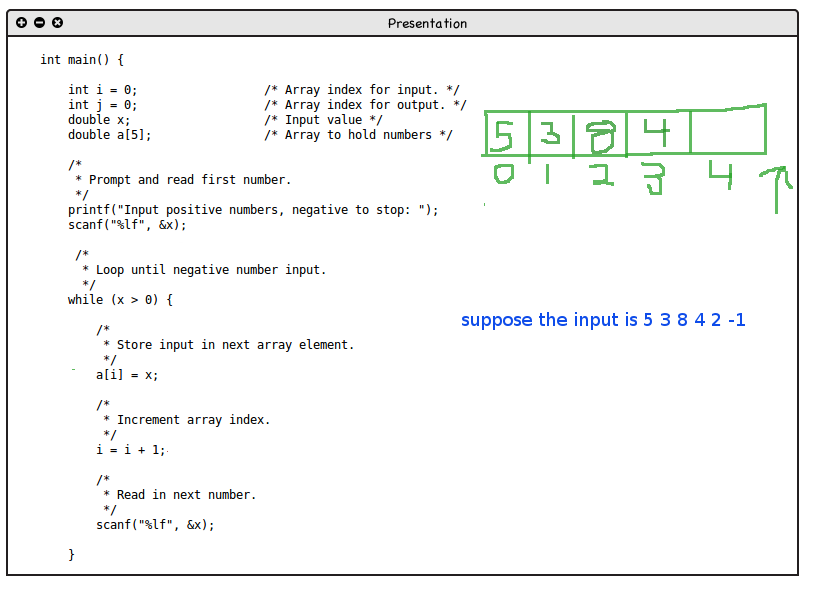
Figure 2.5.1.10: The instructor also makes annotations
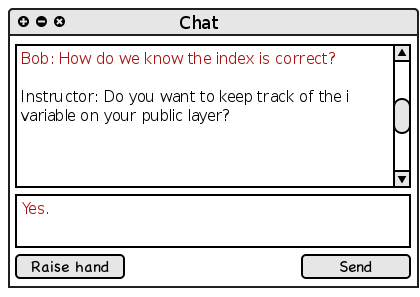
Figure 2.5.1.11: Bob asks the instructor a question and raises hand
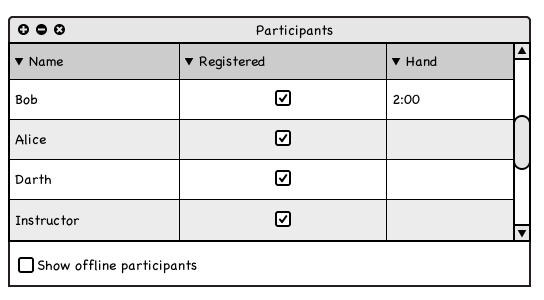
Figure 2.5.1.12: Bob's raised hand
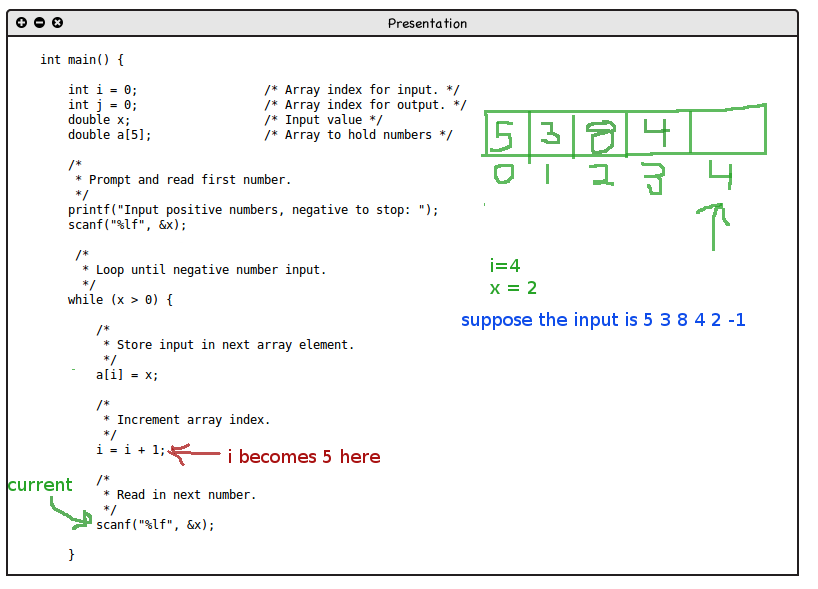
Figure 2.5.1.13: Bob tries to analyze the edge case.
Students can also use the Hand Raising button of the Chat window to notify the instructor that they want to share their public layer. See 2.3.3. Displaying Layers for more info.
Meanwhile, Darth (in purple), wanting to contribute a comment to the analysis, only raises his hand. The instructor shares his public layer and Darth adds an insightful comment.
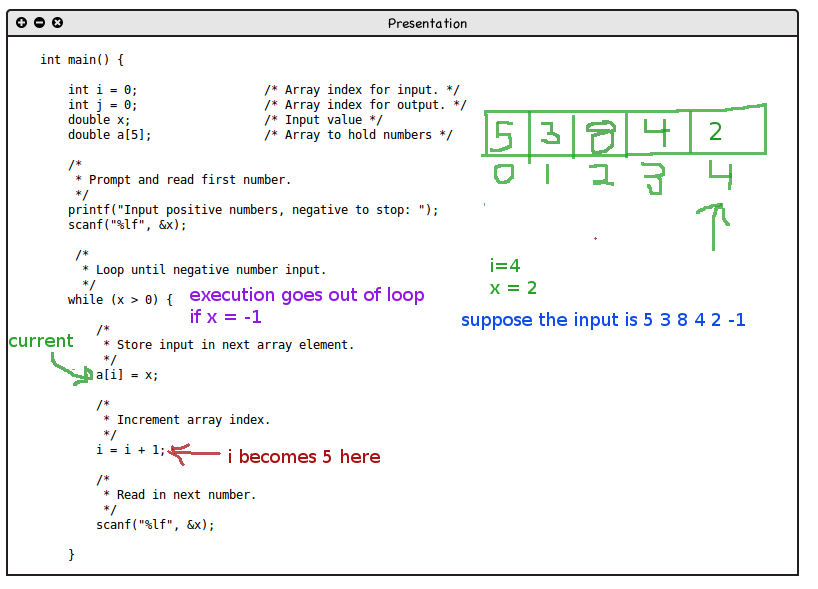
Figure 2.5.1.14: Darth contributes a comment to the shared layers
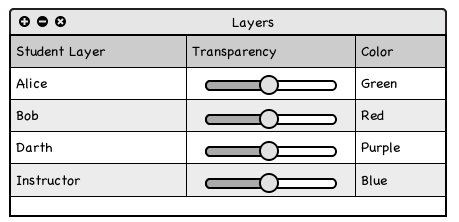
Figure 2.5.1.15: Alice, Bob, Darth and the Instructor's layers shared with all students
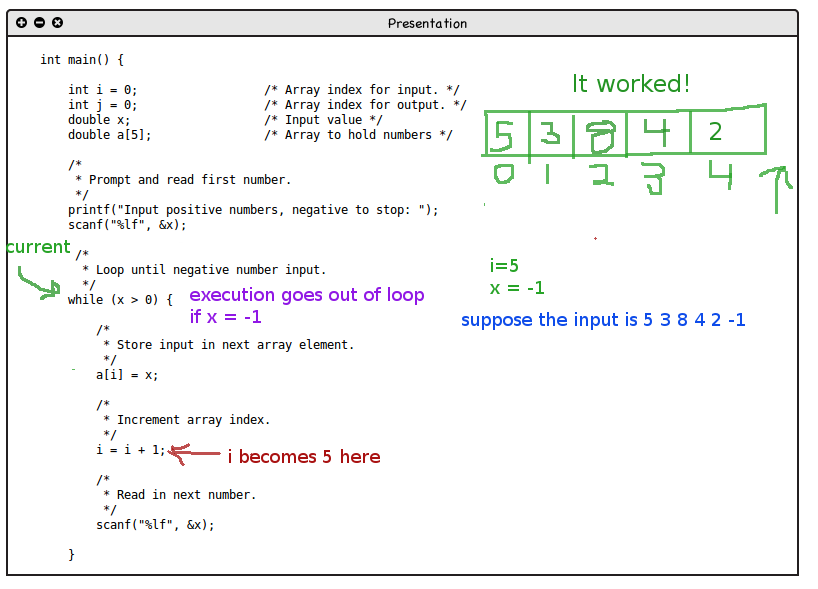
Figure 2.5.1.16: Alice completes the code trace