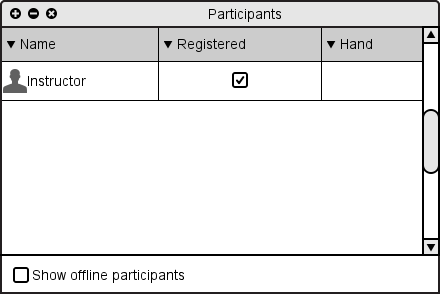
Figure 2.6.1: Participants window after instructor starts presentation session, and no students have joined.
Whereas the class roster (introduced in the next section) is used to manage class enrollment and other persistent class management, the Participants Window is a way to display and manage students that are currently in an E-Class session.
When a presentation session is started, the Participants Window opens. By default, the Participants Window has three columns: the name of the user, a non-modifiable checkbox indicating whether the user is registered or an anonymous guest, and a non-modifyiable text display showing how long a partcipant has had their hand raised. Figure 2.6.1 shows the participants window just the presentation session is started, before students have joined.
Figure 2.6.1: Participants window after instructor starts presentation session, and no students have joined.
As each student joins the participation session, an additional row is added to the Participants Window (or their "Present" checkbox is toggled, if Show offline participants is selected).
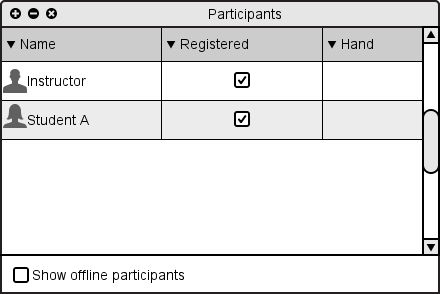
Figure 2.6.2: Participants window after one student joins the presentation session.
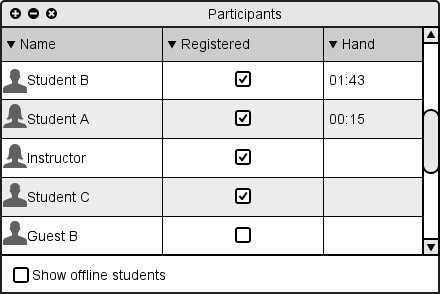
Figure 2.6.3: Participants window after all students have joined the presentation session.
The students are then sorted by default first by how long their hand has been raised, then by whether or not they are registered, and lastly by the alphabetic order of their names, as shown in Figure 2.6.5.3 above.
To change the sorting of the Participants Window, the user clicks on the column heading, which sorts the participants by their data in the associated column.
To view absent students in the Participants window, the user selects the "Show offline students" checkbox. This changes the Participants Window to include the "Present" column, which has an non-modifiable checkbox that is checked it the student is present, and unchecked otherwise. This also adds all students in the class roster who aren't already in attendance to the Participants Window. Note that, since guest participants are not enrolled in the class roster, guests will never appear in list of absent students.
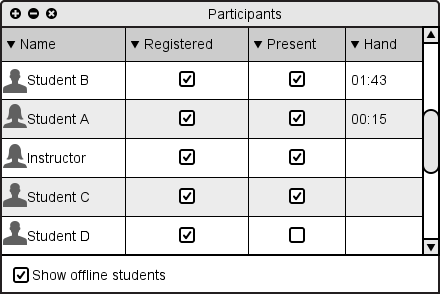
Figure 2.6.2.1: Participants window after selecting "Show offline students".
Unselecting "Show offline students" returns the Participants Window to the default state, as shown in Figure 2.6.1.
To set permissions on a user in the Participants Window, the instructor right-clicks on the user and then selects "Permissions...". This brings up the a Permissions window, as shown in Figure 2.6.3.1.
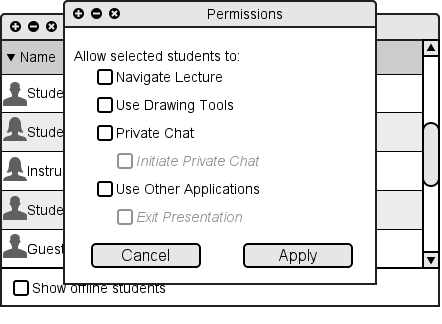
Figure 2.6.3.1: Participants Window permissions.
Note that this permissions window is identical to the one brought up in the roster's permissions. For more information about permissions, see 2.7.2.1. Permissions Details.