In navigating through a presentation outline, the instructor has the ability expand and collapse different topics in the outline, to show or hide relevant (or irrelevant) material. To expand a section of content, the user has the ability to click the plus button to the left of the section. When the user presses this button, that portion of the outline will "expand" and reveal the subsection headers in the next level down. For example, in Figure 2.4.3.1 below, the instructor has pressed the expand button next to "Introductory Course Materials" to show the "Course syllabus", "Lecture notes week 1", "Lab 1 writeup", and "Program 1 writeup" components that reside beneath it.
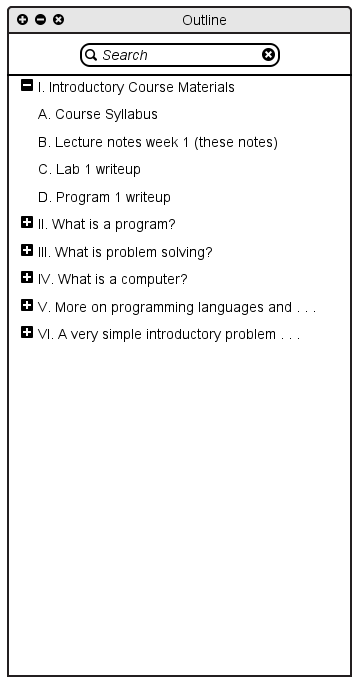
Figure 2.4.3.1
Similar to the expansion of presentation topics, the instructor may "collapse" material that is no longer useful for the discussions at hand using the minus button next to the section. When the user presses this button, the subtopics disappear and the minus button turns to a plus button. For example, in Figure 2.4.3.2 below, collapsing "Introductory Course Materials" would hide the "Course syllabus", "Lecture notes week 1", "Lab 1 writeup", and "Program 1 writeup" subsections.
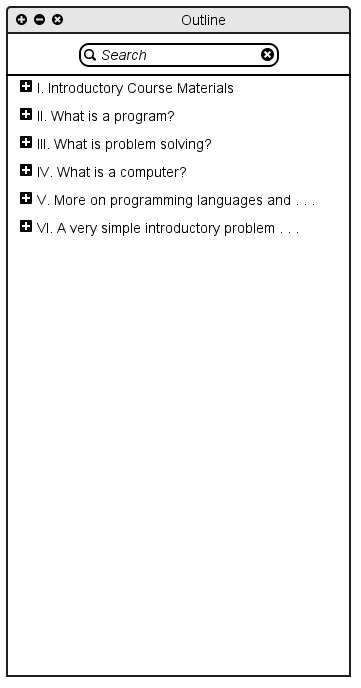
Figure 2.4.3.2
The user also has the ability to expand and collapse topics within a slide. The user presses the "Expand" and "Collapse" buttons in the navigation toolbar in the presentation window, as shown in Figure 2.4.3.3. to expand and collapse topics within a slide. The starting view of a slide is called the "standard state". Drawing layers are only enabled when the slide is in it's "standard state". When the student expands or collapses a topic within a slide, the notes clear and drawing is disabled. An example of this is shown in Figure 2.4.3.4.

Figure 2.4.3.3
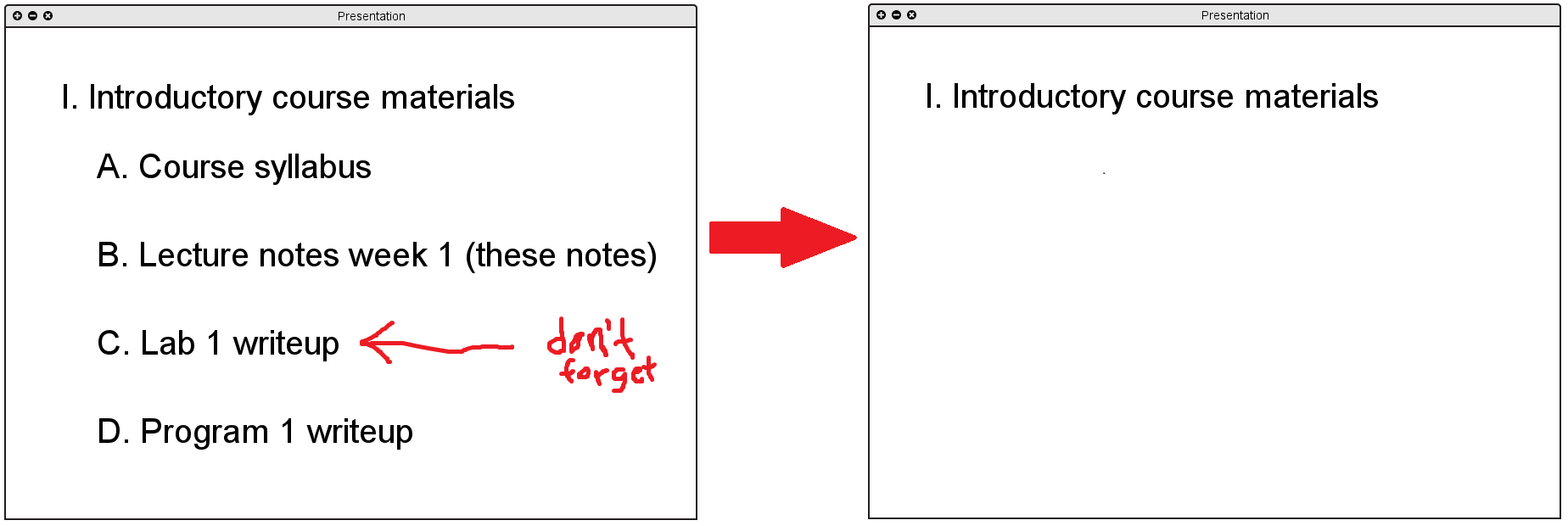
Figure 2.4.3.4
When the user expands content past the end of the presentation window, a scrollbar appears and the user has the ability to scroll down and view additional information. The result of this is shown in Figure 2.4.3.5.
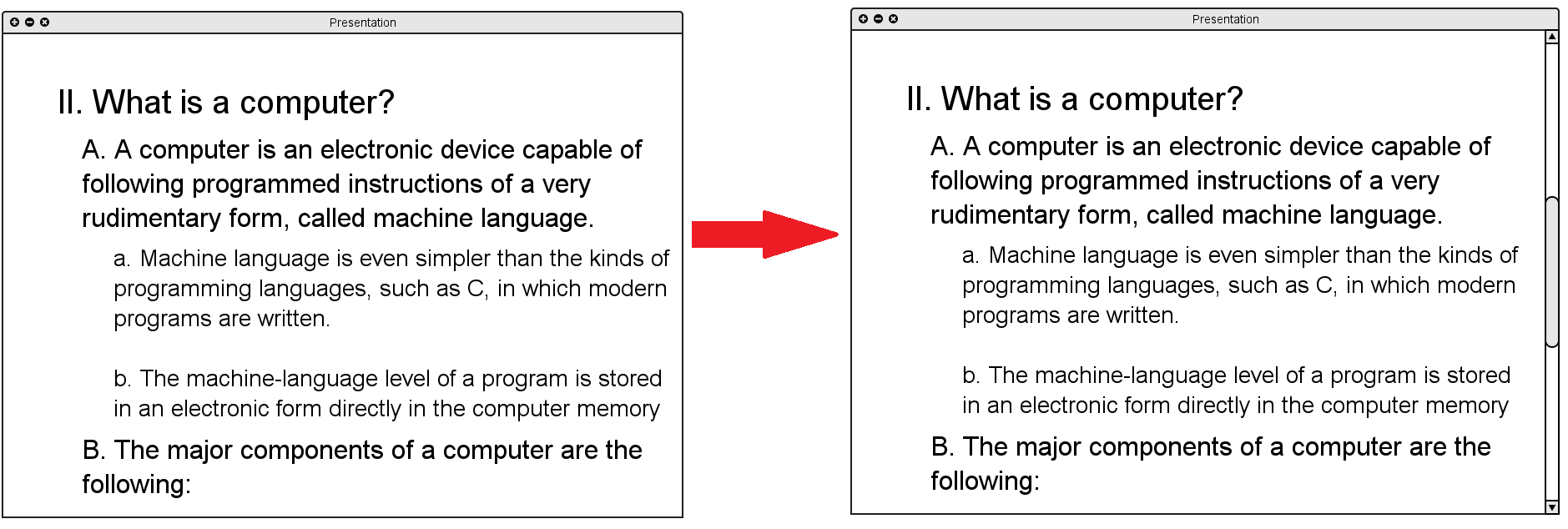
Figure 2.4.3.5