Scenarios in this section illustrate Test Tool functions available to teachers for grading administered tests. These functions are only available for teachers and instructors using the Test Tool.
After selecting the 'Grade Tests' feature from the intro screen, the instructor
is brought to the following figure.
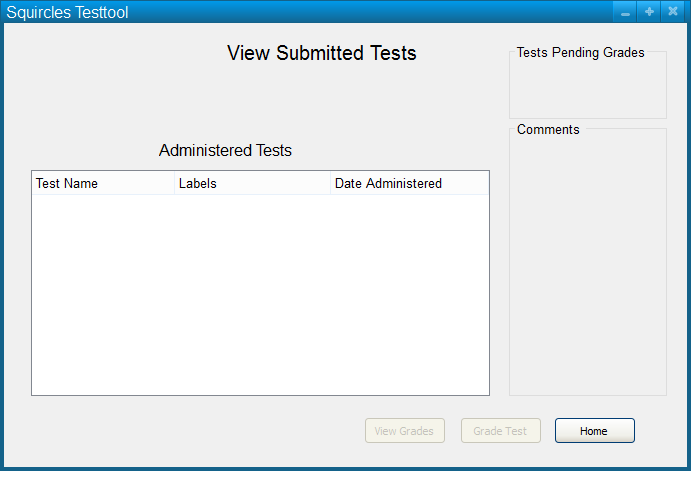
Figure 1: Empty Administered Tests View
Figure 1 shows the initial test grading page, with no prior use of the tool's test administration features.
After a test is administered and submitted by students, an entry will be added to the empty table
in Figure 1. The next figure displays the same initial page that has been loaded, but this time
after two tests have been administered.
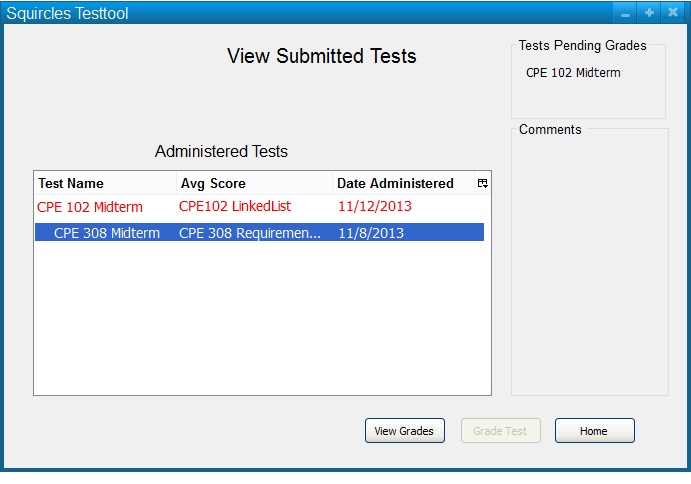
Figure 2: Viewing Administered Tests.
This new screen displays all of the instructor's tests administered with Test Tool. Each entry in the table corresponds to a collection submissions (for the same test) by multiple students, fetched from a secure department server.
When a test entry is selected, the bottom-right-hand corner displays comments (if any) that the instructor has left for the test previously. Along with individual comment notes, this helps instructors find content of interest.
Tests that have been administered, but not reviewed by the instructor, are
"Pending Review". The entries for these particular tests in the
'Administered Tests' table are differentiated by their RED text. When
these pending test entries are selected, the tool presents a button
'Grade Test' that takes them to the figure below.
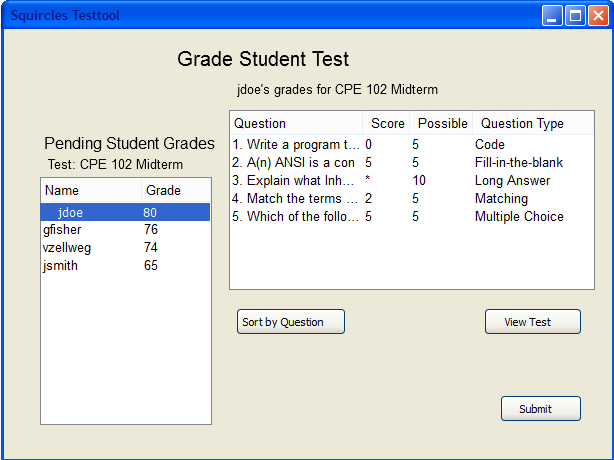
Figure 3: Grading a Test
On this new page, Test Tool has opened the selected, grades-pending, test file. All students who were registered to take the test will show up on the table on the left, identified by their department login name. There is always at least one entry in the student table, since only submitted tests are viewed here.
On the selection of a student, the display to the right fills with the student's
submitted answers. Entries with a '*' as a score require manual
grading by the instructor. Selecting an entry in the score table, then clicking
'View Question' will take you to the following page.
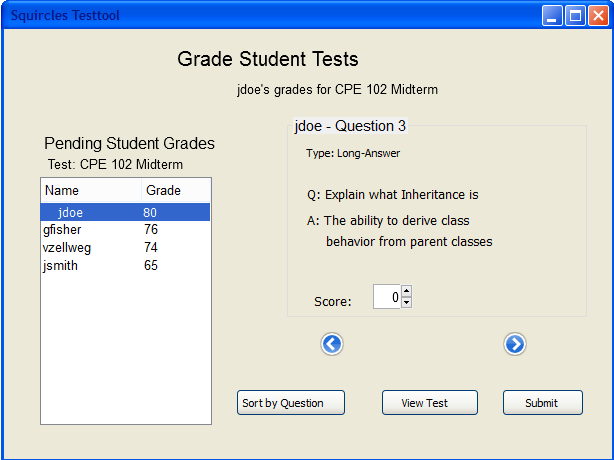
Figure 4: Grading individual Questions
In this page, the teacher can navigate through a student's individual answers, either confirming, changing Test Tool's automated grade, or entering their own. Changing these values automatically changes the table entries, but the 'Revert Scores' button can return all values in the table to their original values.
Alternatively, some instructors may find it helpful to view the answers of all
students, for a single question, while they grade. This functionality is
available by pressing the 'Sort by Question' button while selecting
the desired question. The corresponding table view is shown below.
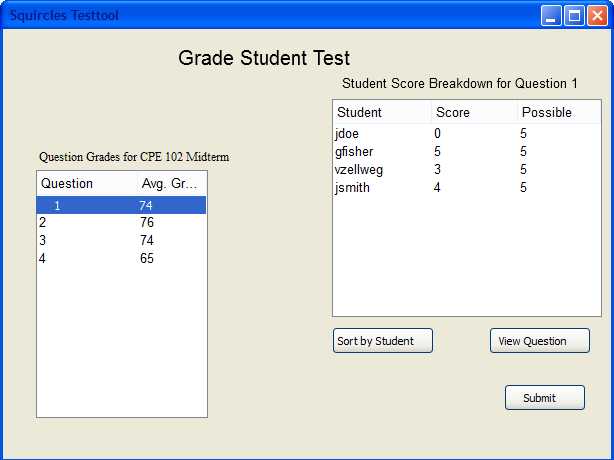
Figure 5: Test Grades View Sorted by Question
This figure shows breakdown of all student grades for a single question at a time. The table on the left contains all questions for the opened test, along with their respective average grades. The 'View Question' button still works for viewing the full questions individually.
Once all required instructor input has been obtained for the pending file, a button labelled 'Submit' will appear on the bottom of the page in any view. Once the instructor is satisfied with the entered scores, they can press 'Submit' to finalize the individual grades.
The instructor can view the grades for a test by navigating back to Figure 1, selecting the desired list entry, then clicking 'View Grades'
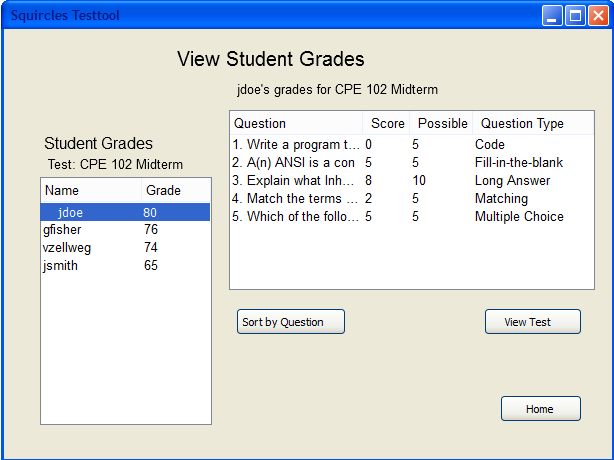
Figure 6: Test Grades View
Test Tool has just opened the grades from the selected test file. The default view has a list of students with submitted results on the left. The right table contains the selected student's scores for each question on the test.
This view does not show the content of each question, just the selected student's scores. As in the Test Grading page, the full content of each answered question can be view individually. This is done by selecting an entry in the right table and clicking the 'View Question' button.
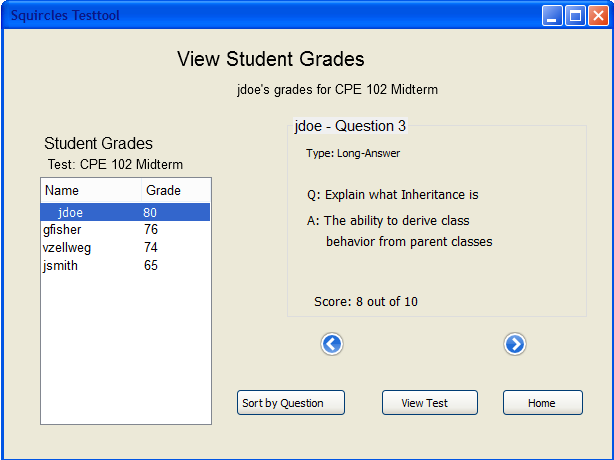
Figure 7: Alternate Test Grades View
The "Question View" displays the full questions and answers for the selected student, individually. The instructor can browse the questions with the blue arrows, similar to the Test Grading Figure.
Just like the Test Grading page, it is possible to view the scores of all
students across a single test question. To enable this view in the current
screen, click the 'Sort by Question' button. When selecting the
desired question.