This tutorial describes the Resource by Time Report
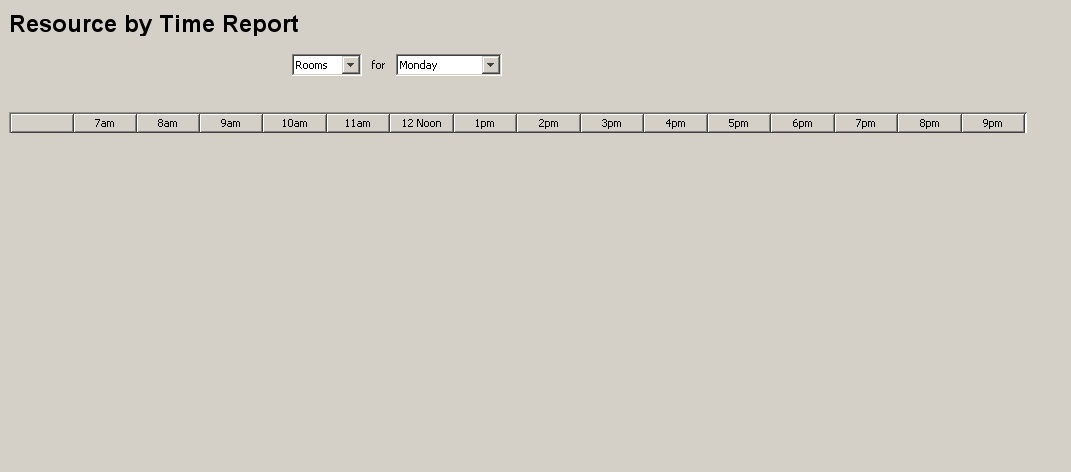
Figure 1: empty Resource by Time Report
In Figure 1 is shown a empty example of the Resource by Time Report. There are visible only the given times in the column headings and two drop down fields. The user can choose the weekday and the kind of Resource he wants to have a Report for.
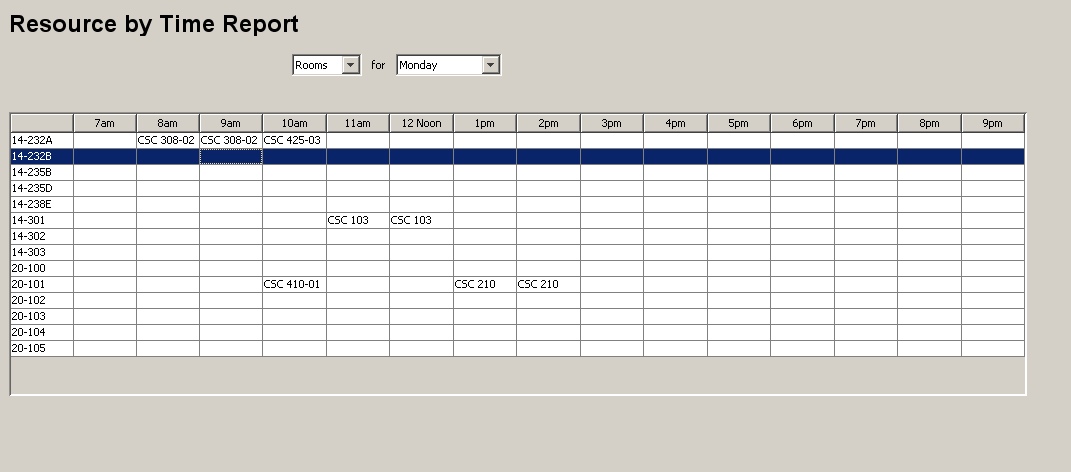
Figure 2: Resource by Time Report example
In the example in Figure 2 can be seen how a filled out Resource by Time Report
looks like. Here the user choose Rooms on Monday. So in the first column on the
left side there are listed all scheduled rooms. Beyond the according time there
are filled in the course sections, scheduled in the respective room.
Note: The Resource by Time Report is generated by the Deepthought Scheduler Tool
automatically. This is only possible if a Schedule is generated before.