This is the dialog that appears immediatelly when a conflict arises in the schedule.
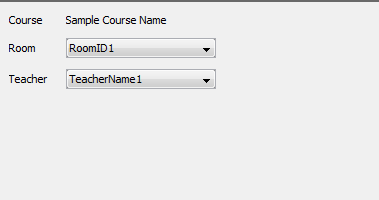
Below is an image of the panel used (inside Week View) to lock a resource. The user may use the apporpiate dropdowns to lock a room or a teacher to a given course section. The Deepthought algoritm will then hardcode these values into the schedule and work around them.
To change the room for a particular section of a course, the user activates the drop down for the room column. They can change the teacher, timeblock, and start time of the course with the teacher, timeblock, and start time fields respectively.