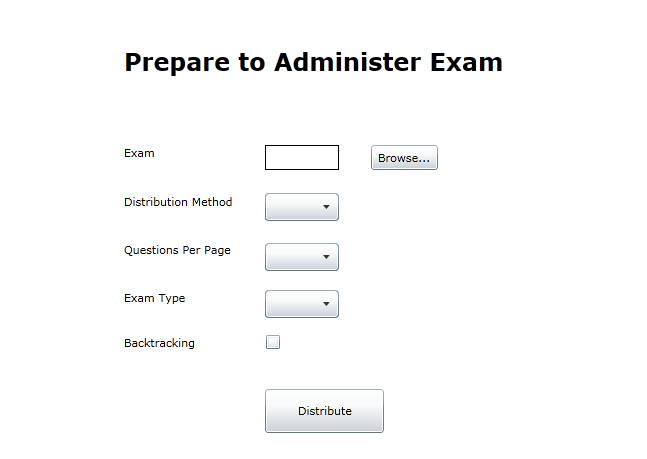
Figure 2.4.2.1a: Preparing to Distribute Test.
The proctored exam setting consists of an instructor administering an exam to a group of students in the same, physical room. The instructor and
each student each sits at his own personal computer while the exam is being taken.
Once the instructor clicks on the Handling tab, the system displays a window in the form of Figure 2.4.1a as shown on the
preview exam page. Assuming the instructor clicks the Distribute a Graded or Practice Exam button, the
system displays a page similar to Figure 2.4.2.1a.
Figure 2.4.2.1a: Preparing to Distribute Test.
The Exam field is where the instructor can specify which previously generated exam, as stored in an exam database, is distributed.
The Method dropdown menu lets the user choose how he wants to administer the exam. To administer in a proctored format, the
instructor picks the proctored option.
The View Type dropdown menu lets the instructor decide the layout of the test. He can decide to have all the questions available on a single
page of the exam, or have each question on its own page. The instructor can distribute his test as a graded or practice exam through the
Distribute As dropdown menu. Finally, Backtracking checkbox allows the instructor to decide whether to let test takers edit
previously finished questions.
A filled in version of this dialogue is presented in Figure 2.4.2.1.b.
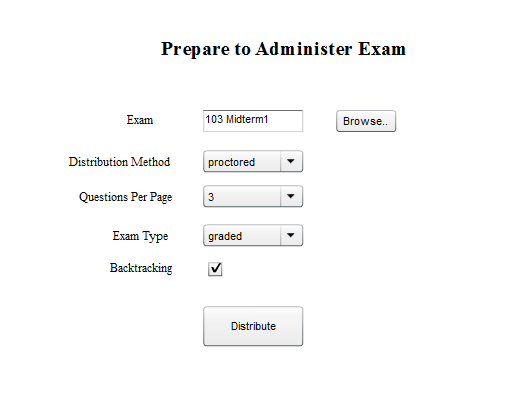
Figure 2.4.2.1b: Filled in Exam Preparation Page.
The instructor then fills in the various fields by either typing in his desired choice or by selecting a choice from the menus and checkboxes. Once he is satisfied with his selections, the user then clicks the Distribute button. Upon clicking that button, the system displays another window looking like Figure 2.4.2.1c.
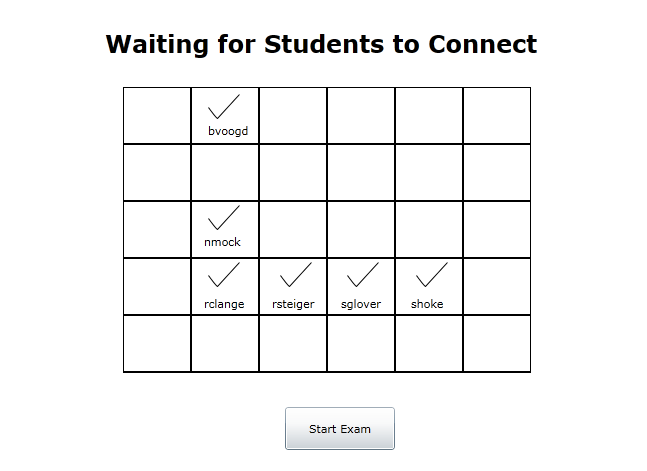
Figure 2.4.2.1c: Waiting for Students to Connect.
The system waits for the instructor to initiate the start of the test. Once the instructor is satisfied that all eligible students have connected, he then
clicks the Start button. Once he presses the Start button, the system searches for the desired exam in the exam database and displays it to each student
present in the room as discussed in Section 2.5. In addition, the system displays to the instructor a window in the form of Figure 2.4.2.1d.
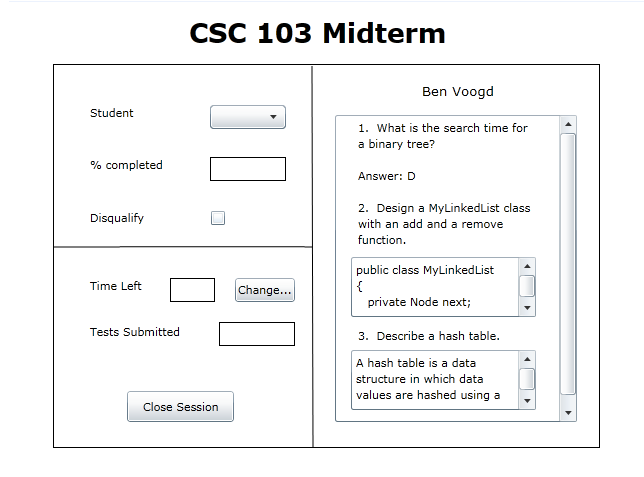
Figure 2.4.2.1d: Proctoring an Exam.
The Student dropdown menu allows the instructor to choose which Student he wants to "focus" on. When a student is selected, the instructor can:
The Time Left field indicates how much time still remains on the current exam. The Change button allows this number to be altered.
Finally, the Tests Submitted field indicates how many students in the class have completed the current exam.
A filled in menu is presented in Figure 2.4.2.1e.
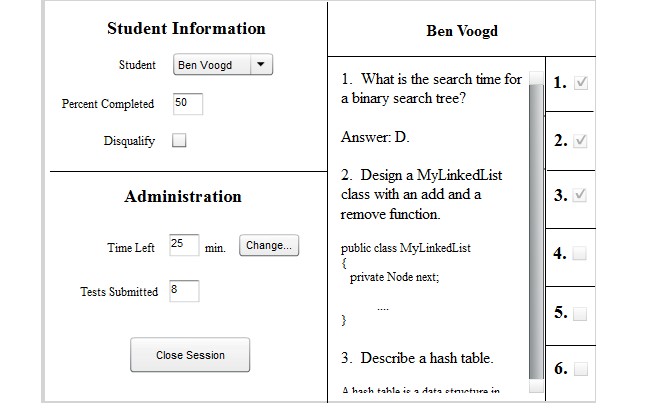
Figure 2.4.2.1e: Filled in proctored setting.
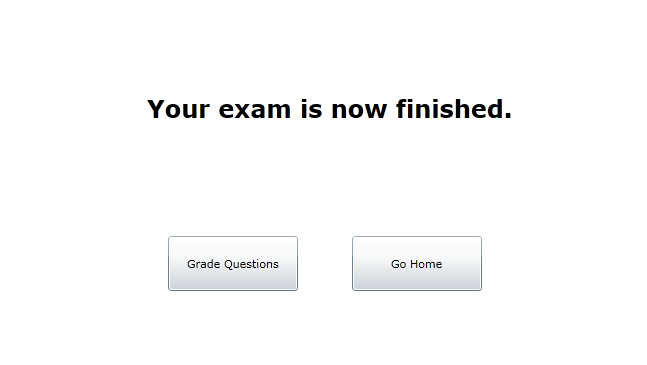
Figure 2.4.2.1f: Finished Proctoring an Exam.
If the instructor clicks the Grade Remaining Questions link, then the system displays the interface for the Grading tab, which is detailed in the next section. If the instructor clicks the View Scores link, then the system displays the interface for the Reports tab, which is detailed in a later section as well. Finally, if the instructor clicks the Go Back Home link, then the system displays the home page.