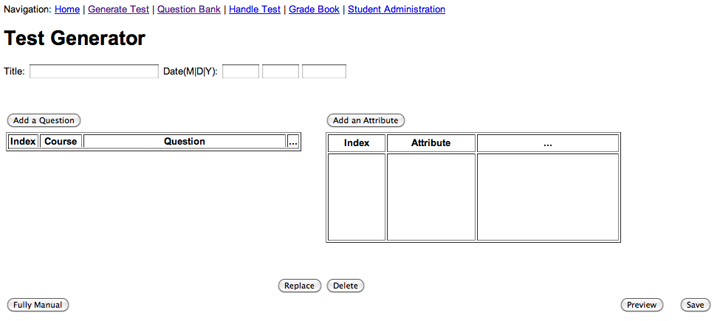
Figure 2.2.7.1: The "Generate A Test" screen allows the instructor to create a test fully manually.
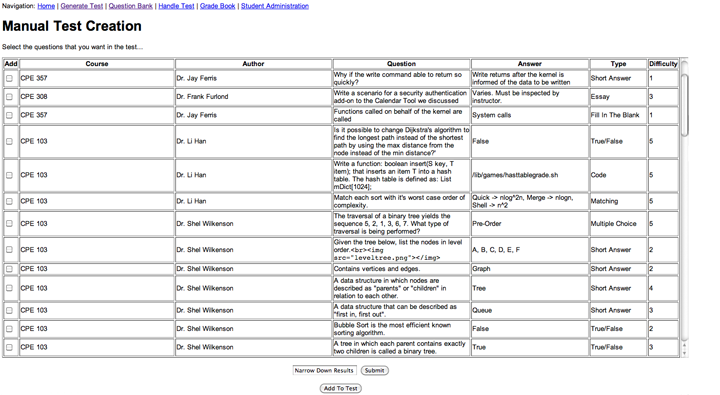
Figure 2.2.7.2: The Question Database is shown to the instructor.
If the instructor wishes to narrow down the database to questions containing specific keywords, they may do so in the "Narrow Down Results" field. Upon clicking submit, the system updates the database view as shown in Figure 2.2.7.3.
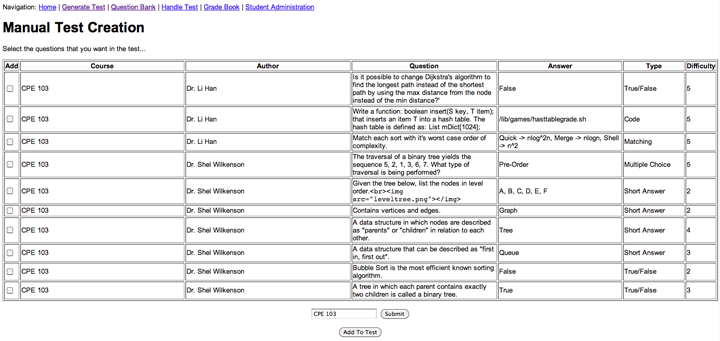
Figure 2.2.7.3: The Question Database is narrowed down as a result of the keyword "CPE 103".
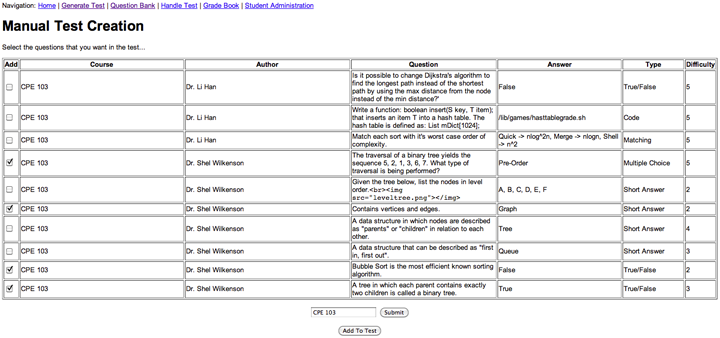
Figure 2.2.7.4: The instructor has selected four questions, prior to adding them to the "Added Questions Queue".
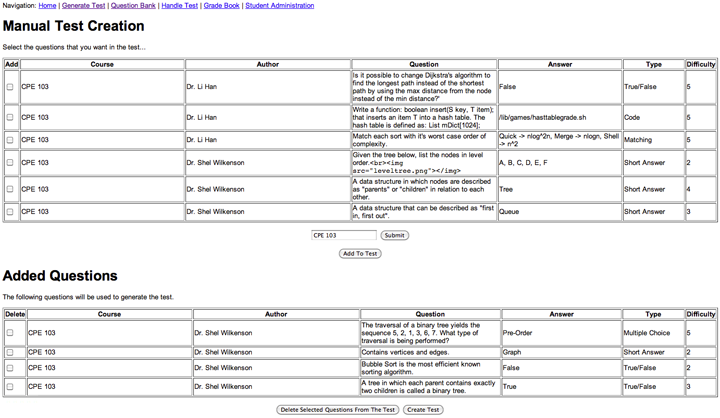
Figure 2.2.7.5: The queue of questions to added to the test contains the four selected questions from the question database.
If the instructor chooses to remove questions from the queue, the instructor simply selects checkboxes in the queue as shown in Figure 2.2.7.6 and clicks the "Delete Selected Questions From The Test" button and they will be returned to the question database as shown in Figure 2.2.7.7.
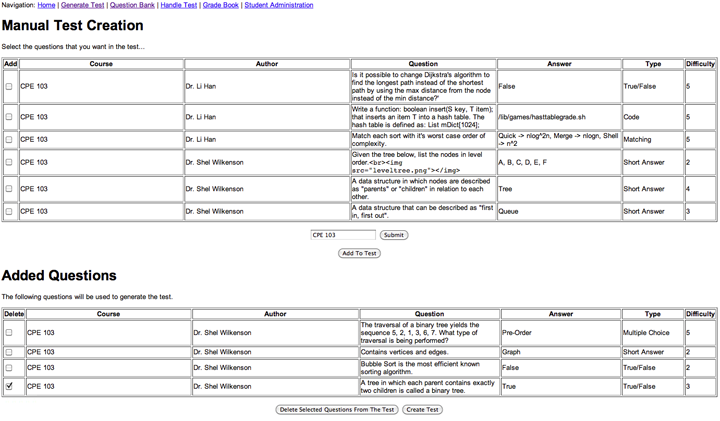
Figure 2.2.7.6: The instructor has selected a question to remove from the queue, prior to clicking the "Delete Selected Questions From The Test" button.
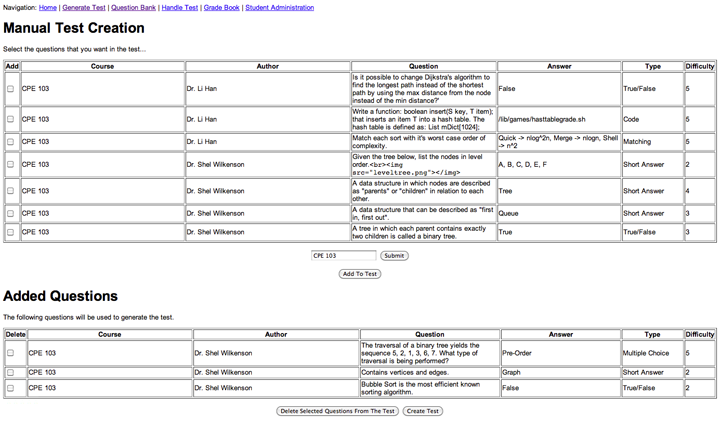
Figure 2.2.7.7: A selected question is removed from the queue and returned to the question database. The queue now contains three test questions.
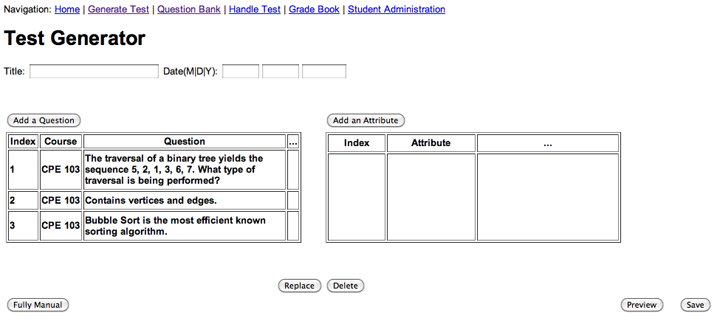
Figure 2.2.7.8: The Test Generator is now updated to reflect the added questions.