An attribute is extra text and/or images that can be added to a test that is not contained within a question. It can be useful in sectioning the exam, or providing formulas, clarifications, etc.
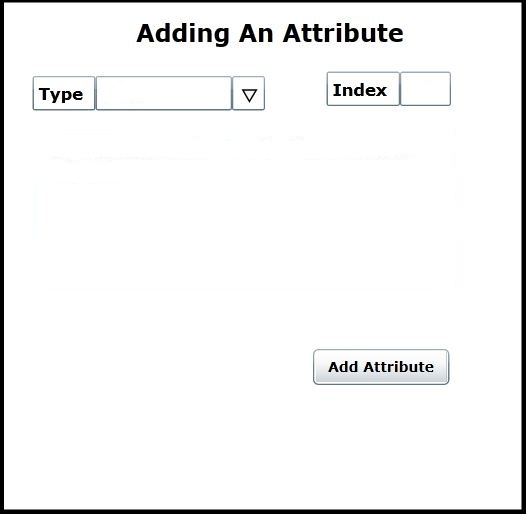
When the user clicks the Add an Attribute button the adding an attribute dialog is displayed (see figure 2.2.8).
This dialog contains a type field in the top left corner. This field is a drop-down menu where the user can click either text or image. To the right of the type field is the index field. The user will enter where in the exam he wants the attribute added. The number corresponds to the following question. i.e. if the user inputs "1" the attribute is added to the beginning of the test. If the user inputs "5" the attribute is displayed between questions four and five. If the user enters a number higher than the last question index the attribute is added to the end of the test.
Figure 2.2.8: The adding an attribute dialog
When the user selects text in the type field a text field is shown below the type field. Here the user can enter in what he wants the attribute to say. This is shown in figure 2.2.9.
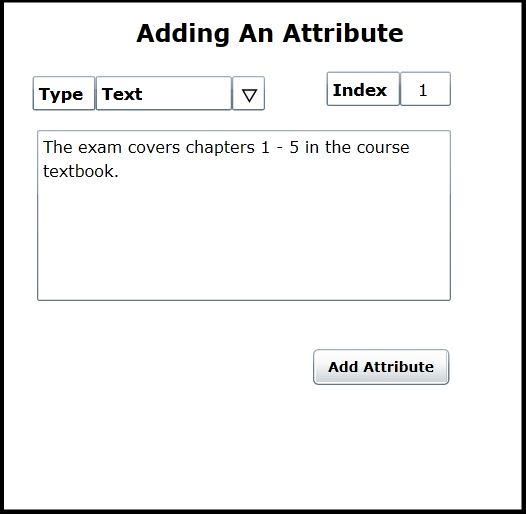
Figure 2.2.9: Adding a text attribute to an exam
When the user selects image in the type field a text field shown below the type field with a browse button next to it. Here the user can manually type the location of the image he wants to add or select browse and his file directory will be displayed and he can navigate to and select the desired image. This is shown in figure 2.2.10.
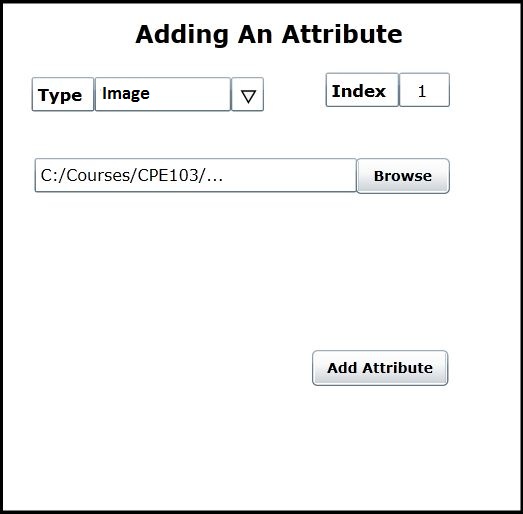
Figure 2.2.10: Adding an image attribute to an exam
Attributes are added one at a time to an exam. Multiple attributes can be added in a single location. Figure 2.2.11 shows the generating a test front page with the text attribute shown in figure 2.2.8. An image attribute would look the same.
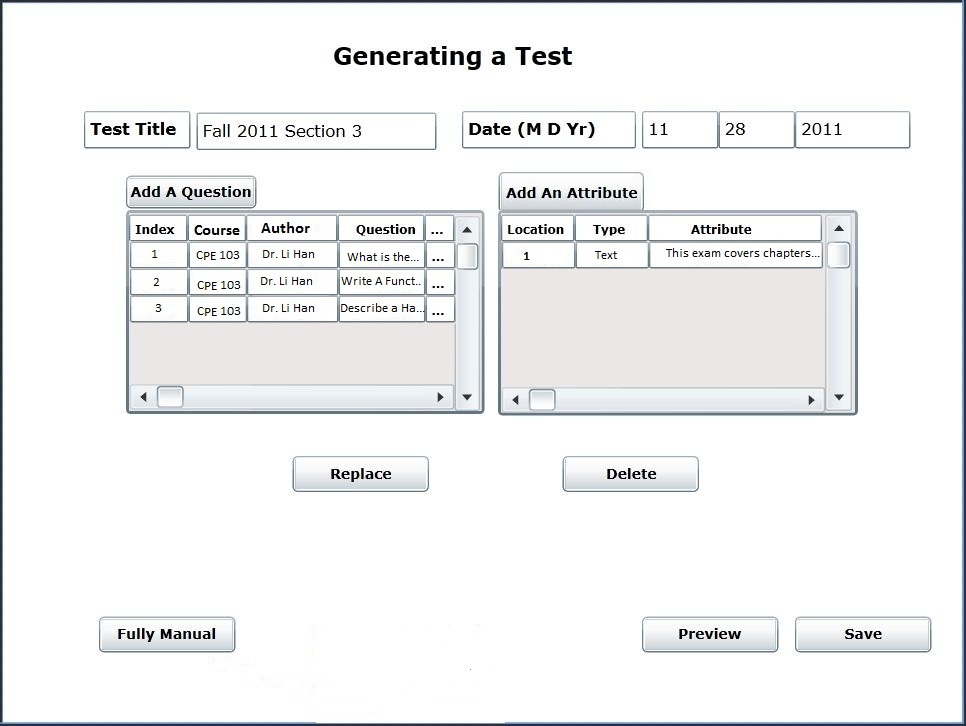
Figure 2.2.10: Generating a test front page with a text attribute added.
The replace and delete buttons coorespond to attributes as well as questions. If an attribute is selected and the replace button is clicked then the add an attribute dialog will open. The index will automatically be filled in with the same index as the attribute being replaced. The user will still have the ability to change it however. If an attribute is selected and the delete button is clicked, the selected attribute will be removed from the test.
Figure 2.2.11 shows the text attribute being displayed on an exam.
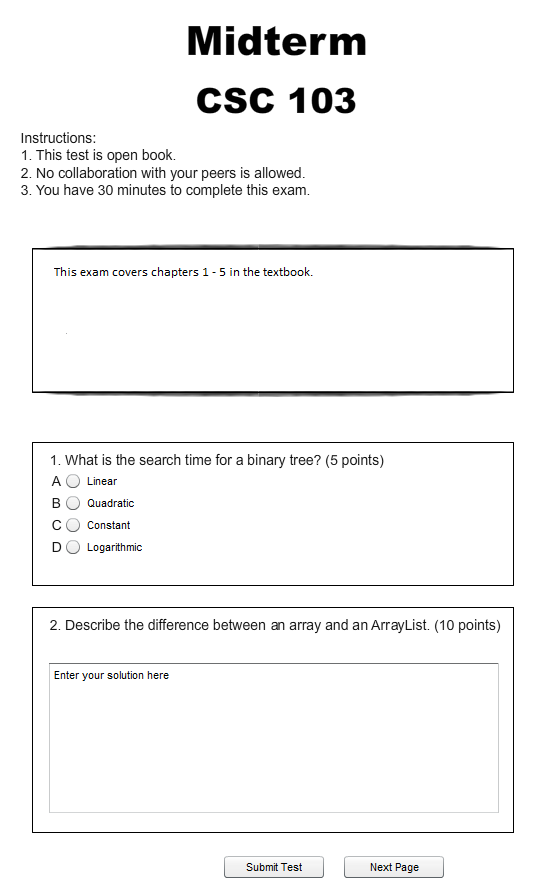
Figure 2.2.11: A text attribute being displayed while an exam is being taken.