To ask a question of the class, the instructor selects "Class > AskQuestion." This causes the following dialog to appear.
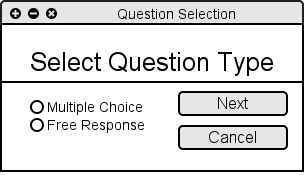
The instructor then has the choice of creating a free response or a multiple
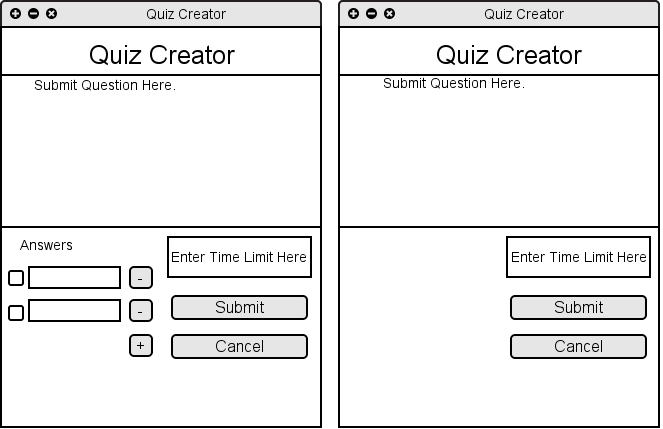
choice question. Picking multiple choice creates the following dialog on the left
while picking free response creates the dialog on the right.
Also, if the instructor wants to, they can add the question in the window provided. A multiple choice question needs both a question and a minimum of two choices. If the instructor wants to add more, he presses the plus button and if he wants to delete a choice, he presses the minus button next to the question. Also, the instructor specifies the correct answer by selecting the radio button to the left of the choice. Finally, the instructor enters a time value to give to each student as a time limit. Figure 2.8.1.3 represents both finished quizzes.
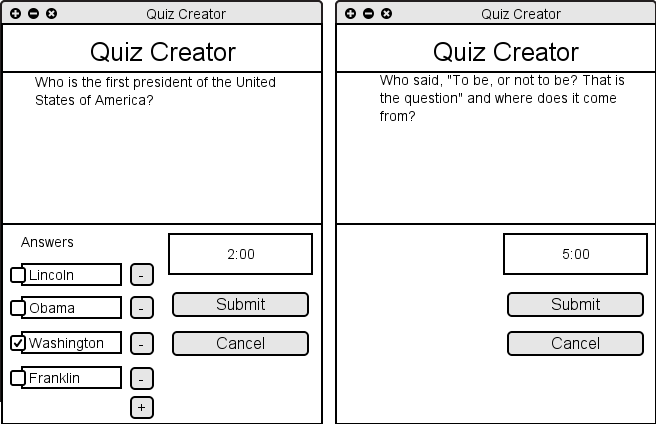
The Submit button submits the question to students.
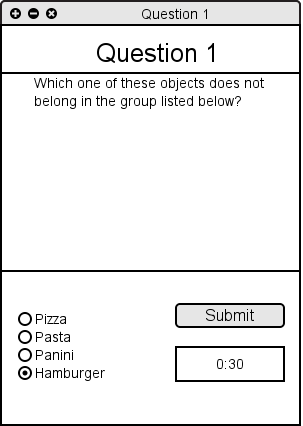
When a multiple choice quiz question is shown, the student selects a choice.
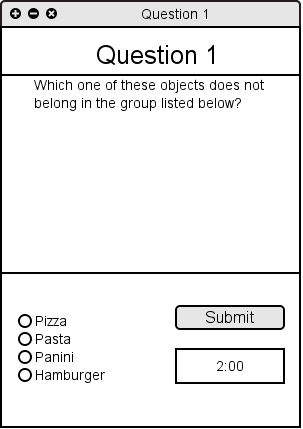
The student clicks Submit when done or waits until the time expires. Once one of those two has happened, the answer will be submitted to the instructor and saved into the student's record.
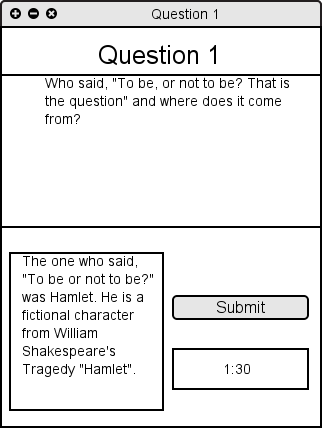
When a free response question is shown, the student types in an answer.
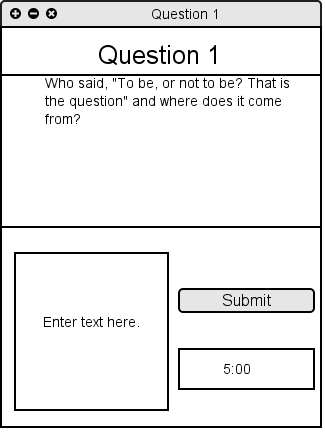
The student clicks submit when done or waits until the time expires.