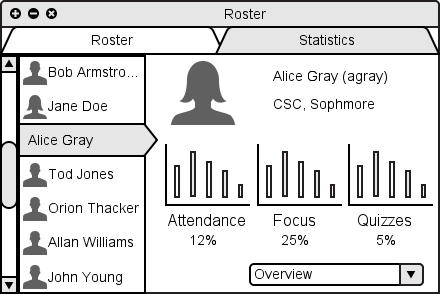
Figure 2.7.3.1: Statistics overview.
To view student statistics, the instructor opens the class roster window and selects the Statistics tab. This brigns a list of students in the left side of the screen. Clicking on a student in this list brings the selected student's statistics into view on the right side of the window, as shown in Figure 2.7.3.1.
Figure 2.7.3.1: Statistics overview.
The default statistics pane is Overview, which displays bar charts comparing the student's attendance, focus and quiz scores to those of rest of the class.
To switch the displayed statistic pane, the instructor clicks the drop down menu in the bottom right, and then selects the desired option from the menu. Figure 2.7.3.2 below displays the Quizzes - All pane, which lists every question asked to the class, and each of the student's responses.
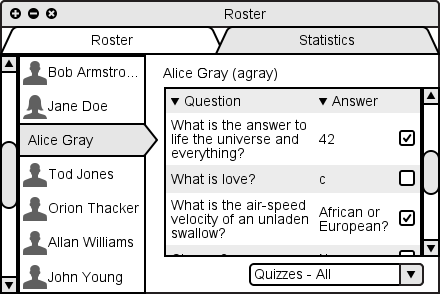
Figure 2.7.3.2: Quiz statistics.