2.3.5. Advanced Generation of a Test
The scenario in this section illustrates an individual user generates a test with deep control over each question.
When the user selects Generate Test from the Manage Tests menu, the system displays the dialog shown in Figure 12.
Figure 12 shows an unpopulated test generation window.
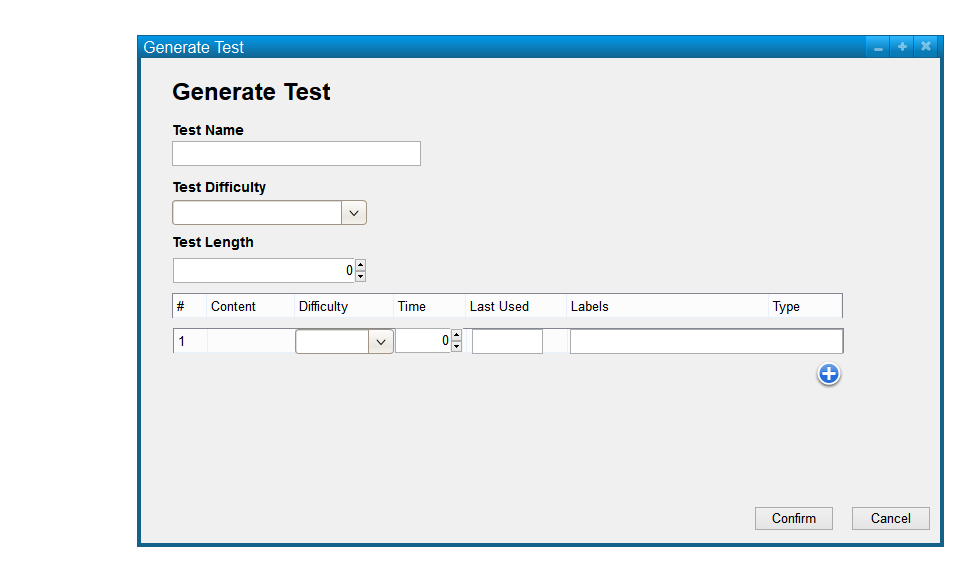
Figure 12: blank test generation dialog.
The user enters name, difficulty, length, and labels.
The user then sets difficulty, length, last used, and labels for a question to be generated.
A partially completed test is shown in Figure 13.
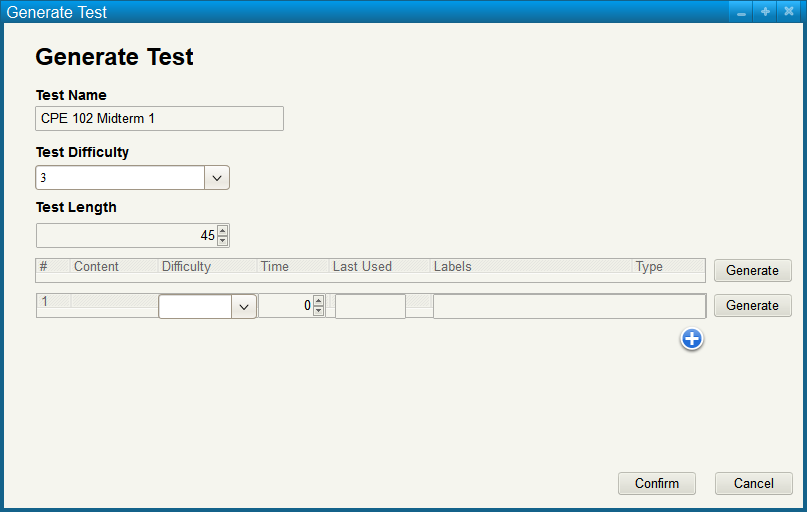
Figure 13: partially completed test generation dialog.
The user selects as many parameters as they want for the question to be generated.
In Figure 14 the user has selected difficulty, labels, and types to generate a question.
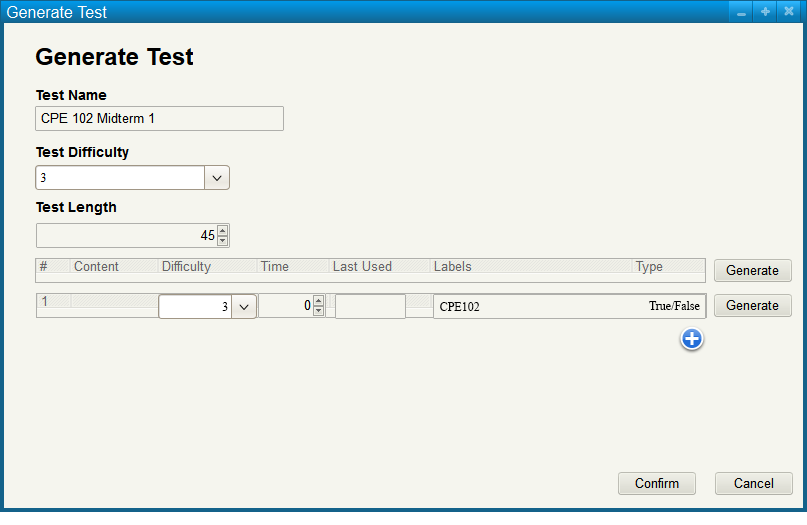
Figure 14: partially completed test generation dialog.
Pressing the Generate button next to the question will fetch a question from the question bank
that meets the user's parameters or is within their settings.
Figure 15 shows a generated question after pressing Generate.
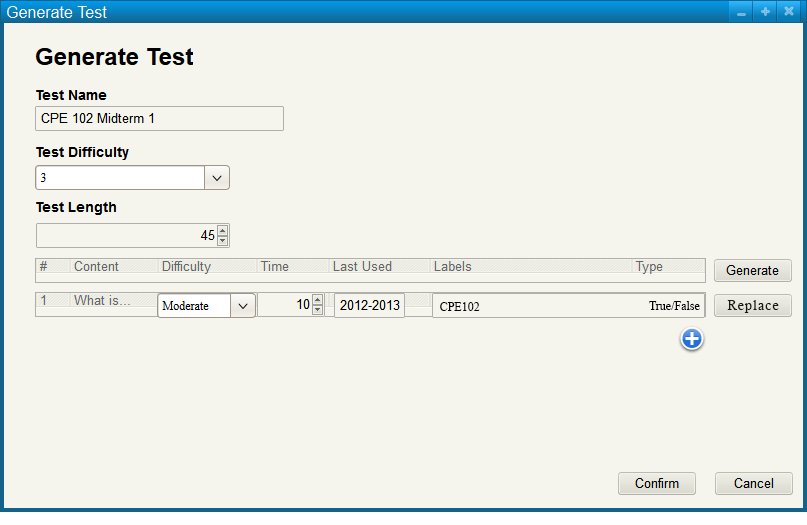
Figure 15: partially completed test generation dialog.
After the user pressed the plus a couple more times and sets more questions
to be generated, they may replace each question one by one, or re-generate the test
as a whole.
A populated test generation dialog is shown in Figure 16
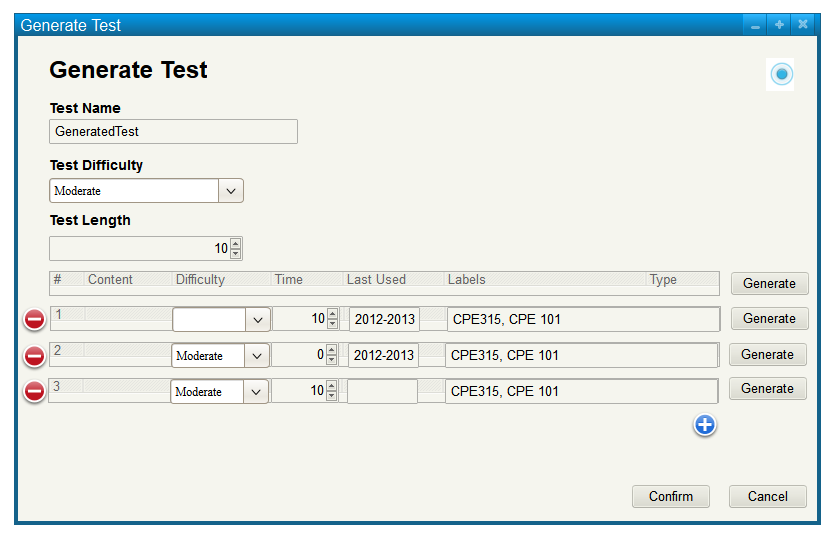
Figure 16: Populated Generate Test Dialog.
Upon hitting generate the blank fields in the questions will be populated with questions from the question bank based on the given parameters. By pressing replace, the tool regenerates the selected question based on the user's parameters.
A fully generated test is show in Figure 17
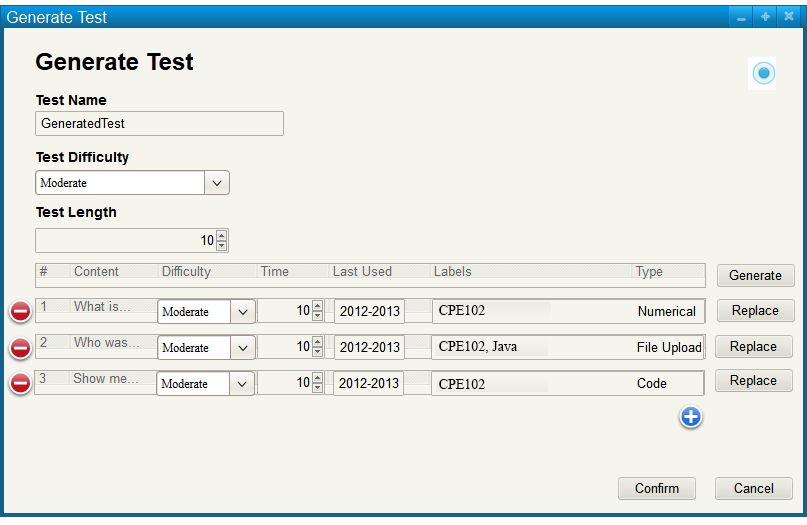
Figure 17: Generated Test Dialog.
If the user does not like any of the generated questions they may replace
each one individually.
In Figure 18, the user replaces question 2

Figure 18: Generated Test Dialog.
Search And Generation Settings
The settings for question generation are accessed by pressing the gear button on the top right of the screen.
Detailed information on test generation settings are covered in 2.3.6: Test Generation Settings.
If there are not enough questions in the question bank the user is
met with an error upon hitting generate as shown in Figure 19.
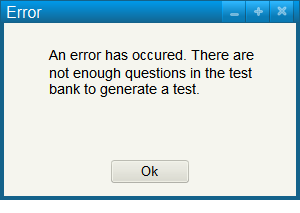
Figure 19: Error: Not enough questions in test bank.
The test tool selects questions randomly that fit within the user's set parameters.
If no questions are within the parameters the user will be met with an error.
If there are enough questions to generate a test, but the questions do not
line up with the user's parameters the user is met with an error and is
directed to the generation settings as shown in Figure 20.
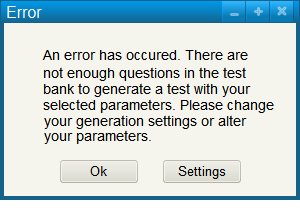
Figure 20: Error: Not enough questions within parameters.
Confirming changes to the test will return the user to the manage tests menu and will have added the newly created test to the list.
Prev: edit test
| Next: Test generation settings
| Up: tests
| Top: index