
Figure 2.1.1 I1: Instructor Initial Screen after successful login
The primary functionality of the Electronic Classroom (Eclass) allows students and instructors to have a paperless classroom. The Electronic Classroom software supports a database that provides the instructor the ability to present a lecture in a virtual environment. The software has two interfaces: the instructor and the student graphical user interfaces. The instructor version allows the instructor to present a lecture and instruct a classes via a network of workstations rather than the traditional chalkboard or slide projector. The instructor can create their lecture material using various tools provided by the Eclass program such as creating notes layers, utilizing the drawing tool palette and zooming in and out of lecture slides.
Interaction with the Electronic Classroom is achieved with the use of a pen based tablet system or traditional mouse and keyboard. Figure 1 displays the initial instructor screen and outlines the instructor's options and the software's' functionality. The student version has similar functionality as the instructor screen with the exception of a few options. Students using the Electronic Classroom software will be able to view all the class lectures and notes outside of the classroom by using a client version of the software. Students can electronically ask questions, write on the instructor's lecture, or write personal electronic post-it like notes embedded in class lectures. Students also have the option of viewing previous lectures by accessing the Electronic Classroom environment via the Internet or campus network after the class hour.
The Electronic Classroom has two graphical user interfaces: the instructor
version and the student version.
When the instructor initially invokes the Electronic Classroom, a login window appears, followed by the instructor screen shown in Figure 1, assuming the instructor logs in successfully.
The instructor initial screen displays:
Figure 2.1.1 I1: Instructor Initial Screen after successful
login
When the student user logs onto
a terminal and launches the Eclass tool during class, the default window is
as follows:
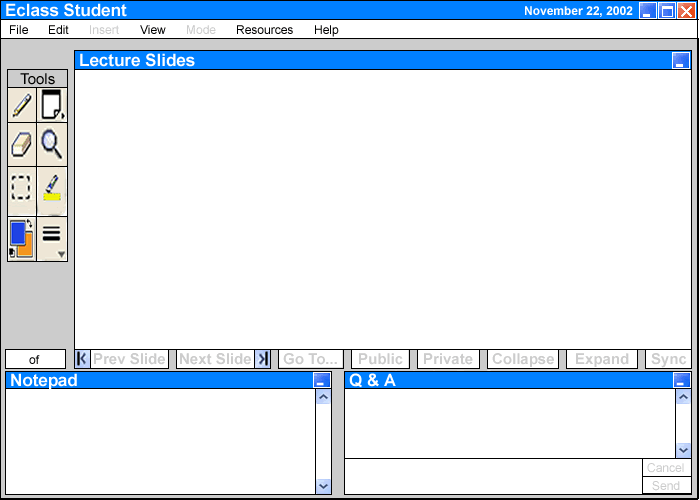
Figure 2.1.2 I1: The Default Student Interface
During class, the student may follow the instructor's lecture in the 'Lecture Slides' window, or he/she may browse through the lecture slides using the simple navigation buttons. Clicking on 'Next Slide' button once takes the student to the second slide. When the student wishes to take text notes during the lecture, he/she clicks on the 'Notepad' window once and begins typing when the blinking curser appears. To ask the professer a question, the student types in the dialogue box of the 'Q & A' window and clicks 'Send' to send the question to the professor's terminal or 'Cancel' to clear the dialogue box. For details of lecture viewing in the student interface, please see Section 2.5 Details of Student's Interface. For details on the toolbar, please see Section 2.4 Details of Instructor's Interface.
Student's main menu option is very similar to that of the instructor's,
except less options. Please refer to Figure 2 above and its description for
further details.
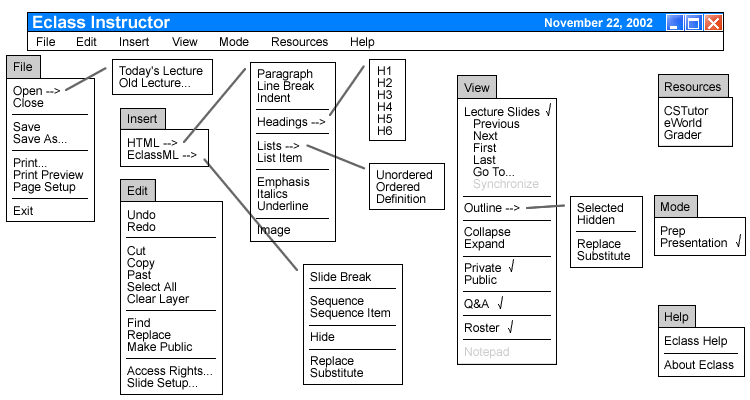
Figure 2.1.3 I1: Instructor's Main Pull-down Menu
The main pull down menu bar consists of seven options: File, Edit, Insert, View, Mode, Resources, and Help.
In the File menu there is the Open command from which you can open Today's Lecture which opens the current days lecture or open an Old Lecture. You can Close the current lecture also. Save as, lets the user save the current lecture as a new name while Save, lets the user save the lecture as it's default name. The Print command prints the current lecture, and the Print Preview lets the user preview what the printed page will look like. Page Setup lets the user set margins and other basic print options and Exit quits the Eclass program and returns the user to the desktop.
In the Edit menu you can Undo and Redo which get rid of the last action made by the user and returns them to a previous state or redoes the last action undone by the user. The Cut command removes the selection from the screen and places it on the clipboard while the Copy command copies the selection and places it on the clipboard and the Paste command puts the contents of the clipboard in the selected spot on the screen. Clr Whiteboard removes everything from the users whiteboard leaving it blank. Select All selects all the contents of the whiteboard. Find lets a user do a string search for a certain word or phrase. Replace replaces one string with a user inputted one. Make Public takes a selection from the private layer and makes it appear on the public layer of the whiteboard. Access Rights allow a user to set permissions for access to their accounts.
The View menu allows you to view the lecture in an Outline or Presentation mode. The outline mode is basically an abridged version or the presentation mode. The user can also skip to the Previous, Next, First, Last and Go To specific slides within the opened lecture. The user can also Synchronize or "catch up" their view of the lecture with that of the professors. The layers are controlled by selecting either Private or Public. If a user closes the Q&A, Roster or Notepad windows they can be accessed threw the view menu also.
The Mode menu is only available in to the instructor. It gives the instructor the ability to toggle between Preparation mode, which allows the instructor to create a lecture, and add/delete users to their class, and Presentation which allows the instructor to present their created lectures to the class.
The Resources menu allows a user or instructor to access outside programs that could be of some use such as the Grader, CsTutor, and eWorld: programs.
The Help menu allows the user to get basic help with the Eclass program through Eclass Help and also allows the user to view the version number and other pertinent info about the Eclass program. through the About Eclass link.