This scenario shows how a user would add / edit a map. How a user arrives at this screen can be explained in the navigation bar section: 2.1.3 UI Navigation Bar
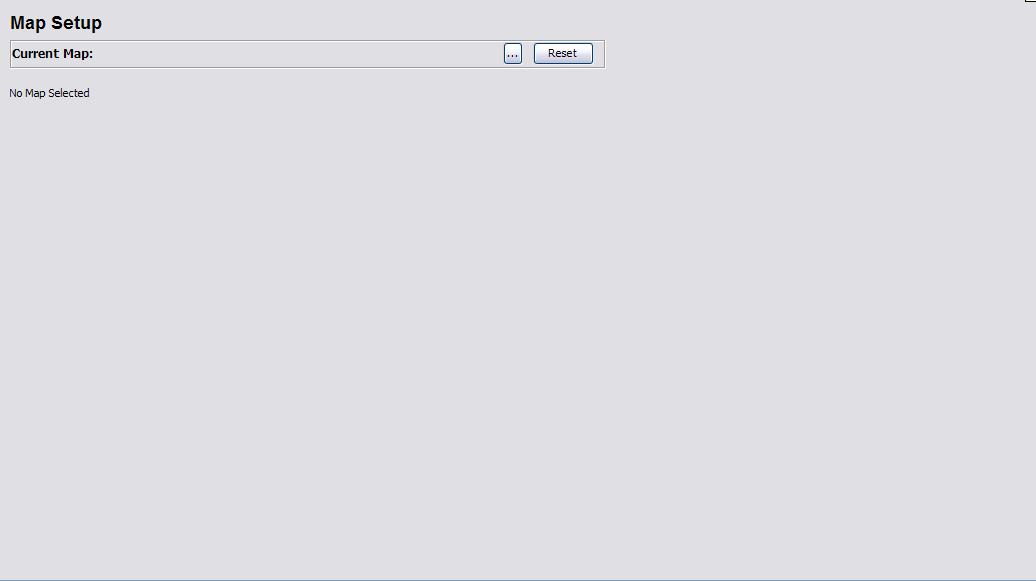
The context window will be filled with the following content the first time that the map setup is called:
Figure 1: Initial Map Setup Screen
The Current Map is a label to inform the user of the current filename of the current map being used.
The ... button is where the user activates the filechooser to choose a new map file.
The Reset button clears the current map configuration (explained in more detail later on this page)
When the user first arrives at this screen, there is currently no map available, so therefore the placeholder for the map says "No Map Selected"
In order for the user to add a new map or to change the current map being used, the user simply presses the ... button and the following file chooser dialog will appear:
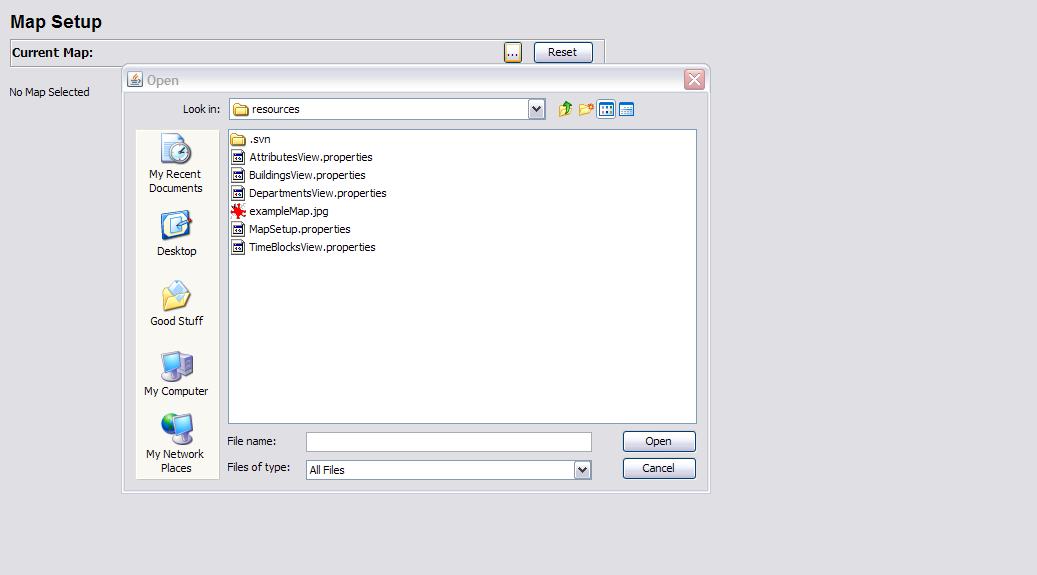
Figure 2: File Chooser Visible
The user may now select any "jpg" or "gif" file that they want to use as the background scalable map for any resources that use the map. Rooms is the dominant user of the map, however other resources may need to use the map as well.
The user selects the file like files are normally selected with the file chooser and the map on the page is updated to this image. This scenario uses the file "exampleMap.jpg" which is in our project and is the example map used for demoing the functionality of this feature. The user selects "exampleMap.jpg" and clicks Open. Note that if the user attempts to open a file that is the wrong extension, the system does not warn you, it simply treats the case as a sancel action and nothing is changed from the previous state.
After the file is chosen, the screen updates to the figure below:
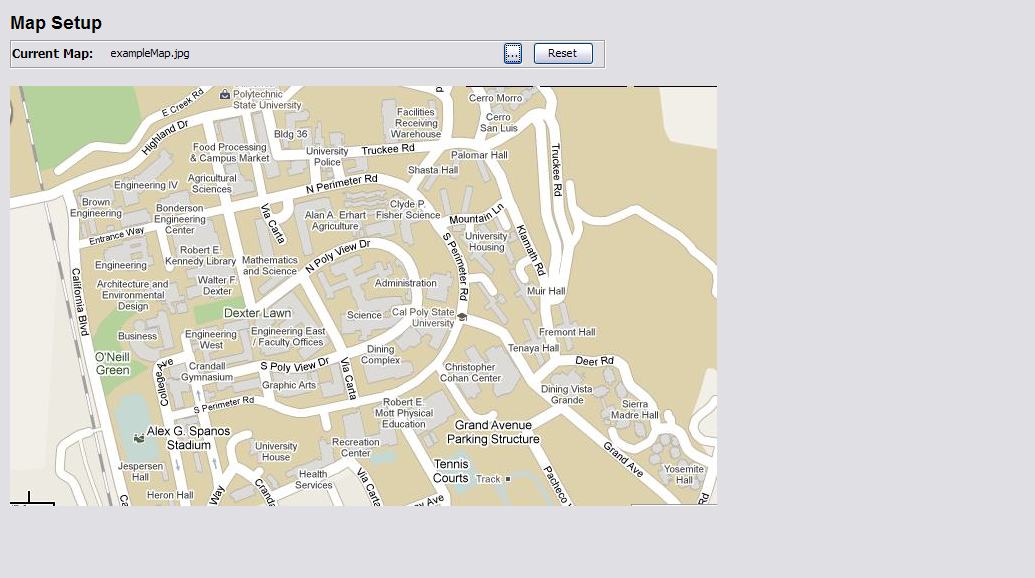
Figure 3: exampleMap chosen and displayed
The map is updated and all references to it will now reflect this new map. Note that Deepthought takes no responsibility if distance calculations are off because the map was changed to a picture of a rubber ducky. On a more serious note, you will have to adjust every room for the new map, in order for the calculations for distance to be correct. Deepthought suggests that changing the map should be done at the beginning when initial setup is taking place.
In order to change the map to a different file, repeat the steps above.
Setting the map reference points is a fairly simple task. The user needs to click twice on the map; first for the upper left point of the map region and then second for the lower right point of the map region. This will then set the basis for all the distance calculations based on the two demensional space that has been created. Figures 4 and 5 show the placing of the upper left hand point and the lower right point, respectively:
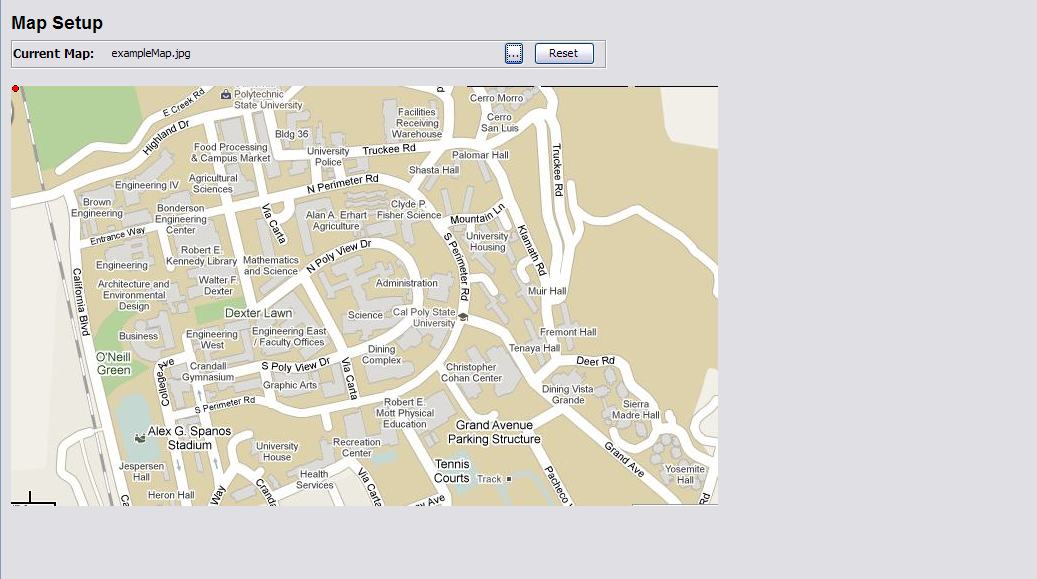
Figure 4: Upper Left Point Placed
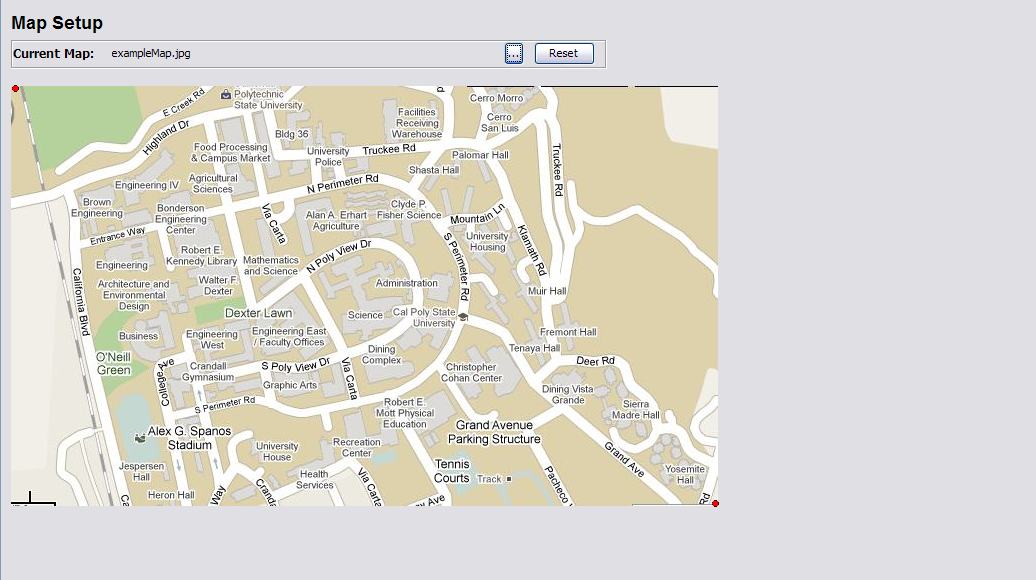
Figure 5: Lower Right Point Placed