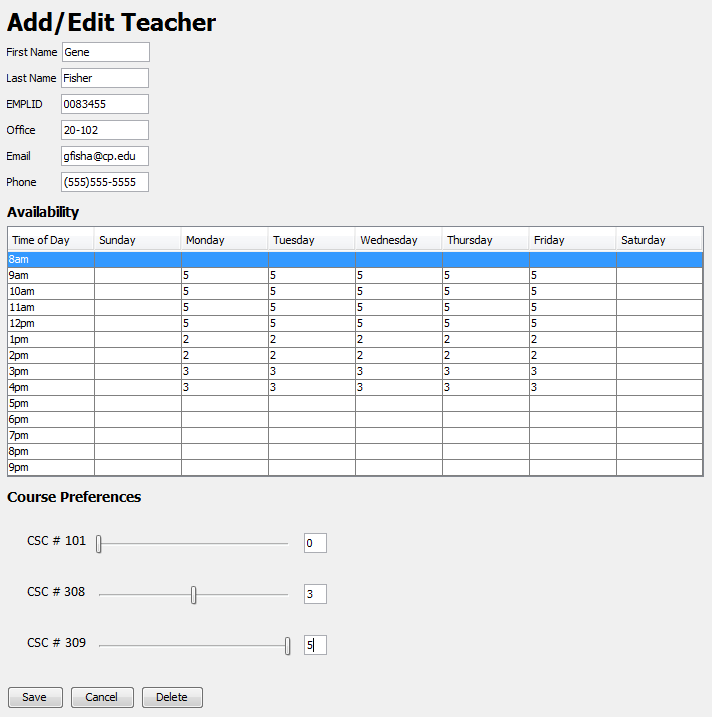
This page demonstrates how a teacher or administrative user edits the information and preferences associated with a teacher resource. In order to select a teacher resource, please see the single selection of a teacher page. When a teacher views themselves, the following context window is shown.
Figure 1: Modify Teacher as a Teacher
They are allowed to edit every configurable field on their own page. This is done by clicking upon the text fields or by changing preferences in the following manner.

Figure 2: Editing Teacher Availability
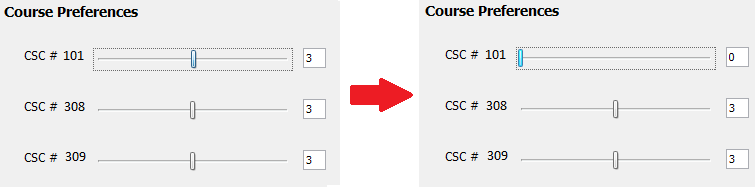
Figure 3: Editing Course Preferences via Slider
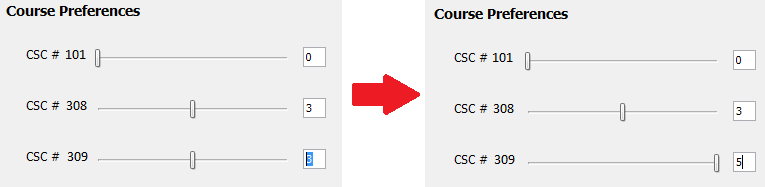
Figure 4: Editing Course Preferences via Text Field
An administrative user can also edit a teacher information by clicking upon each text field. They can also edit availability and course preferences. However, these administrative preference edits are stored in another set of values without modifying the teachers values. These are displayed in red on the availability section and course preferences section and pictured below.
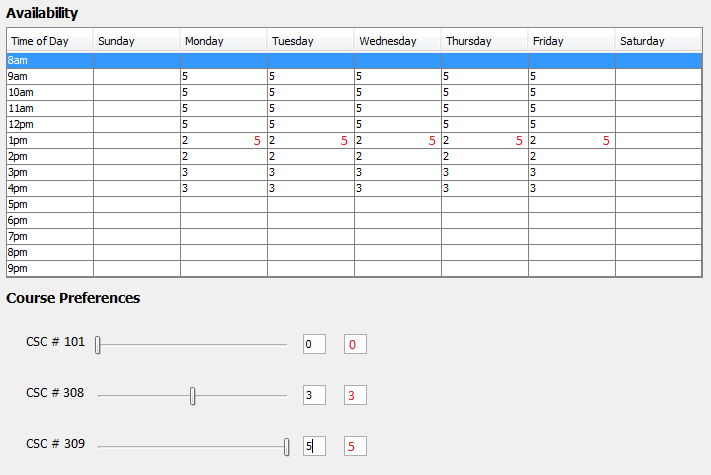
Figure 5: Modify Teacher Preferences as an Administrator
There is only one scroll bar per course preference entry, which represents the teacher value if a teacher is viewing, or the administrator value if the administrator is viewing. The modified teacher with a new phone number, office location, and administrator adjusted values is shown below.
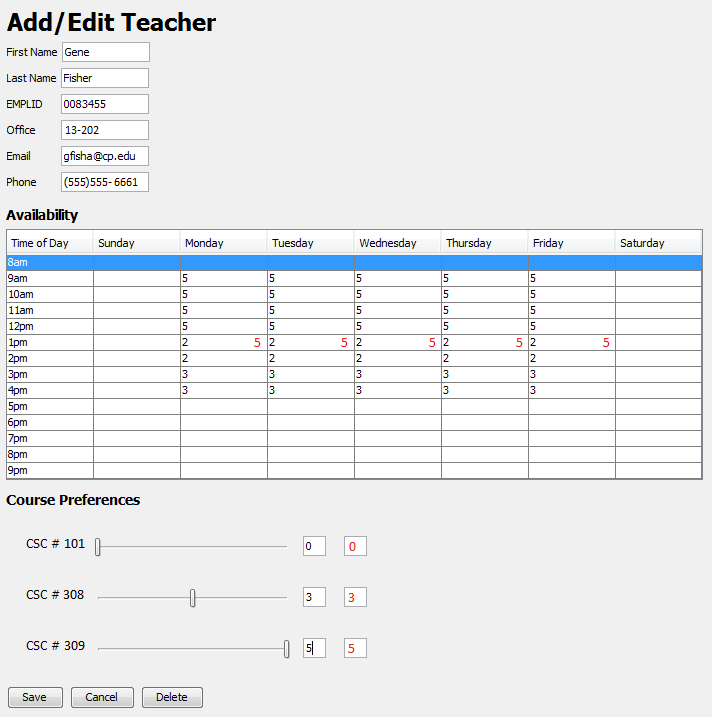
Figure 6: Modified Teacher Ready to be Saved
A user makes any changes permanent upon clicking the save button. The cancel aborts any unsaved changes and clears the context panel. The delete button attempts to delete the teacher, as is further explained in the next section.