The default view of a schedule is the Week View. Each column is a day of the week and each row is a half-hour time block.
The user can view more detailed information on a particular scheduled item by clicking it. The pane in the upper-right corner of the screen is filled with detailed, editable information on that scheduled item.
When a scheduled item is selected, the pane in the lower-right corner is populated with a list of all the scheduled items that take place concurrently. To bring one of these buried items to the front, the user selects it from the list.
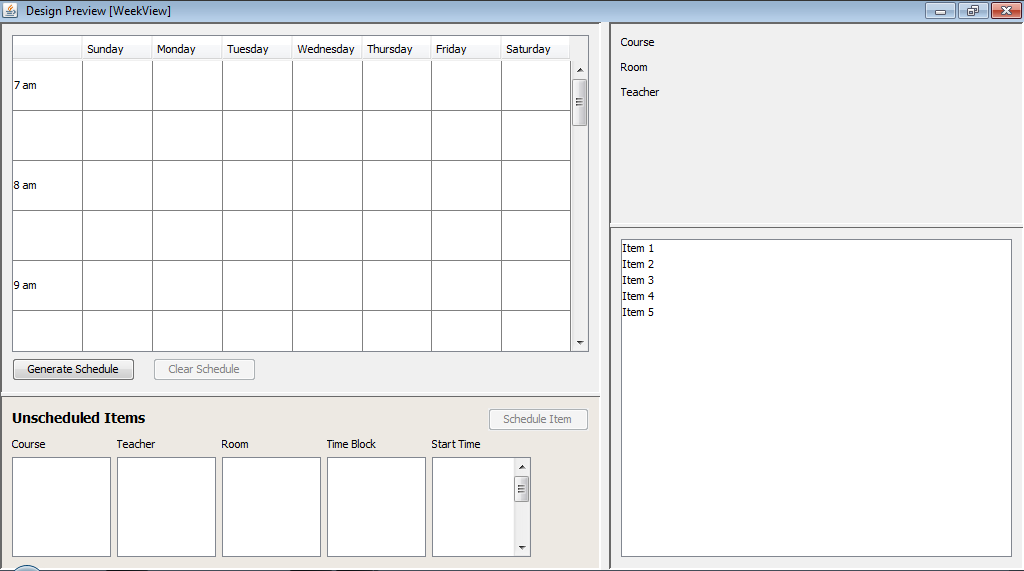
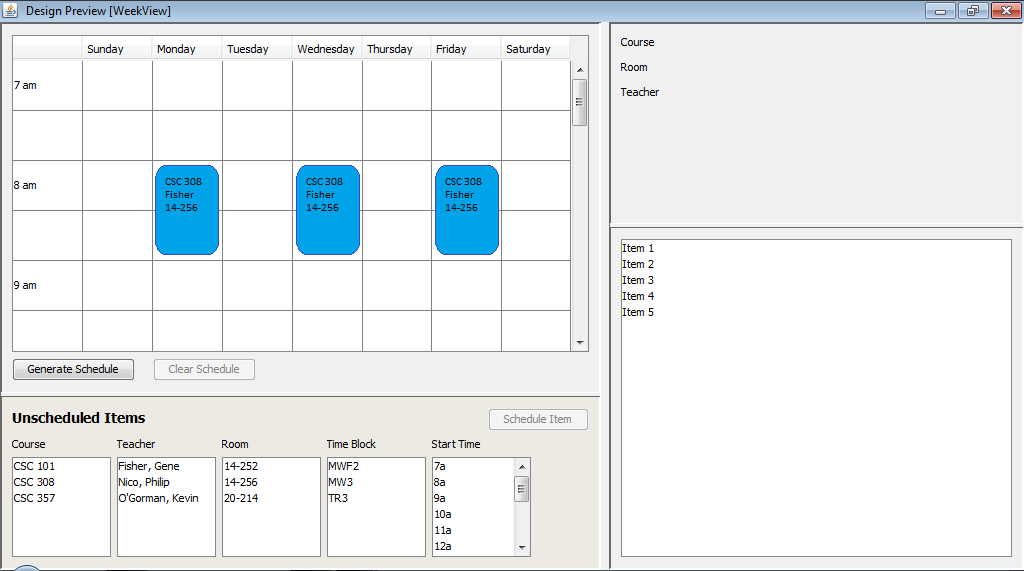

To add an item to the schedule, the user selects a course, teacher, room, time block, and starting time from the list boxes. To add this item to the schedule, the user clicks the "Schedule Item" button. If adding this item will cause a conflict, the conflict resolution dialog is shown. See the conflict resolution page for more information.
To modify any of a scheduled item's attributes, the user selects it and then uses the pane in the upper-right corner to select new attributes from the drop down lists.
If the user makes a change that causes a conflict, the conflict resolution dialog appears on the screen. See the conflict resolution page for details.
See the Locking Resources page for details on locking resources.
To remove a scheduled item, the user clicks the item to be deleted and then clicks the delete button in the upper-right pane.