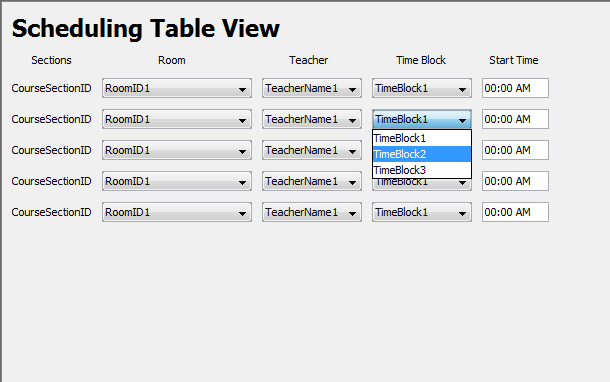
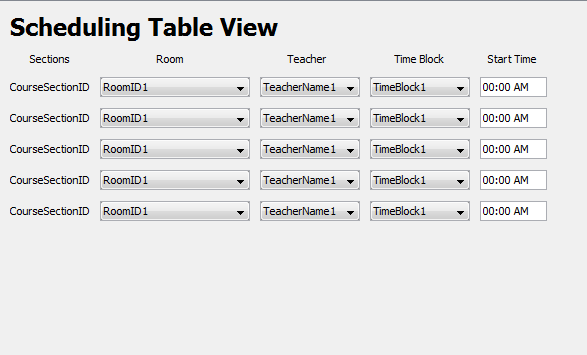
Another possible view for the schedule is the Table View. This is simply a list of all the courses in the schedule shown in a list fashion.
There are five columns of the table, Sections, room, Teacher, TimeBlock and Start Time.
To change the room for a particular section of a course, the user activates the drop down for the room column. They can change the teacher, timeblock, and start time of the course with the teacher, timeblock, and start time fields respectively.
If a conflict arises, the program will immediately bring up the Conflict Resolution Dialog with which the conflict will immediately be resolved.
To add a scheduled item, view the schedule in Week View.
If the user makes a change that causes a conflict, the conflict resolution dialog appears on the screen. See the conflict resolution page for details.
See the Locking Resources page for details on locking resources.
To remove a scheduled item, view the schedule in Week View.