2.3.1. Viewing the Calendar at Different Levels

A calendar can be displayed at five levels of detail. The levels, from the greatest detail to the least are: an individual scheduled item, a day, a week, a month, and a year. The commands to show these levels are the first five items in the 'View' menu (see Figure 2 ). In the discussion that follows, these are referred to as the view- level commands.

During normal use of the Calendar Tool, the user has one or more viewing windows displayed on the screen. The most recently selected window is called current. When the user wants to view the calendar at a different level than is displayed in the current window, she chooses one of the five view-level commands.

Each of the five viewing levels is displayed in a separate level-specific window, sized appropriately to fit its contents. For example, if the user executes a 'View Day' command followed by a 'View Year' command, both a daily and yearly window are displayed on the screen.

By default, a single window is used at each of the five view levels. Hence, there are up to five windows for the view-level commands, each holding the result of the most recently executed command at a particular level. For example, if the user moves from one day to the next at the daily level, the day-level display window is changed, but a new window is not created.

The user may change the default display style by enabling multi-window viewing mode. In this mode, the results of every view command are shown in a separate new window, even for commands at the same level. For example, if the user executes two successive 'View Month' commands in multi-window mode, the results are shown in two separate month-view windows. Complete details of multi-window viewing are described in Section 2.3.5.

By default, the target date for all view-level commands is today's date. The user can select another target by clicking on a desired target in the current window. Complete details of target date selection are covered in Section 2.3.1.6

2.3.1.1. Day View

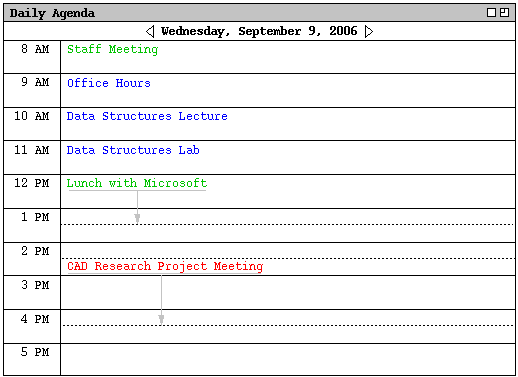
To view the daily details for today's date, the user chooses the 'View Day' menu command. In response, the system displays a window of the form shown in Figure 11.


Figure 11: Day view.


To view the details of a day other than today, the user selects the name or date of the desired day in the current display, and then chooses the 'View Day' menu command. An interface shortcut to view a particular day is to double click on the name or date of the desired day in the current display.

In Figure 11, the user is viewing the details of Wednesday, September 9. The items shown in Figure 11 reflect a number of scheduling commands having been performed by the user, subsequent to the commands illustrated in the scenario of Section 2.2. In particular, the user has scheduled some typical items such as meetings, lunch dates, and class lectures.

The day view shows the scheduled items for a day in abbreviated form. The column on the left lists the starting times for scheduled items. The wider column on the right shows the item titles. The displayed title for one item is always a single line high; long titles are viewed by horizontal scrolling or enlarging the display window as necessary. The following are details of how information is presented in a day view:

  1. When an item starts and ends exactly on the hour, it is listed at the top of the row for the starting hour. For example, the "Staff Meeting" item shown in Figure 11 starts on the hour, and is thus displayed at the top of the 8AM to 9AM time slot.

  2. When an item starts at a time other than on the hour, the text for the item is placed proportionally down from the top of the hour, with a dashed line immediately above the text. For example, the "CAD Research Project Meeting" starts at half-past the hour, and is thus displayed half way down in the 2PM to 3PM time slot.

  3. When an item ends at a time other than on the hour, a dashed line is placed proportionally at the ending time. For example, the "CAD Research Project Meeting" ends at 4:30PM, and its ending time is thus displayed as a dashed line in the middle of the 4PM to 5PM time slot.

  4. When an item ends in an hour after the hour in which it begins, a down-pointing arrow is drawn to the ending time. This case is also illustrated by the "CAD Research Project Meeting".

    At the top of the day view is a full description of the day of the week, month, and year. Immediately to the left and right of the description are arrow buttons used to change the display to the previous or next calendar day. For example, when the user chooses the right-pointing arrow in the display of Figure 11, the display changes to that shown in Figure 12.


    -- Show a view of the next day --

    Figure 12: Result of pressing the next day arrow.


    The following options are available to control the format of the day display:

    1. Normal time range. This option defines the starting and ending times that normally appear in the left column of the display. The default range of times is 8AM to 5PM.

    2. Time increment. This option defines the time increment of the left column labels. The smallest allowable time increment is five minutes, the largest is twelve hours. When the time increment is less than one hour, the time labels are shown in hour and minute format; when the increment is one hour or greater, the labels are shown as hours with no minutes. The default increment is one hour.

    3. Increment height. This option defines the default number of text lines shown in each time increment. The default value is two lines per increment.

    4. Show/hide 24 hours. This option toggles between showing a full 24 hours of display versus the normal time range only. If the 24-hour time range is shown, non-normal times are shown with a light grey background, to distinguish them from normal times. The default value for this option is to hide non-normal times.

    5. Show/hide exact time. This option toggles between showing or not showing the starting and ending times for each scheduled item, immediately to the left of the title. This option is useful when items do not typically start or end exactly on the hour. The default value for this option is to hide the exact time.

    6. Show/hide dashed lines. This option toggles between showing and not showing the dashed lines that appear above and below items that do not start or end on the hour. The default is to show dashed lines.

    7. Show/hide extension arrows. This option toggles between showing and not showing the down-pointing arrows for items with end times that extend beyond the hour of the start time. The default is to show extension arrows.

    8. Display overlaps horizontally or vertically. This option controls how items with overlapping times are displayed. When displayed horizontally, overlapping items appear side-by-side in separate columns of the day view. When displayed vertically, overlapping items appear on separate lines in a single column, sorted by start time, duration, and title. The default is horizontal display.

    9. Default display width and default display height. These options control the default width and height of the full daily display. If one or both of the default dimensions is too small to accommodate all information in the display, the information is truncated appropriately. Details of how this truncation is performed are covered in Section .
    The user sets these options in the edit-preferences dialog, as described in Section .

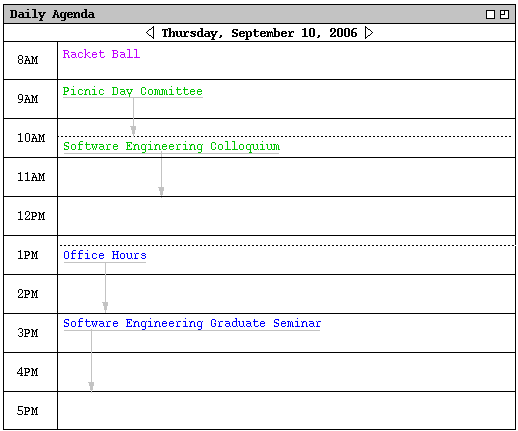
    As an example of alternate option settings, Figure 13 shows a day view of the same information shown in Figure 11, with the following non-default option settings: normal time range 7AM to 6PM; time increment of 1/2 hour; increment height equal to one line; show 24-hour display; show exact time; hide dashed lines; and hide extension arrows.
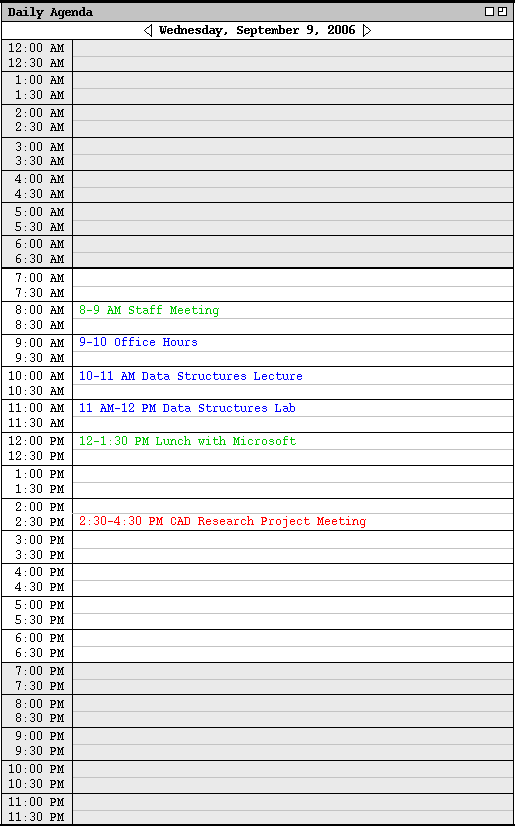

    Figure 13: Day display with non-default option settings.


    Figure 13 shows a fully expanded window, with all 24 hours of the day visible. If the user shrinks the window display vertically, a vertical scrollbar appears to allow viewing the non-visible hours. Further details on the effects of display resizing are covered in Section .

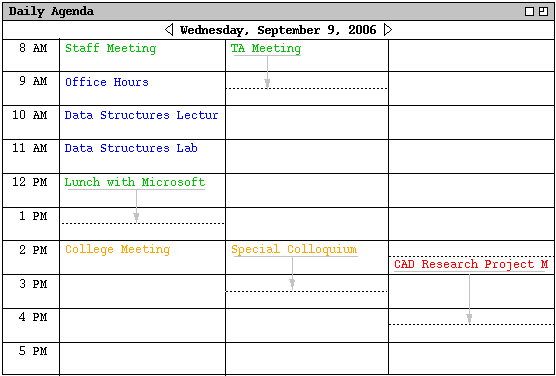
    To illustrate the display of overlapping items, Figure 14 shows an updated version of the daily schedule shown in Figures 11 and 13.


    Figure 14: Day view with overlapping times.


    Here the user has added three new items, with times that overlap with previously scheduled items. The new items are a "TA Meeting" from 8 - 9:30 AM, a "College Meeting" from 2 - 3 PM, and a "Special Colloquium" from 2 - 3:30 PM. The overlapping items are shown in two new columns next to the items with which they overlap. The left-to-right order of items is based first on start time (earliest first), second on duration (shortest first), and third on alphabetic order of the title. Note that this ordering has placed the "CAD Research Project Meeting" in the rightmost column, even though this item was scheduled by the user before the items with which it overlaps. That is, the order of overlapping items does not depend at all on the chronologically order in which the user executed the scheduling commands.

    In displaying overlapping items horizontally, the system attempts to display the full width of all items in one screen. If there is insufficient physical screen width to display all items full width, the system truncates in the same manner as in a normal daily display. The columns of the overlapping display view are all of equal width. If the display window is resized, each column is resized proportionally and equally. Further exact details of truncation and display resizing are covered in Section .

    Figure 15 shows the same information as Figure 14, after the user has changed the overlapping display option from horizontal (the default) to vertical.
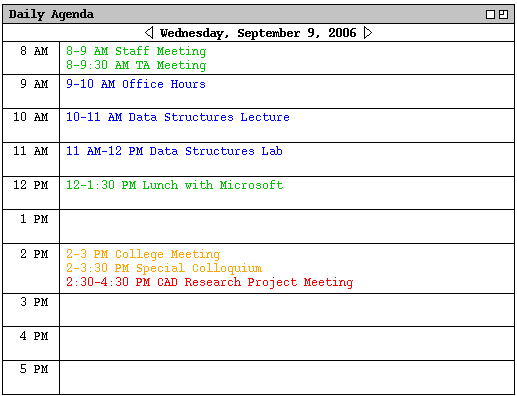

    -- Show what the single-column overlapping display looks like. --

    Figure 15: Day view with overlapping times, displayed vertically.


    Of note in the updated display is the fact that only two of the three scheduled items are visible in the 2PM row. This is because the current setting of the increment height option is 2. Whenever this condition occurs (i.e., the number of items in a time slot is grater than the increment height), the system provides a transient vertical scrollbar to allow the user to view the non-visible item(s). "Transient" for the scrollbar means that it only appears when the user clicks within a row for which scrolling is necessary. Figure 16 shows the result of the user clicking on the 2PM row and then scrolling down one line to show the last two items scheduled in the 2PM time slot.


    -- Show a view of how scrolling in a row looks. --

    Figure 16: Transient scrolling in a day view.


    Transient scrolling is available for any row in which the number of items is greater than the increment height (not just for rows with overlapping items). Furthermore, a transient scrollbar only appears in a row for which it is necessary. If the user selects a row where all items are visible, no scrollbar appears. A displayed transient scrollbar disappears when the user clicks anywhere outside of the row in which the scrollbar appears. This means that at most one transient scrollbar is visible at any time.

    Transient scrollbars are also used in the monthly view described in Section 2.3.1.3, where their use is likely to be more frequent than in a daily view.

    2.3.1.2. Week Views

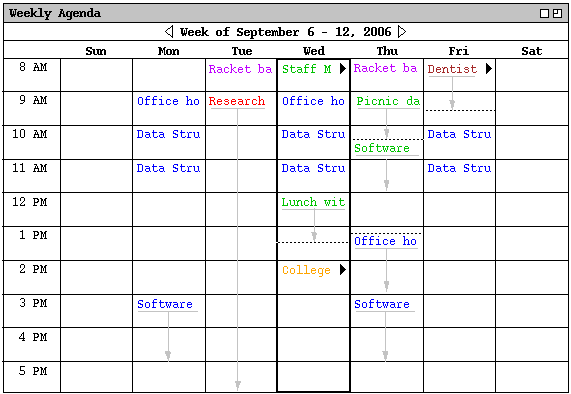
    After the day view, the next larger-grain level of viewing is a week. There are two choices for the format of the week view: table and lists. These choices are available on a submenu when the user chooses the 'Week' command from the 'View' menu. A display of the table-style week view is shown in Figure 17.


    Figure 17: Table-style week view.


    When the user chooses either style of week view, the displayed week is the one that contains the most recently selected day. Here for example, the user is viewing the week that contains the most recently viewed day of Wednesday, September 9. The current date, that is today's date, is highlighted with a darkened border in the week display. In this scenario, for example, the current date is Wednesday, September 9.

    The table-style weekly view shows items in the same format as the day view, except with narrower columns to accommodate all the days of the week. Each item is shown with as much of the title as fits horizontally within its display area. The columns of the weekly table view are all of equal width. If the display window is resized, each column is resized proportionally and equally. At the top of the weekly view is the exact description of the week, with arrow buttons to go to the previous and next weeks.

    A notable aspect of the weekly table view is the display format for days that contain overlapping items. In the example shown in Figure 17, there are three overlapping appointment times. These overlaps are indicated by solid right- pointing arrows wherever overlap occurs. When the user presses a right- pointing arrow, the display for the item scrolls to the left to allow overlapping items to be viewed.

    Figure 18 further illustrates the display of overlapping weekly table items.
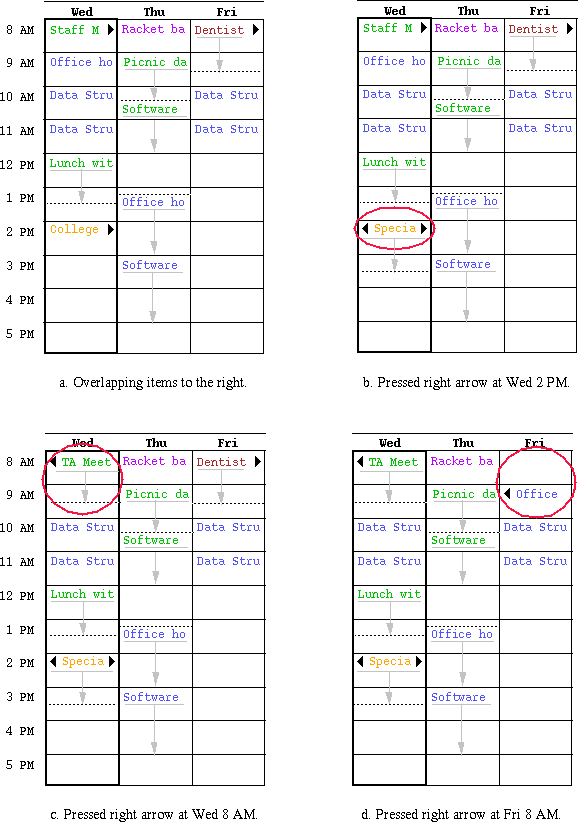

    Figure 18: Clarification of overlap in a weekly table view.


    The figure shows four excerpts of the weekly table view for the week of September 6, illustrating four stages of viewing overlapping items. In Figure 18a, three right-pointing arrows appear at Wednesday 8 AM, Wednesday 2 PM, and Friday 8 AM. Each arrow is positioned vertically at the start time of an overlapping item. When the user clicks on the right-pointing arrow at Wednesday 2 PM, the list of 2 PM overlapping items scrolls to the left, as shown in the circled item in Figure 18b. Figure 18c shows the result of the user clicking on the right-pointing arrow at Wednesday 8 AM. The display change is again circled. Finally, Figure 18d shows the result of the user clicking on the right arrow at Friday 8 AM.

    The change illustrated in Figure 18d illustrates two display details:

    1. Only one overlapping item is displayed at a time. Hence, the Dentist appointment at 8 AM is not displayed at all in 18d, even though it would fit partially in the display.

    2. The left-pointing arrow appears at the top of the item that is displayed. Hence, the left-pointing arrow in 18d appears next to the 9 AM office hour appointment, not in the empty 8AM slot where the Dentist appointment previously appeared.

    When necessary, a left-pointing arrow appears to allow scrolling back. Examples of left-pointing arrows are shown in Figures 18b, 18c, and 18d. Note that the 2 PM item in Figure 18b has both left- and right-pointing arrows, since there are overlapping items on both sides. When there are no further overlapping items, the left- or right-pointing arrow disappears, as appropriate. Disappearance of the right-pointing arrow is illustrated in the Wednesday 8 AM item in Figure 18c and the Friday 9 AM item in Figure 18d.

    All of the display options available for the day view are also available for the table-style week view. In addition, the following display options are available for the week view only:

    1. Show/hide title. This option toggles between showing or not showing the title for each scheduled item. When the user selects to hide item titles, the option to show exact times is automatically turned on, if it is not on already. This prevents both the exact time and title from being hidden simultaneously. The default value for the show/hide title option is to show the title.

    2. Normal day range. This option defines the starting and ending days that normally appear along the top of the display. The default range is Sunday through Saturday, inclusive.

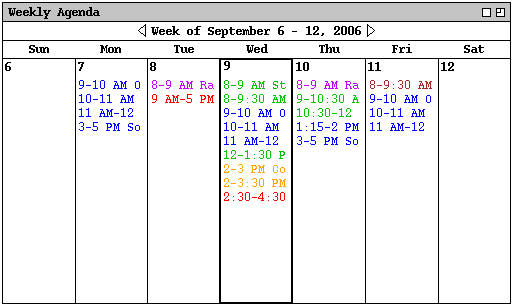
    The display of a list-style weekly view is shown in Figure 19.


    Figure 19: List-style week view.


    The Figure shows the same week as in the table-style view in Figure 17. In the list-style weekly view, the exact time for each item is always displayed, since there is no times column as in the table-style view. The display sizing constraints for the list-style view are the same as for the table-style view. Specifically, each item is shown with as much of the time and title as fit horizontally within its display area. The columns of the list-style view are all of equal width. If the display window is resized, each column is resized proportionally and equally.

    For each day of the week, the items for that day are listed consecutively in the column for that day. The items in each daily list are sorted first by start time (earliest first), second by duration (shortest first), and third by alphabetic order of the title. No further sorting criteria are necessary, since the system disallows multiple scheduled items with exactly the same values for start time, duration, and title. This and other scheduling restrictions are discussed further in Section 2.9 .

    A subset of the table-style display options are applicable for the list-style weekly view. These options are:

    1. Normal day range.

    2. Show/hide title.

    3. Default display width and default display height.
    Each of these options has the same meaning and defaults as for the table-style weekly view.

    2.3.1.3. Month View

    An example of the month view was shown originally in the initial screen configuration, since the month view is the standard default. It is chosen explicitly with the 'Month' command from the 'View' menu. Figure 20 shows the result of the user making this selection for the month of September 1998.
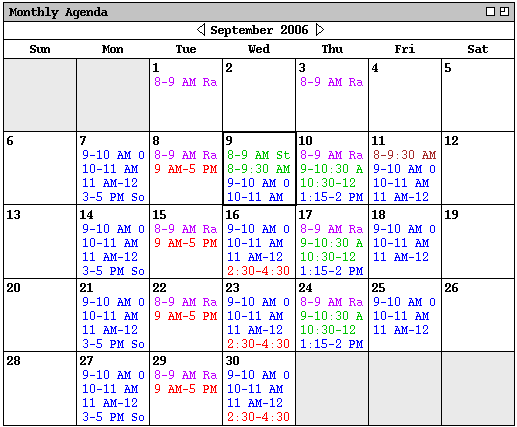

    Figure 20: Month view.


    The Figure shows the scheduled items that have been added during the course of the scenarios up to now. The current date is highlighted with a darkened border. At the top of the view is the name of the month, with arrow buttons to go to the previous and next months.

    In the month view, the display format for an individual day is the same as the list-style weekly view. That is, the time and title for each item are displayed in a vertically-formatted list, sorted by start time, duration, and title. Since the height of each day in the month view is considerably shorter than in the week view, a transient vertical scrollbar is provided when the number of items in a day is greater than fits vertically in the display box for a day. This is precisely the same form of transient scrolling provided in a Day view. In the month view, "transient" means that the scrollbar only appears when the user clicks within a day for which scrolling is necessary. For example, if the user clicks within the display box for Wednesday September 24 (in Figure 20), the scrollbar appears as shown in Figure 21.


    Figure 21: Transient scrolling in a month view.


    The scrollbar appears since there are more items scheduled for September 24 than fit in the current size of the September 24 box. If the user clicks within a day where scrolling is not necessary, such as September 22, no scrollbar appears. A displayed transient scrollbar for any day disappears when the user clicks anywhere outside of the day in which the scrollbar appears.

    A subset of weekly list-style display options are applicable to the month view. These options are:

    1. Show/hide title.

    2. Default display width and default display height.
    These options have the same meaning and defaults as for the table-style weekly view.

    2.3.1.4. Year View

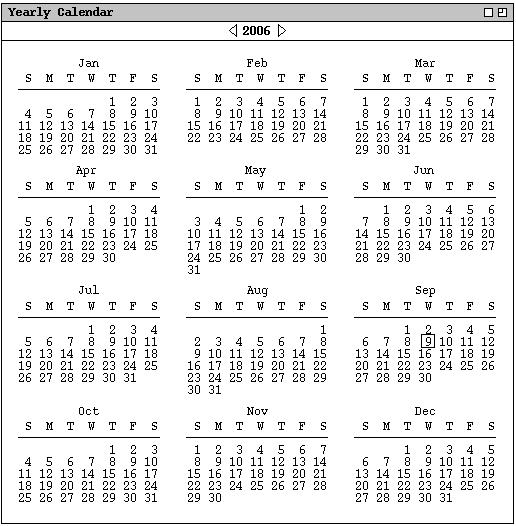
    The largest grain view available is a year, as shown in Figure 22.


    Figure 22: Year view.


    The current date is highlighted with a rectangular border. At the top of the view is the year number, with arrow buttons to go to the previous and next years.

    Unlike the smaller-grain views, the yearly view shows no information about scheduled items. The user may select any date as the target of another view command to show item details.

    2.3.1.5. Scheduled Item View

    The user may view the full scheduling details for an item shown in any day, week, or month display. To do so, the user selects the item time or title and then chooses the 'View Item' menu command. A short cut to view item details is to double click on the item time or title. Figure 23 shows the result of the user having selected to view the item for 8 AM September 11.
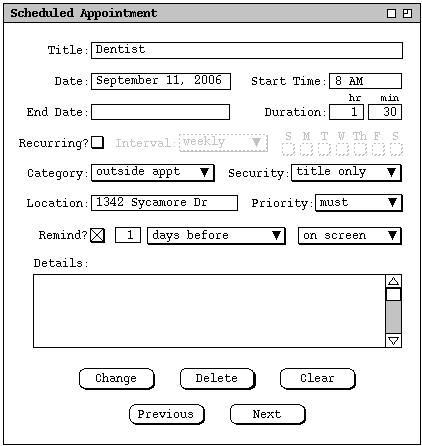

    Figure 23: Details of selected scheduled item.


    The information displayed for the item is editable by the user. This editibility distinguishes the item-level view from the larger-grain daily, weekly, and monthly views. That is, none of the larger-grain displays allows the user to edit any of the displayed item information.

    The item-level display has the same data fields as the scheduling dialog shown in Figure 4 .

    The item display differs from the scheduling dialog in the command buttons along the bottom of the dialog window. Specifically, the scheduling dialog has only 'OK' and 'Cancel' command buttons. In the item display there are buttons to 'Change' the item, 'Delete' the item, and 'Cancel' the dialog. There are also 'Previous' and 'Next' buttons to view the chronologically previous and next scheduled items.

    To change the displayed item, the user makes one or more changes in the item data fields and then presses the 'Change' button. If the user presses 'Change' without having performed any data-field editing, the system responds with an explanatory error dialog.

    To delete the displayed item, the user presses the 'Delete' button. The system responds with a confirmation dialog. If the user confirms affirmatively, the system deletes the scheduled item and removes the display from the screen. The effects of a delete command are potentially wide-ranging, particularly with meetings with multiple attendees. The full details of item deletion are covered in Section 2.9.5 .

    2.3.1.6. Details of Selecting Viewing Targets

    The first five commands in the 'View' menu apply to a user-selected target in the calendar display, or to a default target. To select a viewing target, the user clicks on a desired location somewhere in the current display window. The "current display window" is defined precisely as the display window most recently generated by the system or the window most recently made current by the user having clicked on it or selected it in the 'View Windows' menu. The following are the specific details for how a viewing target is selected in the current display window:

    For the 'View Item' command, an item is selected as follows:

    1. In a day, week, or month view, the user selects a scheduled item by clicking anywhere on the time range or title of the item.

    2. An item cannot be selected in a year view, since no times or titles are displayed there.

    3. If no item is explicitly selected by the user, the default is the first item, if any, scheduled on today's date. If there is no such item, then the 'View Item' command has no effect. (The exact system response to commands with no effect is described in Section on error conditions.)

    For the 'View Day' command, a day is selected as follows:

    1. In a table- or list-style week view, the user selects a day by clicking on any of the day names that label the table columns, or on any item in a desired day.

    2. In a list-style week view, a month view, or a year view, the user selects a day by clicking on the numeric date of any day, or on any item in a desired day.

    3. If the current display window is a day view, the 'View Day' command has no effect.

    4. If no day is explicitly selected by the user, the default is today's date.

    For the 'View Week' command, a week is selected as follows:

    1. In a day view, the selected week is the one that contains the currently displayed day.

    2. In a month or year view, the user selects a week by clicking on the numeric date of any day within the desired week, or on any item in a day within the desired week.

    3. If the current display window is a table-style week view, the 'View Week Table' command has no effect; if the current display window is a list- style week view, the 'View Week Lists' command has no effect.

    4. If no week is explicitly selected by the user, the default is the week containing today's date.

    For the 'View Month' command, a month is selected as follows:

    1. In a day or week view, the selected month is the one that contains the currently displayed day or week.

    2. In a year view, the user selects a month by clicking on the name of any month or on the date of any day within the month.

    3. If the current display window is a month view, the 'View Month' command has no effect.

    4. If no month is explicitly selected by the user, the default is the month containing today's date.
    For the 'View Year' command, a year is selected as follows:

    1. In a day, week, or month view, the selected year is the one that contains the currently displayed day, week, or month.

    2. If the current display window is a year view, the 'View Year' command has no effect.

    3. If no year is explicitly selected by the user, the default is the year containing today's date.

    In all of the cases where a name or numeric date is selected, the system confirms the selection by highlighting the name or date in reverse video. For example, Figure 24 shows how the system highlights the date of September 1 when the user clicks on that date number in the monthly display.


    Figure 24: Reverse video selection highlighting.


    When a view command is completed by the display of the appropriate window, the highlighted selection is changed back to normal type font.

    2.3.1.7. Next, Previous, and Goto

    Immediately below the 'Year' on the 'View' menu are the three commands 'Next', 'Previous', and 'Goto Date'. These commands provide a quick means to go to another calendar date than is in the current display.

    The effect of 'Next' and 'Previous' is based on the level of the current display. At a given level, 'Next' changes the display so that the next calendar unit at that level is displayed; 'Previous' operates analogously in the backward-time direction. An example of the effect of the 'Next' command is illustrated above in transition from Figure 11 to Figure 12.

    The right and left arrows in the banner of each view-level display are shortcuts for the 'Next' and 'Previous' commands, respectively. Pressing one of these arrows has the same effect as the corresponding menu command, with one exception. The exception is that the setting of multi-window mode is ignored when the arrow keys are used. That is, pressing an arrow key always changes the display in the window to which it is attached, and never displays a new window. Further details of the multi-window display option are covered in Section 2.3.5.

    When the user selects the 'Goto Date' command, the system displays the dialog shown in Figure 25.


    Figure 25: Goto date dialog.


    The user enters the desired date and presses the 'OK' button to proceed. In response, the system removes the dialog from the screen and updates the current display based on the entered date. The 'Goto Date' command complies with the setting of the 'multi-window mode' option, either updating the current display window or creating a new window as indicated by the option value.

    The user may enter dates in a variety of common formats. Details of these formats are covered in Section 2.9.1. If the user enters an improperly formated date string, the system enters the string "INVALID DATE" in the text-entry box of the dialog, whereupon the user may re-enter the date or press the 'Cancel' button to cancel the operation entirely. Further details of this and other error conditions are covered in Section .


    Prev: [none] | Next: list-viewing | Up: browsing | Top: index