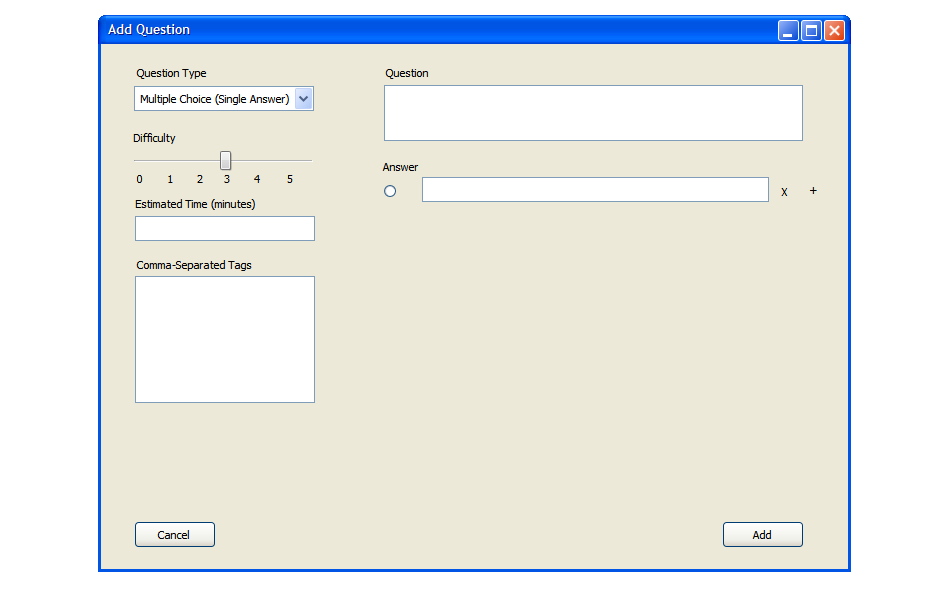
After choosing 'Multiple Choice (Single Answer)', the display on the right
changes to show a question prompt and a form to enter answers (Figure 6). At least two answers must
exist for the question to be valid. The user fills in all the question information including
diffulty, estimated time, and any tags he wishes to associate with the question. He then enters a question
and between 2 and 10 answers. To designate an answer as correct, the user selects the radio button next to that answer
To delete an answer, he will click the 'X' next to the answer (as shown in figure 7). To add a new answer, click the '+' next
to the last answer listed on the page. The user clicks 'Add' to add the question to the question bank.
Figure 6: Screen showing how to Add a Multiple Choice Question.
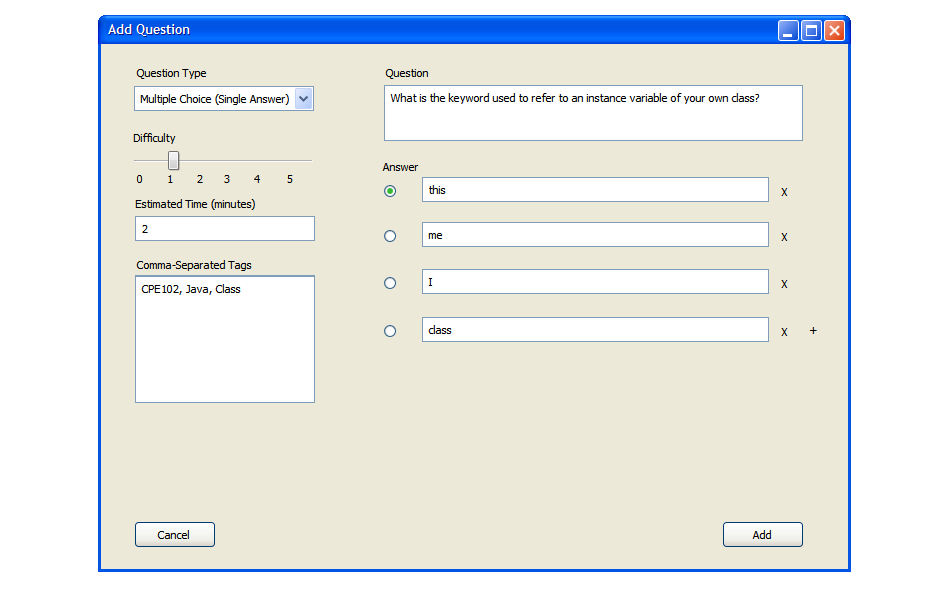
Figure 7: Screen showing a completely filled in Multiple Choice (Single Answer) question. Any number of answer choices between 2 and 10 (inclusive) will work.
After selecting 'Multiple Choice (Multiple Answer), the screen is similar to the
"Multiple Choice (Single Answer)" page. The main difference is that this form allows
multiple answers to be selected from the available choices. This is designated by the
square 'answer' buttons shown as shown in figure 8. The user fills in the question data
and the question text. Any number of answers can be added between 2 and 10 (inclusive). Any number
of answers can be designated as correct between 1 and 10 (inclusive). To add a new answer, click the '+' next
to the last answer listed on the page.A complete example is shown in figure 9. The user clicks 'Add' to
add the question to the question bank.
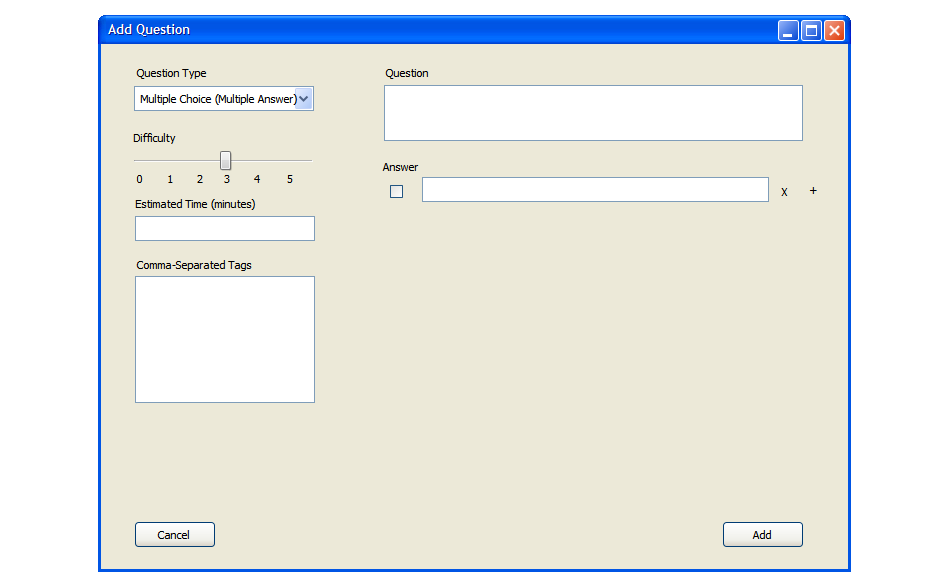
Figure 8: Multiple Choice (Multiple Answer) questions have a square selector box.
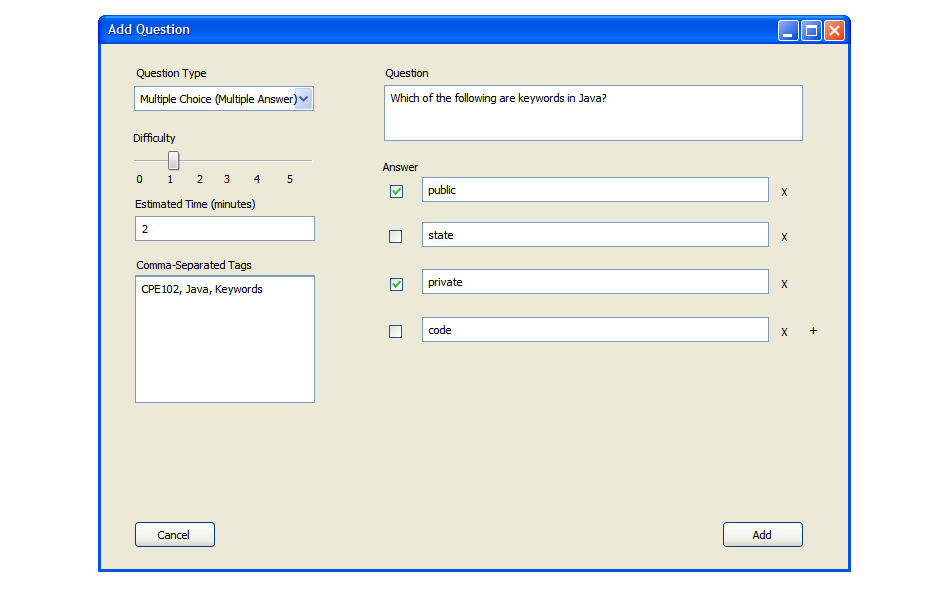
Figure 9: Multiple Choice (Multiple Answer) example. At least one answer must be designated correct, and ALL of them can be.
Once the user selects 'Add', the question is added to the question bank as shown in Figure 10.
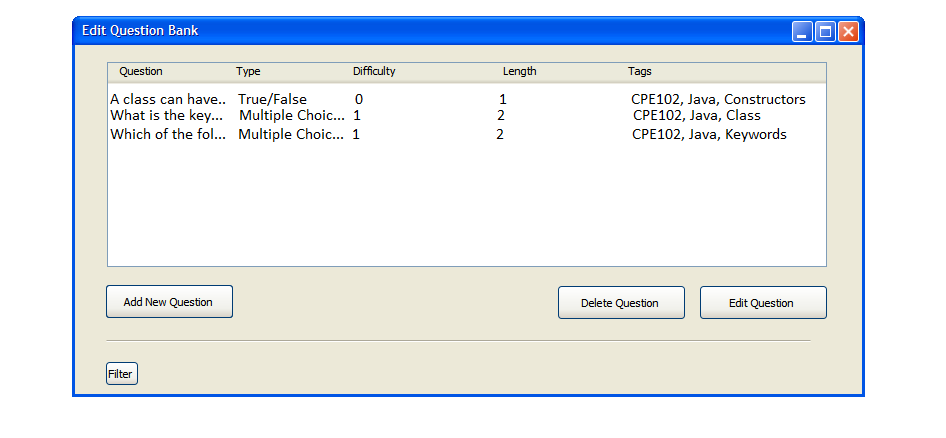
Figure 10: Multiple Choice questions added to the Question Bank