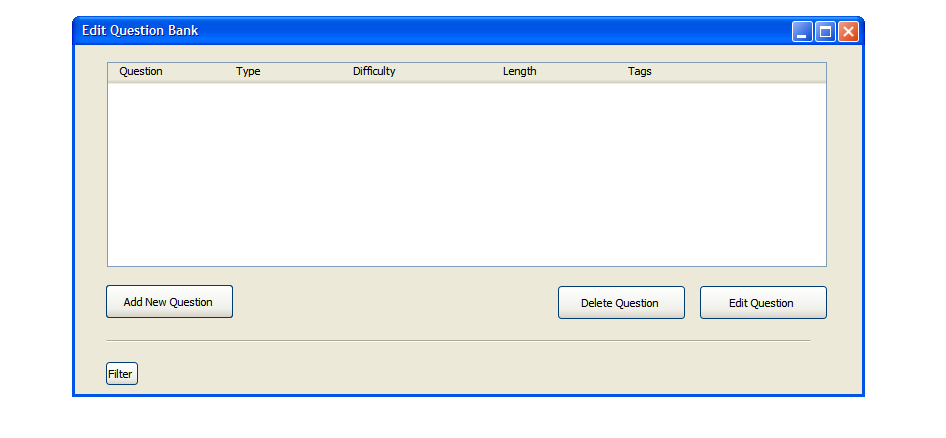
Figure 1: Menu for choosing to add or edit questions in the bank.
The scenario in this section illustrates a user adding a question to the test bank for use in a test.
When the user selects Manage Questions in the Main Menu, the
system displays the screen shown in Figure 1. The question bank is blank until questions are added.
To add a new question to the bank, the user selects 'Add New Question'. This brings up the screen shown in the next section.
Figure 1: Menu for choosing to add or edit questions in the bank.
After selecting Add New Question in the Edit Question Bank Menu, the screen in figure 2 appears. There is a drop down menu for each of the question types. These include:
The difficulty can be set with the slider. Moving the slider left indicates an easier question. Moving the slider right indicates a more challenging question. The user can also enter an estimated time for the question. Any tags the user wants to add to the question should be entered in the box labeled 'Comma-Separated Tags'. These are used for filtering the questions when creating tests (section 2.3). If the user wishes to go back to the menu and not save any work on this page, he presses 'Cancel'.
For every type of question, a 'question' text box appears on the right side of the screen when the user selects a question type. This question box accepts a plain text question typed directly into the box. However, it also accepts HTML formatting of the question if the user wishes to modify the layout of the question prompt or add figures. Typing the HTML directly in the question box prompt works, as will copying and pasting from the users preferred text editor.
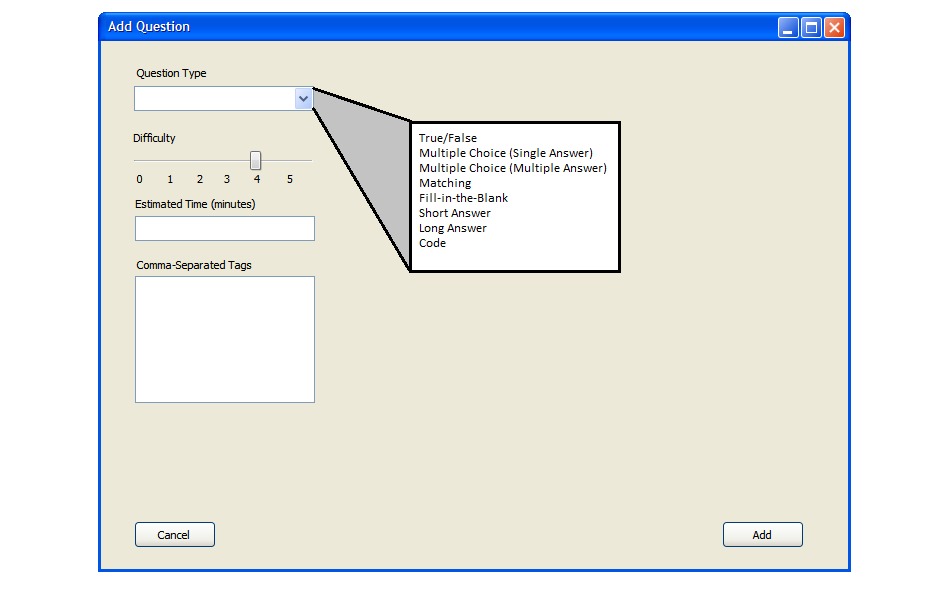
Figure 2: Default menu for adding questions. The drop-down menus are expanded superficially on the right.