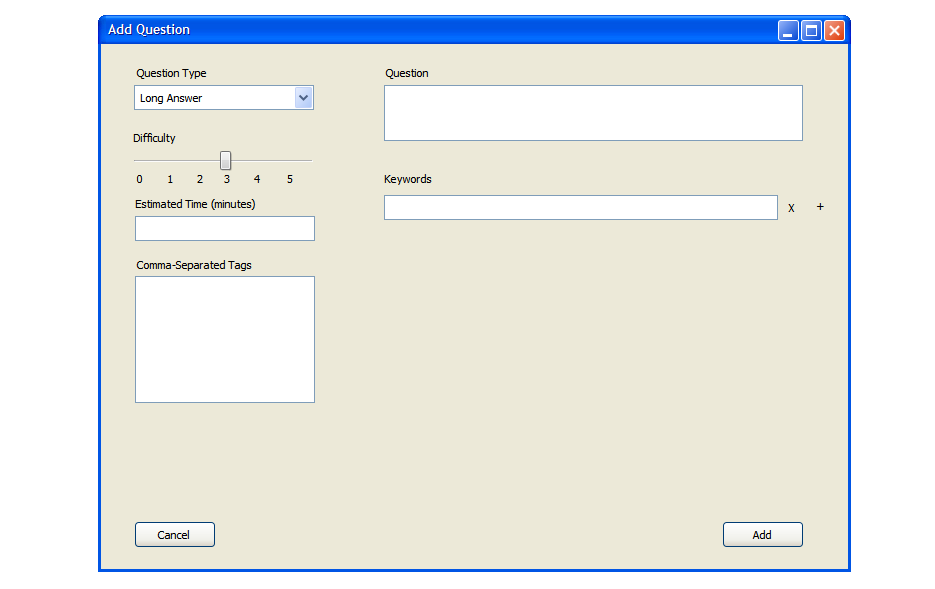
When the user selects 'long answer' from the 'Question Type' drop down menu, the screen in figure 18 appears. A long answer
question generally requires the student to write a paragraph or more. Since matching an entire paragraph would be impossible,
this question type generally relies on manual grading of the answer by the professor or TA. However, the student can get some
instant feedback if the professor enters some keywords to search for in the student answer text. After filling out the question data
such as difficulty, time, and any associated the tags, the user enters a prompt for the question. Any number of keywords between 0 and
25 (inclusive) is entered next. To add a new keyword, the user clicks the '+' symbol. To delete a keyword, the user clicks the 'X' symbol
next to the appropriate keyword.
Figure 18: Screen for entering a long answer. Keywords are searched for in the student answer text.
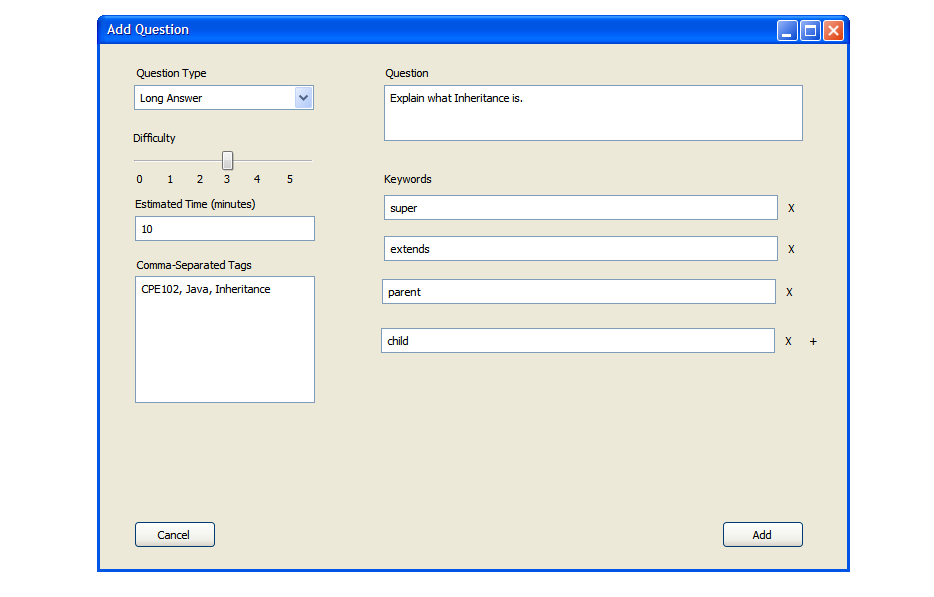
Figure 19: Screen showing an example of a completed long answer. The student answer text will be given points for each matching keyword but should ultimately be graded by the professor or TA.