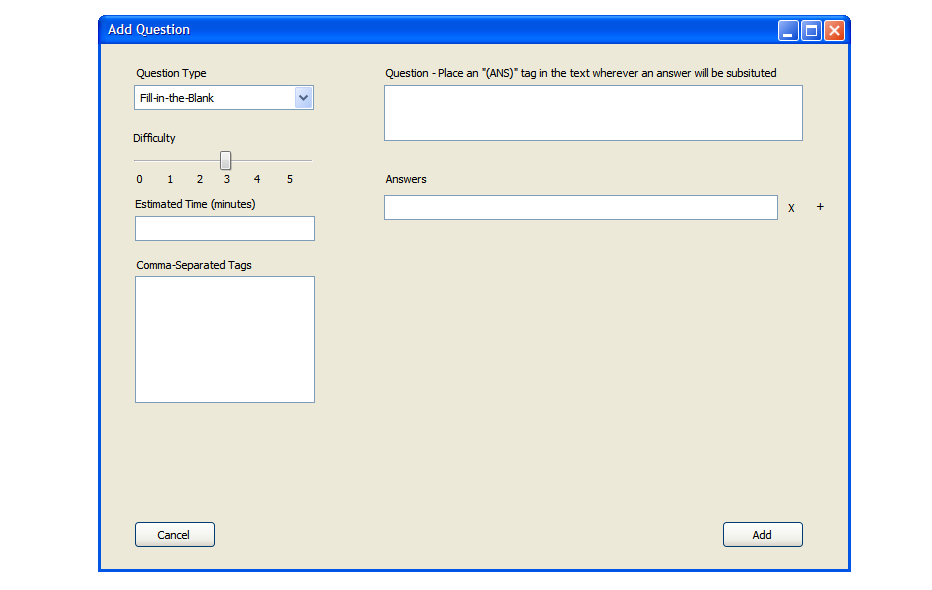
A Fill-in-the-Blank has the capacity to hold anywhere from 1 to 10 blank spots that will prompt the student for an answer
on the test. After the user fills out the question data on the left (difficulty, time, tags), they enter the question prompt
in the 'question' text box. To designate a place for a blank, the user uses an "(ANS)" tag as shown in figure 14. There must be
an answer provided for every "(ANS)" tag in the question text. If there is not, the question is rejected when the user tries to
click 'add'. The only other acceptable input besides a 1:1 'answer' to "(ANS)" tag ratio is one answer provided (in an answer text box
below the question prompt) and zero "(ANS)" tags. This will place a blank at the very end of the question text, where the one provided
answer will be expected. To add a new answer, the user clicks the "+" symbol next to the last answer. To delete an answer, the user clicks
the "X" symbol next to the appropriate answer. The program denies any questions with a mismatched answer and "(ANS)" tag count, besides
for the exception case mentioned above. Answers provided match up in the order they are provided with the order of the tags in the
question text (The first "(ANS)" tag corresponds to the first answer provided, etc).
Figure 14: Screen showing the default Fill-in-the-blank question page.
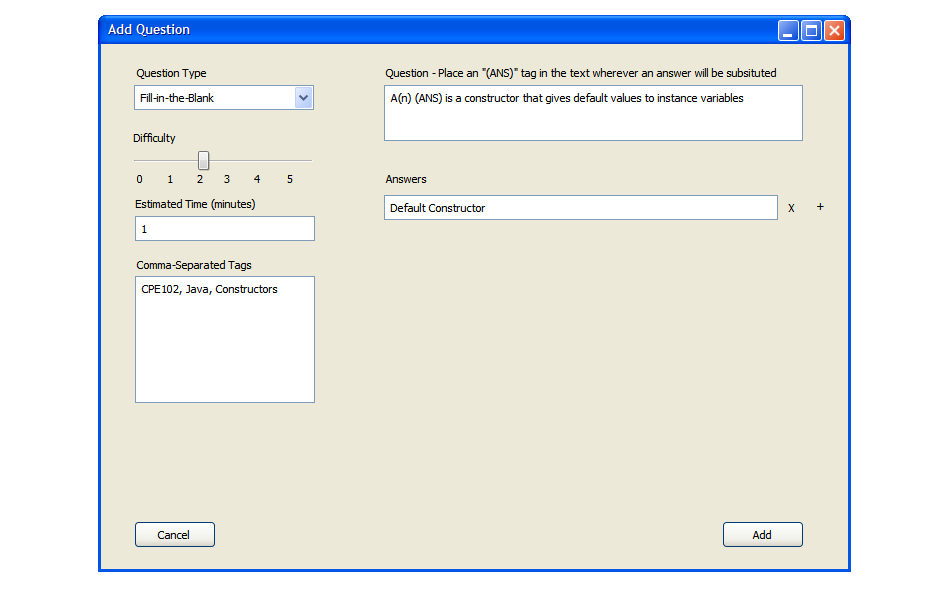
Figure 15: Screen showing how to add a fill in the blank answer. Special care must be taken to make sure the "(ANS)" tags match chronologically with the answers provided.