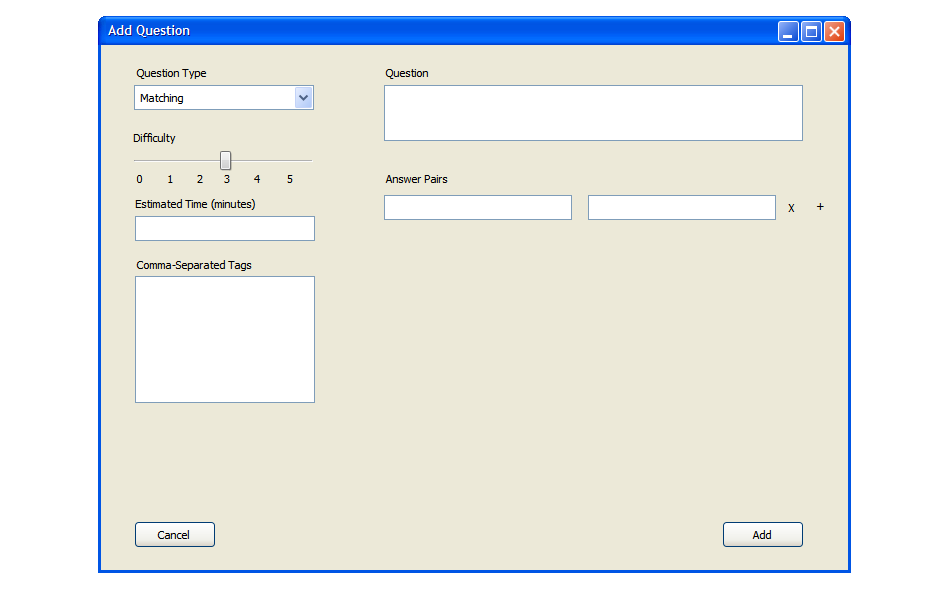
When the user selects 'Matching' from the 'Question Type' drop-down menu, the screen in figure 11 appears.
A matching question consists of a prompt followed by two columns of answers. The user fills in the difficulty,
estimated time and any associated tags for the question. When entering answer pairs,
the user must enter at least 2 answer pairs and no more than 25. The 'answers' in the left column appear on
the test in the order in which they are entered on this screen. The 'answers' in the right column are randomly placed
on the test. To add a new answer pair, the user clicks the '+' symbol next to the last answer pair. To delete a pair, the user
clicks the 'X' symbol next to the one he wishes to delete. An example of this is shown in figure 12.
Figure 11: Screen showing matching question entry. The test making program will automatically and randomly shuffle the order of the answers on the right.
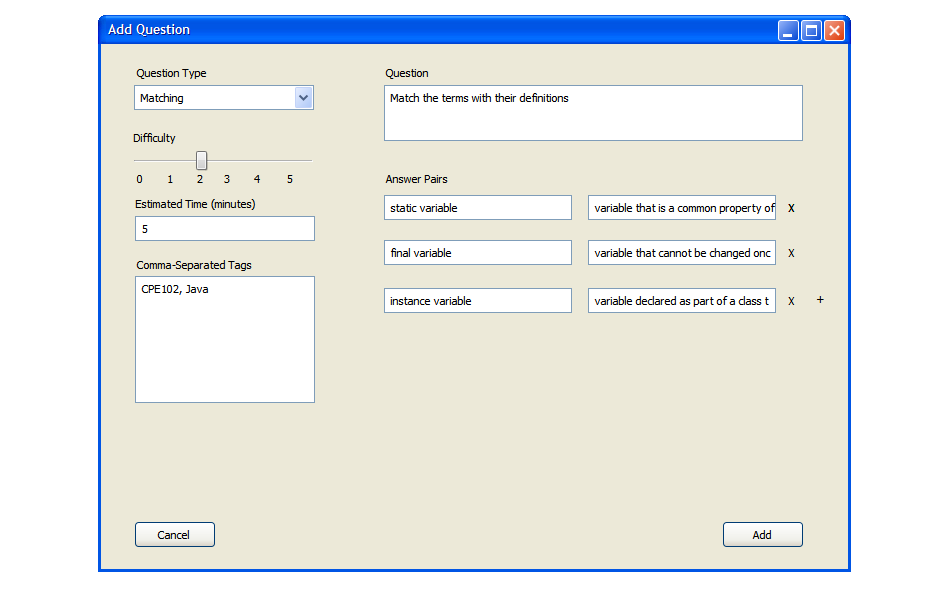
Figure 12: Screen showing a completed matching question.
Once the user selects 'Add', the question is added to the question bank as shown in Figure 13.
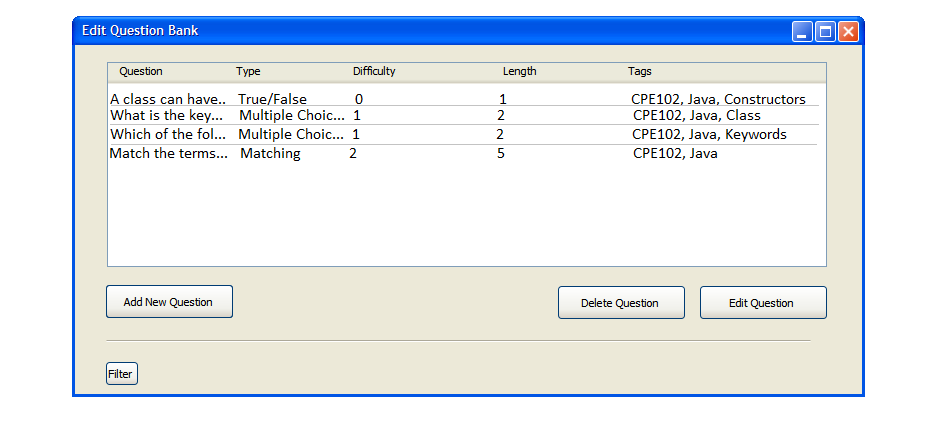
Figure 13: Matching question added to the Question Bank