2.3.3. Generating a test
The scenario in this section illustrates an individual user generating a test.
When the user selects Create Test from the Manage Tests menu, the system displays the dialog shown in Figure 6.
Figure 6 shows an unpopulated test creation window. Basic test creation is covered in Creating Tests.
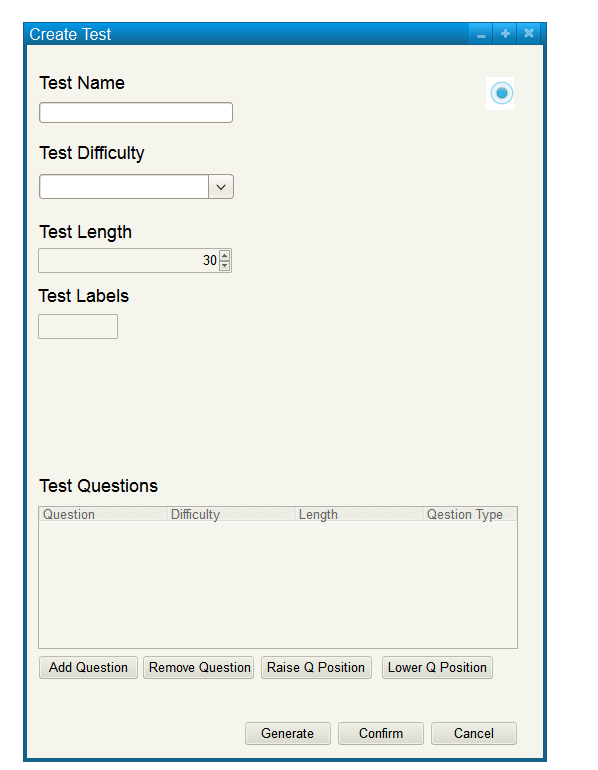
Figure 6: Create test dialog.
The user then clicks generate, which will automatically populate the list of test questions based on the parameters entered
The user may click re-generate to re-generate the test based on the parameters
A generated test creation dialog is shown in Figure 7
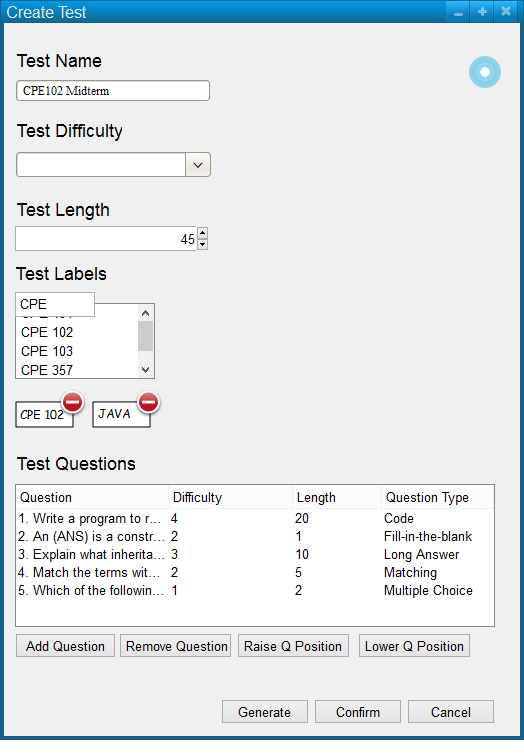
Figure 7: Populated Create Test Dialog.
If the user is unsatisfied, they may regenerate the entire test by pressing generate once more.
A new generated test is shown in Figure 8. Some of the same questions may be generated again.

Figure 8: Populated Create Test Dialog.
Search And Generation Settings
The settings for question generation are accessed by pressing the gear button on the top right of the screen.
Detailed information on test generation settings are covered in 2.3.6: Test Generation Settings.
Confirming changes to the test will return the user to the manage tests menu and will have added the newly created test to the list.
Prev: test-creation
| Next: test-editing
| Up: tests
| Top: index