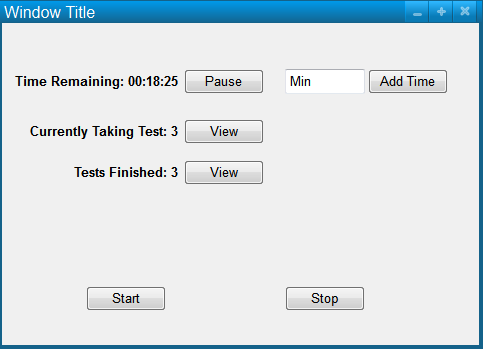
After the proctor selects a test, the proctor sees a window showing the amount of time left in the test, number of users currently taking the test, and the number of users completed with the test.
Figure: Proctor View.
When the proctor arrives at this screen the test has not yet started and the proctor may click the Start button to start the test.
The proctor may click the Pause button to stop the time from counting down and also restrict students from viewing or answering questions. To resume the test the proctor may press the Pause button again.
If the proctor wishes to give more time for the test, they type in the time to add in the text field and click the Add Time button to add that amount in minutes.
If the test is completed, the proctor clicks the Stop button to close the test and accept the scores.
The proctor can view a list of all students currently taking the test by clicking on the View button next to the number of students currently taking the test. The proctor will be brought to a new screen as shown in the following figure.
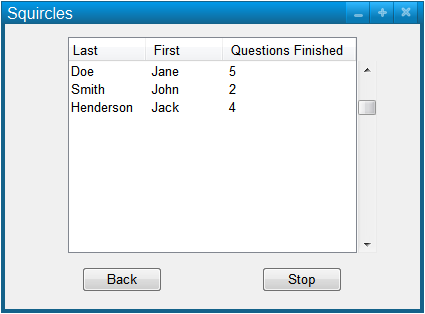
Figure: Students taking the test.
This view lists all students currently taking the test. It will show each students first and last name as well as the number of questions they have
finished. If the proctor wishes to stop a specific students test they may select a student from the list and click the Stop, which will remove the student from the list and move them to the finished students list. If the Back button is clicked the proctor will be returned to the previous screen.
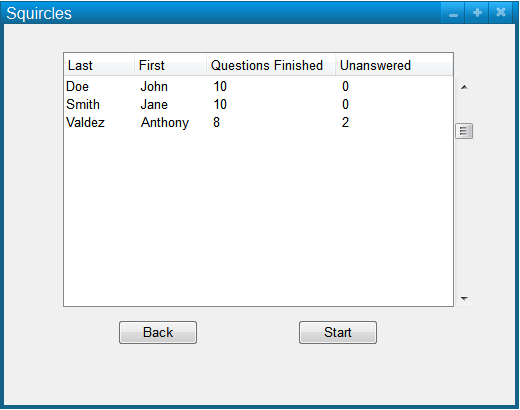
Figure: Students finished with the test.
This view lists all students finished with the test. It will show each students first and last name as well as the number of questions they answered and left unanswered. The proctor may select a student from the list and click the Start button to allow the student to continue taking the test if there is time remaining. If the Back button is clicked the proctor will be returned to the previous screen.