Eclass must provide a way for instructors to get their lecture material up on the 'Lecture Slides' window. Lecture content can be typed directly into the 'Lecture Outline' window or composed outside of Eclass using any of a number of popular web authoring tools. Eclass lecture content is entirely XHTML-based. This approach enables instructors to easily import their existing lecture content via HTML and begin building new lectures using common HTML syntax. In addition to standard HTML tags, Eclass also supports its own set of specialized XHTML tags for filtering and other advanced functions.
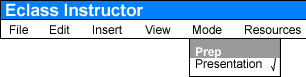
Since instructors are the only users who will be preparing lectures, most of the features described in the following scenarios are only accessible in the instructor's view with 'Prep' mode enabled. To switch from 'Presentation' to 'Prep' mode select 'Prep' from the 'Mode' pulldown menu.
Figure 2.3 I1: Switching to 'Prep' mode.
This scenario describes how to compose a lecture within the 'Lecture Outline' window. This is what the 'Lecture Outline' window looks like initially.
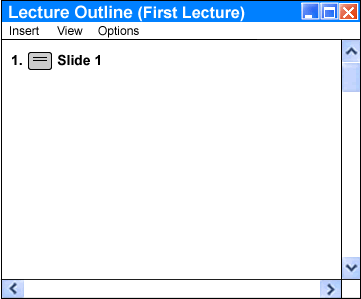
Figure 2.3.1 I1: Initial 'Lecture Outline' window
The instructor starts by renaming the default slide title that Eclass generates automatically. Eclass creates a slide title based on the slide's number (Slide 1, Slide 2, etc.). Slide titles appear in the 'Lecture Outline' window before the first line of each slide. They have a number and a small slide icon that turns gray when that slide is currently selected and stays white when not. Slide titles allow the instructor to use the 'Lecture Outline' window to navigate through the lecture slides. Clicking on a slide title makes that slide the current slide in the 'Lecture Slides' window.
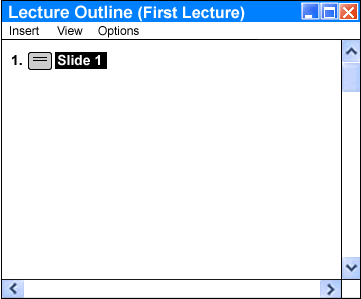
Figure 2.3.1 I2: Instructor selects slide title.
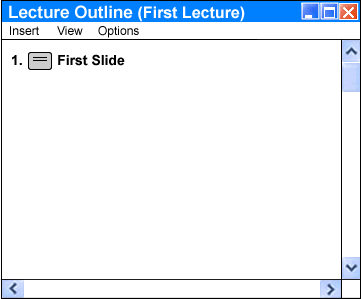
Figure 2.3.1 I3: Instructor types "First Slide" over the old slide title thereby renaming it.
After the slide title is created, the instructor types some content in for their first slide just as he/she would in any normal text editor.

Figure 2.3.1 I4: Lecture content typed in by the instructor.
The instructor then begins formatting the content into list structures called sequences which contain sequence items. He/she starts by placing the text cursor in front of the first major topic which in this case happens to be called "First Topic".
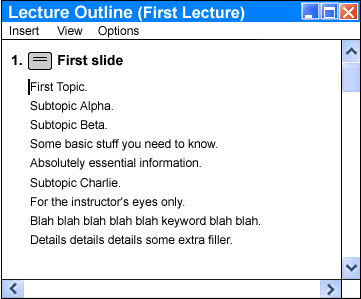
Figure 2.3.1 I5: Instructor places cursor in front of the first major topic.
The instructor then selects 'Sequence Item' from the 'EclassML' submenu within 'Insert' and a sequence item tag is inserted in front of "First Topic". For a brief tutorial on the 'Insert' menu and tag insertion refer to section 2.3.3. Notice the roman numeral "I" that appears indicating that this is indeed the first major topic.
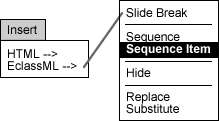
Figure 2.3.1 I6: Selecting 'Sequence Item' from the 'Insert' menu.
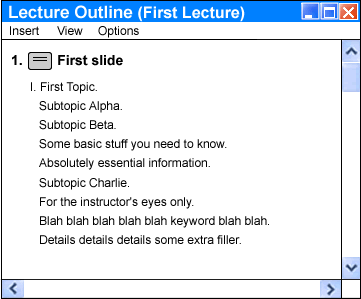
Figure 2.3.1 I7: 'Lecture Outline' after 'Sequence Item' tag is inserted.
Next, the instructor selects all the information pertaining to "First Topic."
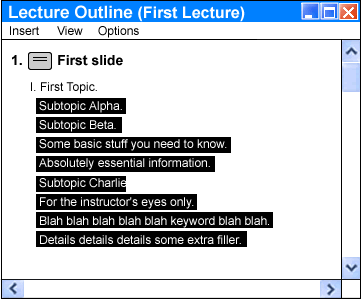
Figure 2.3.1 I8: Instructor selects information for "First Topic".
The instructor then selects 'Sequence' from the 'Insert' menu and the selection is converted into a new sequence within sequence item "First Topic". The 'Outline' window looks no different than it did in Figure 2.3.1 I7 but if we were to look at the source file we would see starting and ending sequence tags around the selected block.
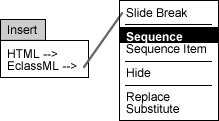
Figure 2.3.1 I9: Selecting 'Sequence' from the 'Insert' menu.
Figure 2.3.1 I10: 'Lecture Outline' after 'Sequence' tags are inserted around the selection in 2.3.1 I8.
The instructor then places the cursor in front of the first subtopic and inserts a sequence item tag.
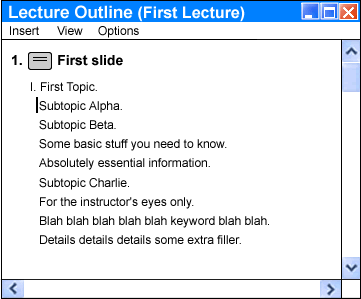
Figure 2.3.1 I11: Instructor positions cursor in front of first subtopic.
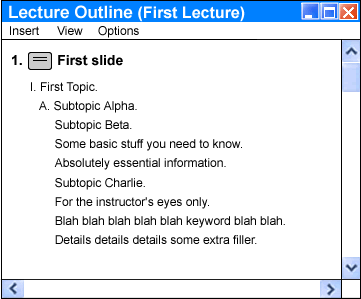
Figure 2.3.1 I12: 'Lecture Outline' after 'Sequence Item' tag is inserted before "Subtopic Alpha..."
A letter "A" now appears before "Subtopic Alpha". Since this sequence item tag was inserted inside the nested sequence belonging to "First Topic" it appears indented. The instructor then inserts another sequence item tag in front of "Subtopic Beta".
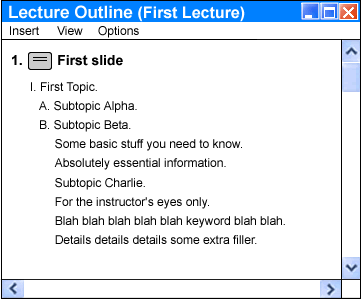
Figure 2.3.1 I13: 'Lecture Outline' after 'Sequence Item' tag is inserted before "Subtopic Beta..."
A letter "B" now appears in front of "Subtopic Beta". Because sequence items have no end tags, Eclass assumes everything after the sequence item tag is part of the same item, hence the indentation. The instructor then selects all the information pertaining to "Subtopic Beta" and inserts 'Sequence' tags around that.
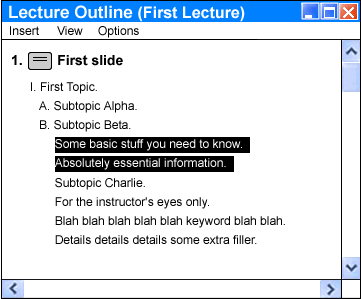
Figure 2.3.1 I14: Instructor selects a new 'Sequence' to be embedded inside "Subtopic Beta..."
Figure 2.3.1 I15: 'Lecture Outline' after 'Sequence' tags are inserted around the selection in Figure 2.3.1 I14.
Again, there is no apparent change in the 'Lecture Outline' window after the sequence tags are inserted but when looking at the source file we can see that sequence tags have in fact been inserted around the selected block. The instructor then inserts a sequence item tag in front of the first line below "Subtopic Beta" and then repeats this action for the second line.
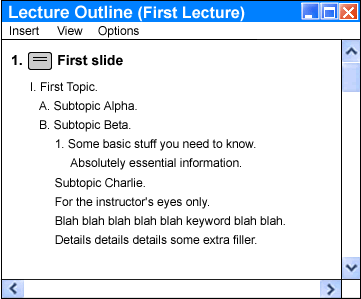
Figure 2.3.1 I16: 'Lecture Outline' after 'Sequence Item' tag is inserted before "Some basic stuff..."
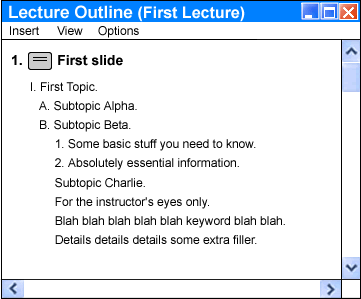
Figure 2.3.1 I17: 'Lecture Outline' after 'Sequence Item' tag is inserted before "Absolutely essential..."
Now that the subtopic is complete, the instructor inserts a sequence item tag in front of "Subtopic Charlie" and begins the process all over again.
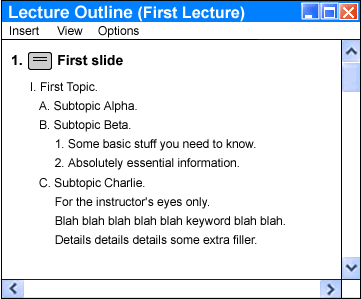
Figure 2.3.1 I18: 'Lecture Outline' after 'Sequence Item' tag is inserted before "Subtopic Charlie..."
You may have noticed by now that sequences are practically identical to ordered lists in HTML. They are defined in XHTML using two of Eclass's extended tags (<seq></seq> and <si>) which correspond to the sequence and sequence item tags mentioned in the previous scenario . As mentioned earlier, sequence items require no end tags just like <li> tags in HTML. Observe the XHTML for Figure 2.3.1 I18:
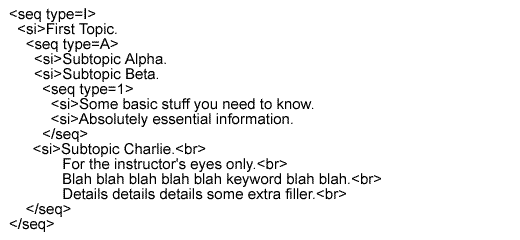
Figure 2.3.1 I19: XHTML for Figure 2.3.1 I18.
Notice how nesting <seq></seq> tags enables successive levels of indentation. Eclass also preserves the line breaks the instructor entered when he/she first typed the content. They can be removed by backspacing within the 'Lecture Outline' window. The 'seq type' attribute allows the instructor to manually set the numbering style for sequence items using HTML's conventions for ordered list types. The Eclass default rotates between upper roman, upper alphabetical, Arabic numbers and lower alphabetical in that order.
| Type | Numbering Style | |
|---|---|---|
| 1 | Arabic numbers | 1, 2, 3, ... |
| a | lower alpha | a, b, c, ... |
| A | upper alpha | A, B, C, ... |
| i | lower roman | i, ii, iii, ... |
| I | upper roman | I, II, III, ... |
Figure 2.3.1 I20: HTML Ordered List types.
Eclass does not allow editing of raw XHTML tags within the 'Lecture Outline' window or anywhere else in the application. This does not pose a problem for the instructor since the XHTML source file that Eclass saves for a lecture can be read in any standard text editor.
The instructor may wish to filter their outline so that only certain passages appear on the slides in the 'Lecture Slides' window. Outline passages that the instructor wants to leave out should be marked with the <hide></hide> tags. Text marked <hide></hide> appears in the 'Lecture Outline' window but not in the 'Lecture Slides' window. In the 'Lecture Outline' window, text that is not within <hide></hide> tags is classified as 'Selected' and shows up highlighted in yellow to distinguish it from text that is not seen in the 'Lecture Slides' window. Observe figures 2.3.2 I1 and 2.3.2 I2.
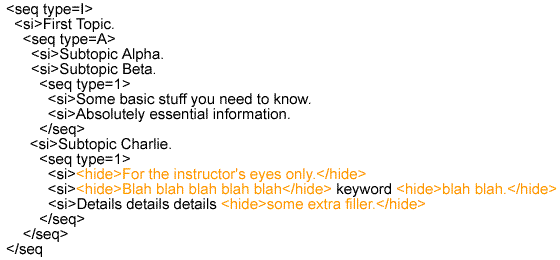
Figure 2.3.2 I1: Example source containing <hide></hide> tags.
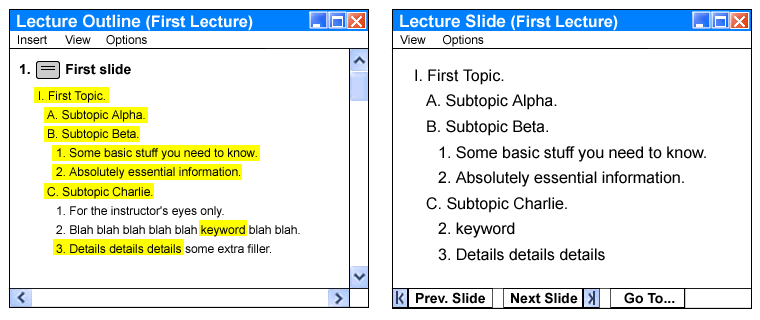
Figure 2.3.2 I2: Source file from Figure I1 as it appears in the 'Lecture Outline' and 'Lecture Slides' windows.
Occasionally a passage needs to be modified or rewritten for the 'Lecture Slides'
window because it's original context has been hidden. Passages that need rephrasing
are marked with the <replace></replace>
tags. For a set of <replace></replace> tags to serve any kind of
useful function besides hiding there must be an accompanying set of <subs></subs>
tags . Text marked
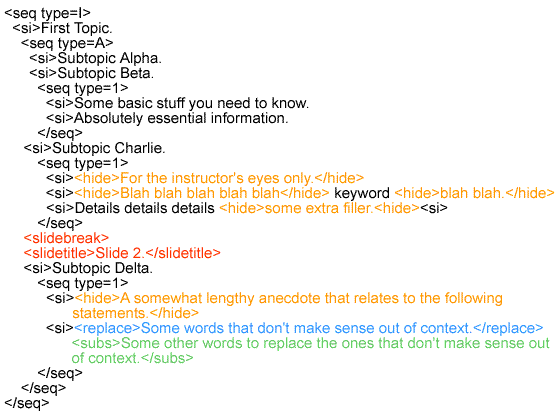
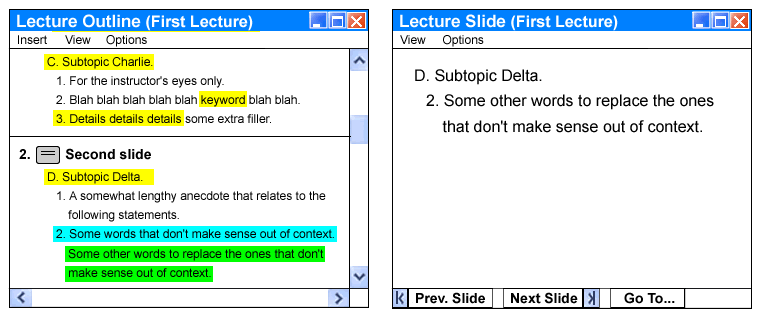
Figure 2.3.2 I4: Source file from Figure I3 as it appears in the 'Lecture Outline' and 'Lecture Slides' windows.
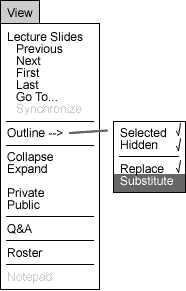
Figure 2.3.2 I5: Unchecking 'Substitute' from
the 'View' menu.
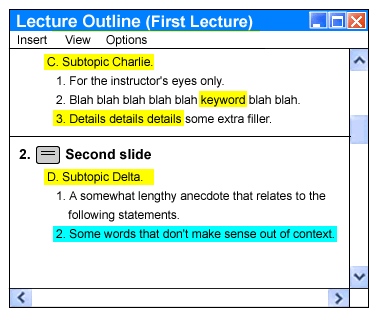
2.3.2 I6: Source file from Figure I3 as it
appears in the 'Lecture Outline' window with 'Substitute' unchecked. Green text
is now gone..
The instructor also has the option of checking and unchecking 'Hidden', 'Selected' and 'Replace' in the 'View' menu. Notice that when the instructor checks 'Selected' and 'Replace' and unchecks 'Hidden' and 'Substitute' the contents of the 'Lecture Outline' window is exactly the same as what appears in the 'Lecture Slides' window.
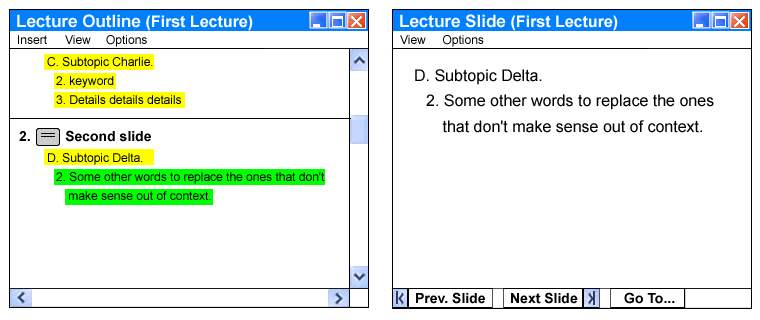
Figure 2.3.2 I7: Source file from Figure I3 as it appears in the 'Lecture Outline' and 'Lecture Slides' windows with only 'Selected' and 'Substitute' checked..
Filtering provides the instructor with a great deal of flexibility in composing his/her lectures. A major complaint users of popular slide-based presentation software packages have is that they have to reorganize and retype their lecture notes when they format them into slides. Any changes made to a lecture require that users modify both their notes and their slides. Filtering enables instructor's to combine both versions in the same document so such changes occur simultaneously in both places. Some instructors may find that the added complexity of filtering is unnecessary for what they do. To simplify composition they can simply refrain from using these additional tags.
Like the sequence and sequence item tags first mentioned in section 2.3.1 all of the filtering tags discussed in the last section can be inserted from within the 'Lecture Outline' window using the 'Insert' menu. The 'Insert' menu divides the tags available into two classes: HTML and EclassML. The 'HTML' submenu consists of some of the most commonly used HTML tags. The 'EclassML' submenu consists of all the EclassML extended tags.
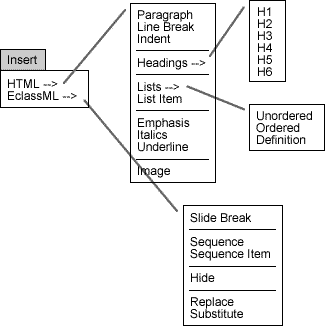
Figure 2.3.3 I1 'Insert' menu and submenus.
For example, to italicize the word "sense" in the second slide the instructor starts by selecting the word in the 'Lecture Outline' window.
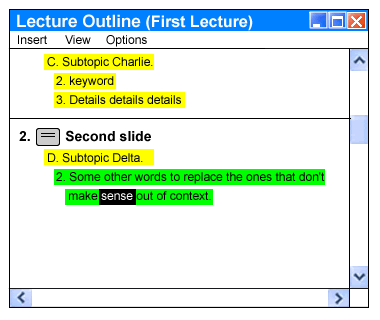
Figure 2.3.3 I2 Selecting "sense".
The instructor then selects 'Italics' from the 'HTML' submenu of the 'Insert' menu.
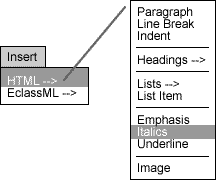
Figure 2.3.3 I3 Selecting 'Italics' from HTML submenu.
The word now appears in italics in both the 'Lecture Outline' and 'Lecture Slides' windows and the HTML <i></i> tags are inserted around the word and saved to the source file.
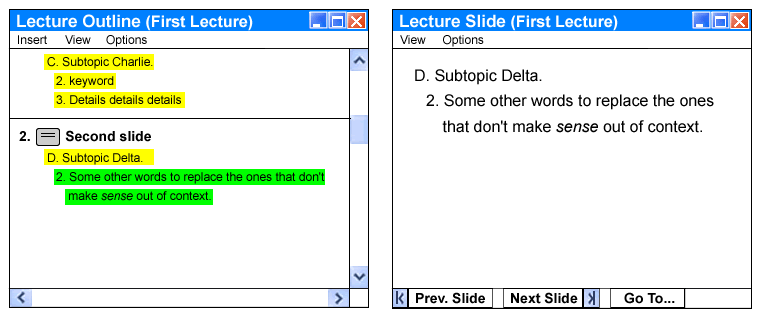
Figure 2.3.3 I4 The word "sense" is now italicized.
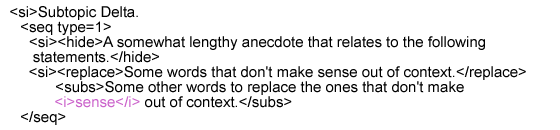
Figure 2.3.3 I5 <i></i> tags inserted by Eclass after italicizing.
Let's say the instructor decides he doesn't want to discuss "Subtopic Alpha" in this lecture. Rather than delete the subtopic he/she can simply hide it. To do that, the instructor first selects "Subtopic Alpha" in the 'Lecture Outline' window.
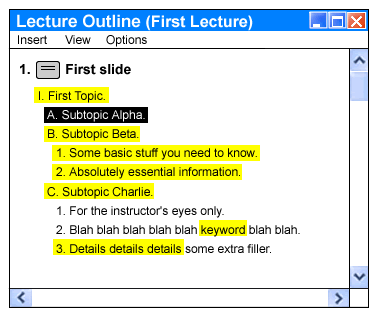
Figure 2.3.3 I6 Selecting "Subtopic Alpha."
The instructor then selects 'Hide' from the 'EclassML' submenu of the 'Insert' menu.
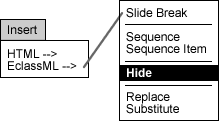
Figure 2.3.3 I7 Selecting 'Hide' from EclassML submenu.
"Subtopic Alpha" is no longer selected (yellow) in the 'Lecture Outline' window so it does not appear 'Lecture Slides' window. EclassML <hide></hide> tags are inserted around the phrase and saved to the source file.
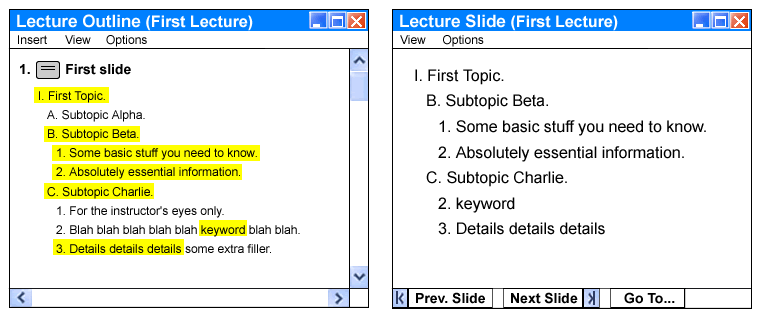
Figure 2.3.3 I8 "Subtopic Alpha" is now hidden from the 'Lecture Slides' window.
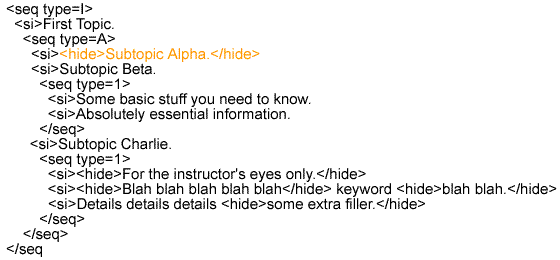
Figure 2.3.3 I9 <hide></hide> tags inserted by Eclass after hiding.
For Eclass to be able to generate slide breaks automatically, a set of default values must be specified for a typical slide. The default dimensions of a slide are 10 by 8 inches. To bring up the 'Slide Setup' dialog select 'Slide Setup' from the 'Edit' menu.
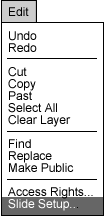
Figure 2.3.4 I1 Selecting 'Slide Setup' from the 'Edit' menu.
A dialog appears with fields for scope, margins, line height and number of lines. The dialog also contains a preview window with margin rules and a horizontal baseline grid.
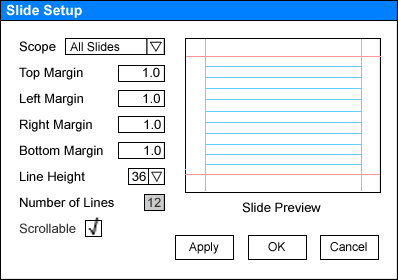
Figure 2.3.4 I2 Selecting 'Slide Setup' from the 'Options' menu.
The scope field controls what slides the setup applies to. Initially, the scope is 'All Slides' but the instructor can change the scope to 'Current Slide' or 'Selection' if that is what they want. If the scope is 'Current Slide' then any changes made to fields in this dialog will only affect the slide that appears in the 'Lecture Slides' window. This kind of slide setup is referred to as a user-defined slide setup to distinguish it from the global slide setup which has a scope of 'All Slides'. An instructor can apply a user-defined slide setup to a number of slides by shift clicking on the slide titles in the 'Lecture Outline' window before bringing up the 'Slide Setup' dialog. Once the selection is made and the 'Slide Setup' dialog is brought up, the instructor sets the scope to 'Selection'. He/she can preview the changes in the 'Lecture Outline' and 'Lecture Slides' windows by clicking on the 'Apply' button. The new text wrap appears in the 'Lecture Outline' and 'Lecture Slides' windows but the changes are not commited until the instructor clicks 'OK'.
The instructor cannot enter anything in the 'Number of Lines' field. This field is strictly for feedback. The number of lines is set by changing the point size of each row in the horizontal baseline grid using the 'Line Height' pulldown field. Every time a new value is selected in this field the blue lines in the 'Slide Preview' window shift accordingly.
Eclass uses the default slide setup and any user-defined slide setups to calculate
where to automatically insert slide breaks. These slide breaks appear as horizontal
lines in the 'Lecture Outline' window and
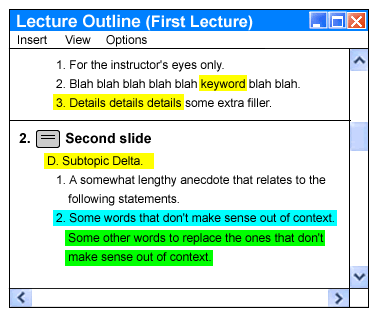
Figure 2.3.5 I1 Slidebreak before dragging.
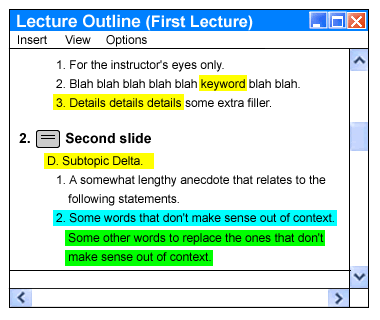
Figure 2.3.5 I2 Slidebreak at the end of dragging just before letting go.
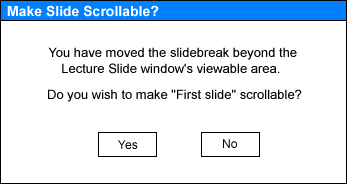
Figure 2.3.5 I3 Make Scrollable dialog.
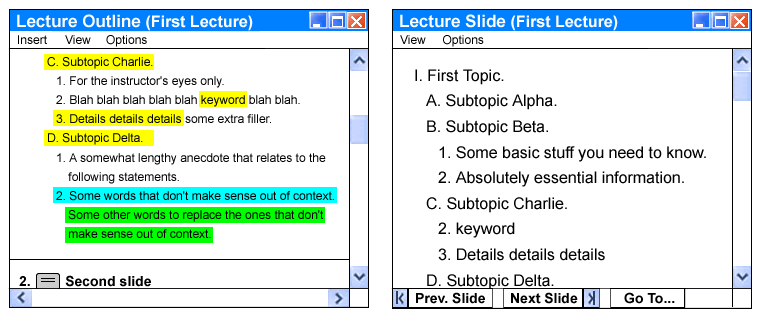
Figure 2.3.5 I4 'Lecture Outline' and 'Lecture Slides'
windows after clicking 'Yes' on previous dialog.
Notice the new vertical scrollbar on the 'Lecture Slides' window. Scrolling down would reveal the rest of Subtopic Delta. Eclass automatically saves the <slidebreak> tags it generates to the source file. Any <slidebreak> tags that the instructor enters manually into the source file are also preserved.
Expand and collapse are user operations that utilize the sequence and sequence item tags discussed in section 2.3.1. Although sequence and sequence item tags can only be inserted by the instructor while in 'Prep' mode, the ability to expand and collapse sections is available to both students and instructors while in 'Presentation' mode. The details of how a user invokes expand and collapse are described in section 2.5.1.
Sequences organize information in hierarchical nested arrangements. This property makes it easy to expand high level sections and collapse lower level subsections the way most file browsers navigate through directory trees. Clicking on a collapsed section and clicking on the 'Expand' button expands that section once revealing that section's subsections. Clicking on a newly-revealed subsection and clicking on the 'Expand' button expands the list again revealing yet another level of subsections. This process can be continued until the user reaches the lowest level of the sequence structure. Collapsing works much the same way. If the last operation performed on a section was expansion then clicking on the section and the 'Collapse' button collapses the section. Both instructors and students can expand and collapse sections. The results of expanding and collapsing appear in both the 'Lecture Outline' and 'Lecture Slides' windows.
One of the difficulties associated with expanding and collapsing is that Eclass must be able to generate and delete slidebreaks on the fly. That is why instructors should use descriptive titles for their slides rather than rely on Eclass's default titles (Slide 1, Slide 2, etc.) since expanding and collapsing often changes the slide numbering. Many times when a user expands a section the content will no longer fit on a slide. When this happens, the slide either becomes scrollable or new slides are generated to catch the expansion. Which operation occurs depends on whether or not 'Scrollable' is checked in the 'Slide Setup' dialog. If 'Scrollable' is checked then a vertical scrollbar appears on right edge of the 'Lecture Slides' whenever the capacity of a slide is exceeded. If 'Scrollable' is left unchecked then expanding a large sequence will cause the excess content to be broken up into multiple slides inserted immediately after the current slide.