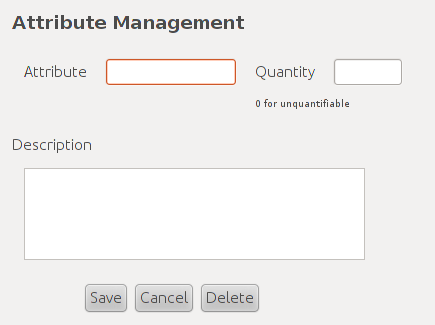
This scenario shows how a user would modify room or course attributes. In this initial scenario there have been no previously created attributes. How a user arrives at this screen can be explained in the navigation bar section: 2.1.3 UI Navigation Bar
Figure 1: Initial Attributes Management Screen
Near the Attribute label lies the attribute name text box. This text box simply allows users to enter in the name of an attribute or modify the name of an already existing attribute. In either case users will not be able to give an attribute a name that another attribute in the database already has.
Right by the Quantity label is a text box to allow users to enter in the quantity of the current attribute. If it doesn't make sense to give the current attribute a quantity then users should enter 0 to signify that case. Users will not be able to enter negative values here.
For the Description text field users will be allowed to enter a relatively lengthy description of the currently selected attribute.
Once the user has filled in all fields he will be ready to save this attribute. At the very bottom of this menu are three buttons labeled Save, Cancel, and Delete. The Save button will perform the necessary operations and checks for saving a new Attribute or modifing an existing Attribute in the database. The Cancel button will close this box without modifying any part of the database. The Delete button will remove a currently selected Attribute from the database. If no name has been selected then this box will be greyed out. If the result of a save or delete will affect any users then the user will be notified that this action will affect other users and will be asked for confirmation before the action will be carried out. So in this case the user would simply hit the Save button and this Attribute will be inserted into the database provided it passes all the checks.
In this example a new Attribute will be added to the attribute database which currently has no other existing attributes. From the Nav Bar the user clicks the plus icon in the Attributes header in the Nav Bar. For a better explanation please consult the Nav Bar section of this requirements document.
With the Attributes Management menu displayed the user can now enter the information for the new attribute. The user can enter "Computers" in the text box near Attribute to name this attribute and "30" can be inserted for the Quantity text box. For the Description text box the user can write "Dell Optiplex 980 with 21" Dell Monitor". With all the necessary information entered the user can click the Save button and the "Computers" attribute will be inserted into the Attriutes database.
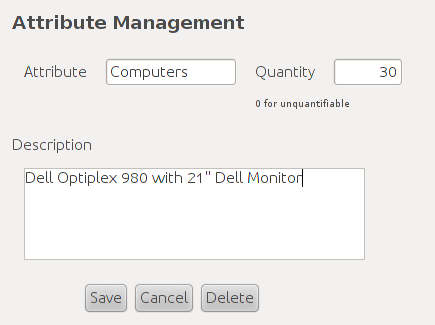
Figure 2: Sample Attribute Entry
The main method of selecting and viewing an attribute is through the Nav Bar. Selecting the Attributes header from the proper section of the Nav Bar will show a drop-down list of all attributes int the Attributes database. By selecting one of the attribute names from this drop-down list the Attribute, Quantity, and Description fields are all automatically filled in with the information for the selected attribute. With an attribute selected all of its information can now be modified.
With an attribute selected all of it's fields can now be modified. The user can change the value of any of the attribute's fields to his liking and then click the Save button to commit those changes to the attributes database. If a user decides to change his mind about modifing this he can click the Cancel button to discard any uncommitted changes and close the Attribute Management menu.
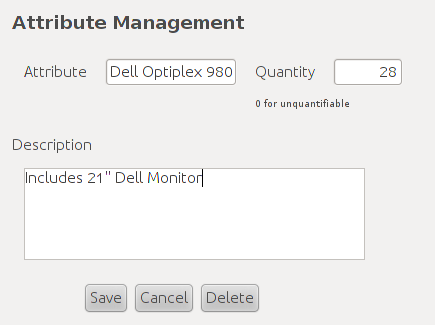
Figure 3: Sample Attribute Modification
This scenario describes the deletion of a selected attribute as seen in the in the Selecting and Viewing an Attribute scenario. If the user performed the selection correctly then the Attribute Management screen should be displayed with all of the selected attribute's information filled in as seen in Figure 3.
The act of deletion begins by clicking the Delete button. Upon doing so the dialog in Figure 4 pops up.
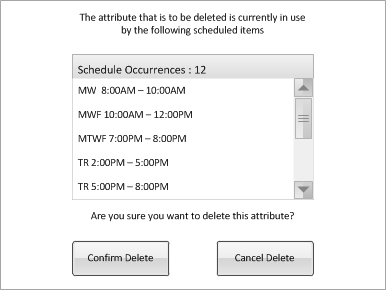
Figure 4: Attribute Deletion Dialog
Figure 4 asks the user to confirm deletion of the currently selected attribute. If there are any scheduled items that are utilizing this attribute then thier instances will be listed in the dialog box and the number of these items will also be displayed.
If the user still wants to procede with the deletion then clicking Confirm Delete will remove this attribute from the database and all affected items will listed as TBA. If the user decides against the deletion then clicking Cancel Delete will close the dialog box and nothing will change in the database.
This scenario show how a user modifies multiple attributes. This requires the user to select multiple attributes from the Nav Bar. Upon doing so the user will be presented with the Attribute Management dialog box in Figure 6.
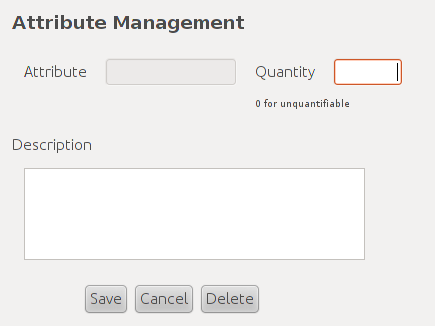
Figure 5: Attribute Multi-Selection Dialog
Selection of multiple attributes leaves the user with only two operations: mass modification or mass deletion. Attribute is left disabled to prevent its modification. Modifying the Quantity or Description fields and clicking Save will change those properties for all selected attributes. Clicking Delete will run through the deletion scenario for all selected attributes. Clicking Cancel will cancel the selection and close the context window.