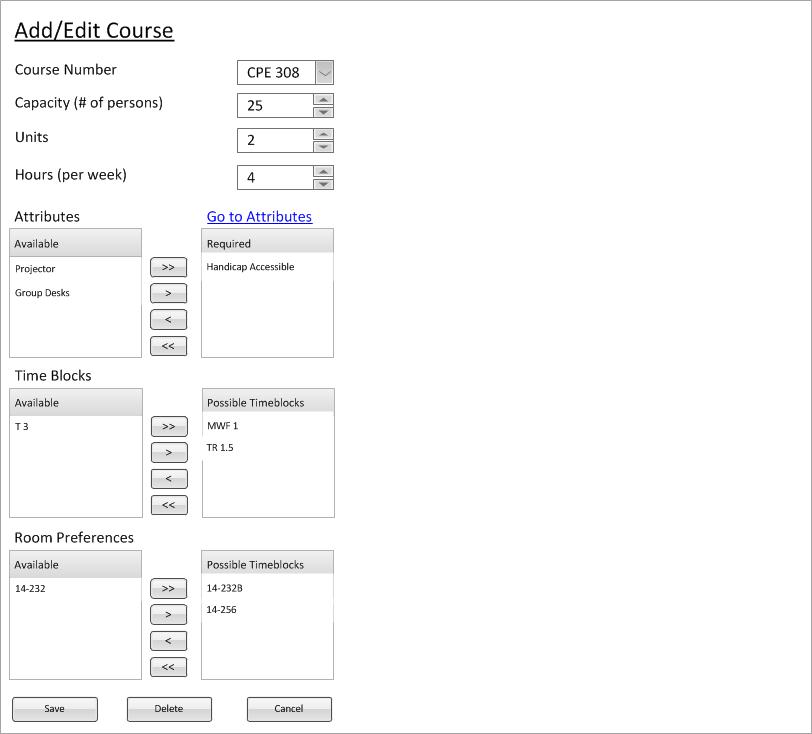
Figure 1: Example of a Created Course titled CPE 308
Figure 1: Example of a Created Course titled CPE 308
Deleting a course is unusually and dangerously easy to do in this program. First the user selects the course from the nav bar that they want to remove completely from the database
(Note that this permanently removes the course from the database, if the user desires to just make the course inactive- see schedule generation section).
Then the user presses the Delete button. A dialog pops up asking the user to confirm that they want to delete the current course. Using figure 1, to remove the fake "Course 400" we would just simply press the Delete button.
To read about the Save and Cancel buttons' functionality, use the "Previous" link at the bottom of the page.
After the user presses the Delete button, the following dialog would pop up:

Figure 2: Dialog for deleting a course
Figure 2 shows the dialog that pops up asking the user to confirm the deletion of the course. The system actually goes through the current schedule and finds all the currently scheduled times with this resource (in this case courses) and lists them in a list box for the user to scroll through. It also counts the number of uses in the current schedule denoted by the Schedule Occurences; in this case the course was scheduled twelve times.
If the user clicks the Confirm Delete button, the course will be removed from the database. Consequently, all spots on the current schedule that used this course prior to its deletion will be replaced with the course TBD. If the user clicks the Cancel Delete button, the course remains in the database and everything remains as it was.