There are two different ways to remove a question from the database. The first way is to remove the question from the database
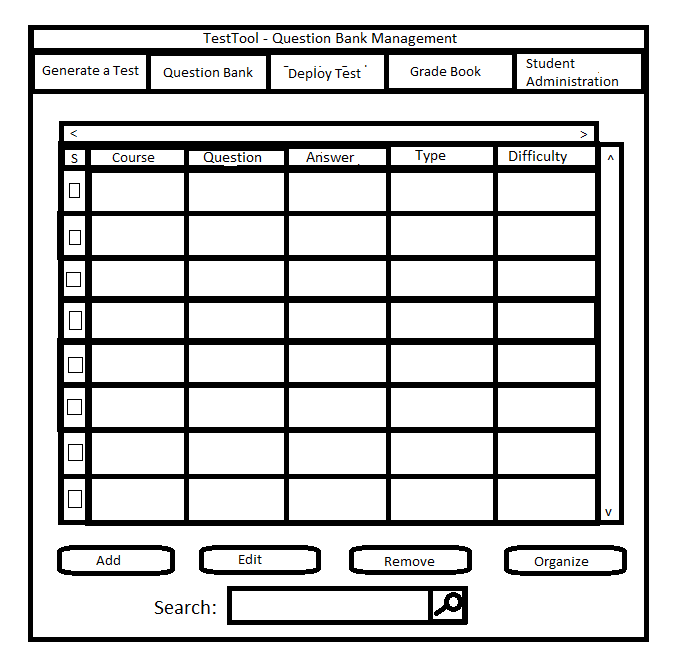
using the "Remove" button shown on the main GUI in figure 2.3.1. The other way to remove a question
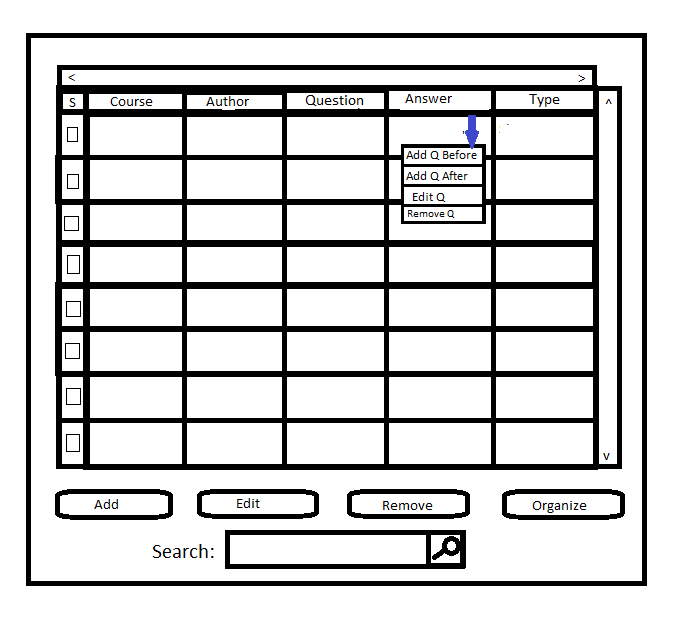
is to right click on a question and choose to remove the question. For these scenarios, the user already has a
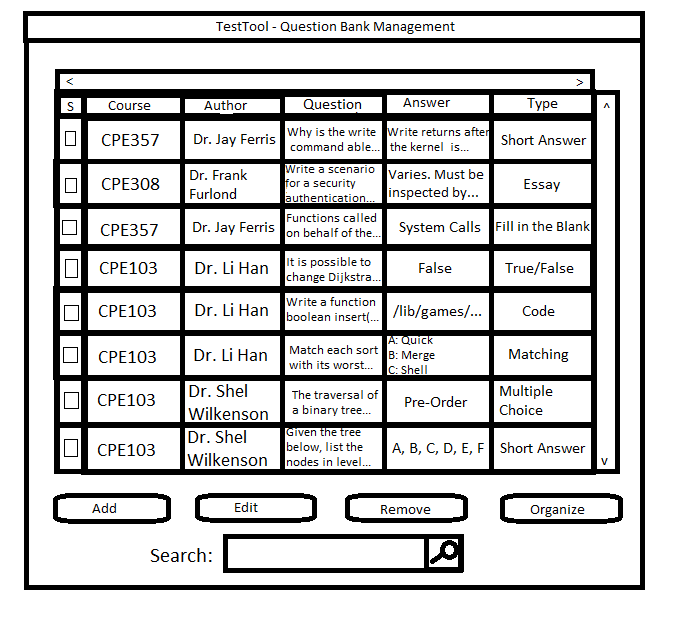
question bank populated like Figure 2.3.26 referenced earlier.
Removing a question using the Remove button
In order to remove questions from the Question Bank, the user must select the question(s) she wants to remove. This is achieved by clicking one or more
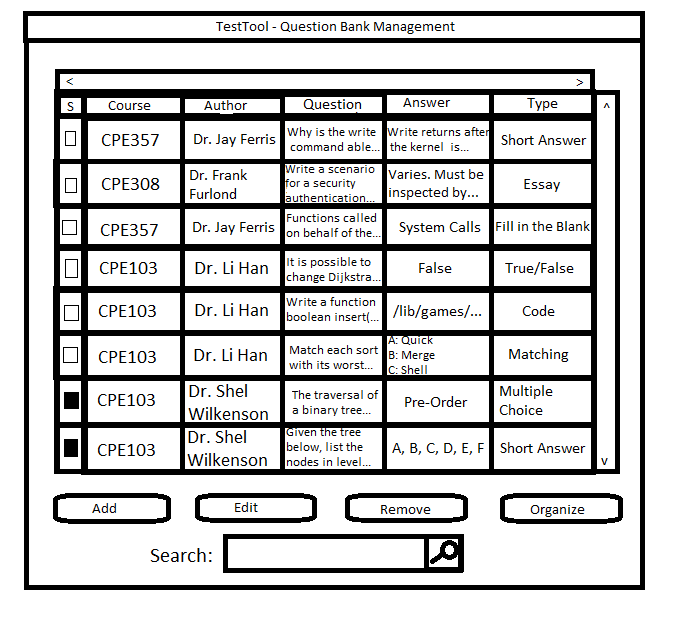
of the select boxes in the "S" column on the left of figure 2.3.1. In the example shown below in Figure 2.3.32,
the user has selected two questions to remove from the Question Bank.
Figure 2.3.32: Example Selection of Questions to Remove
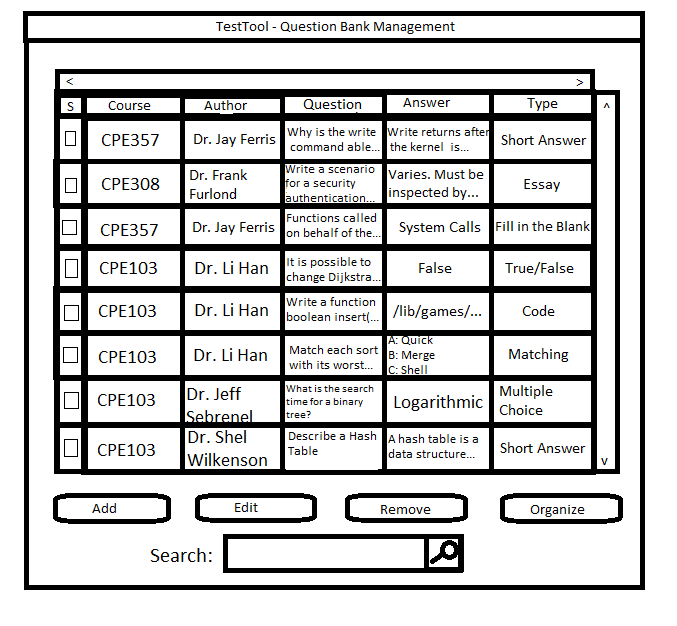
Figure 2.3.33: The Question Bank After the Multiple Remove Completes
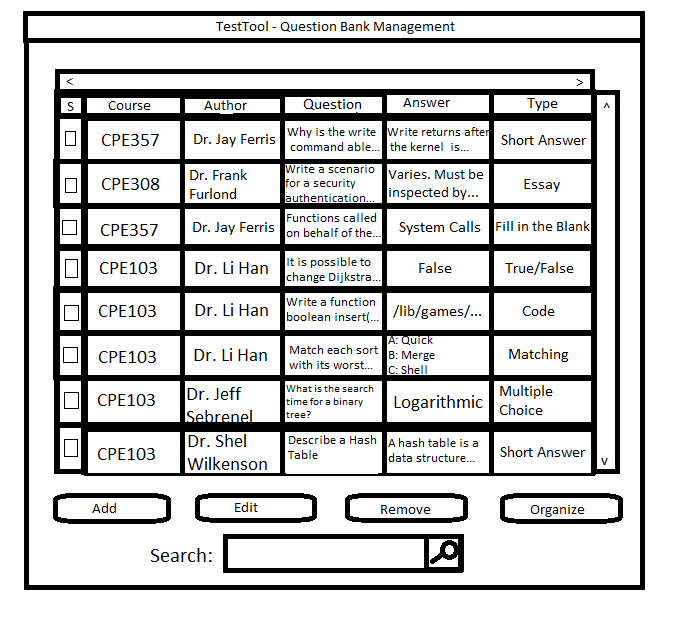
Figure 2.3.34: The Question Bank After the Single Remove Completes