The scenario in this section illustrates an individual user managing their tests.
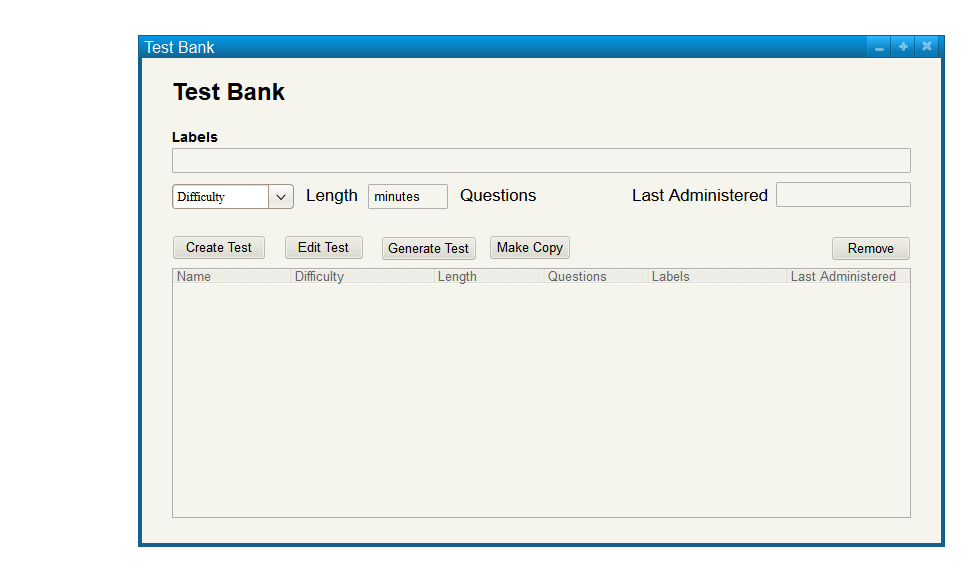
When the user selects Manage Tests from the Main menu, the system displays the dialog shown in Figure 1.
Figure 1 shows an empty test bank.
Figure 1: Empty Test Bank.
The user creates and/or generates a new test by pressing the create test button.
Manual test creation is covered further in 2.3.2: Creating Tests
Basic test generation is covered further in 2.3.3: Generating Tests
The user makes an exact duplicate of a test by pressing the make copy button.
This button will result in the edit test dialog being opened and the test name being blank (no two tests may have the same name).
Test editing is covered further in 2.3.4: Editing Tests
The user generates a test with more precise control by pressing the Generate Test button.
Advanced test generation is covered further in 2.3.5: Advanced Generation of Tests
The user removes a selected test by pressing the remove button.
Removing a test will clear all memory of the test, including previous grades and administration dates.
A confirmation message will appear before a test is completely removed from the system.
The user returns to the home screen with a press of the home button.
Test Sorting
The labels text box may be used to search tests by their labels (comma separated)
The difficulty drop down box may be used to search tests by their difficulty
The length text box may be used to enter a range (in minutes) for the estimated duration of the test
The questions text box may be used to enter a range for the number of questions in the test
The last administered text box may be used to enter a range of dates for when the test was last administered
Any combination of sorting parameters may be used to find the test the user is searching for
A populated test bank as shown in Figure 2
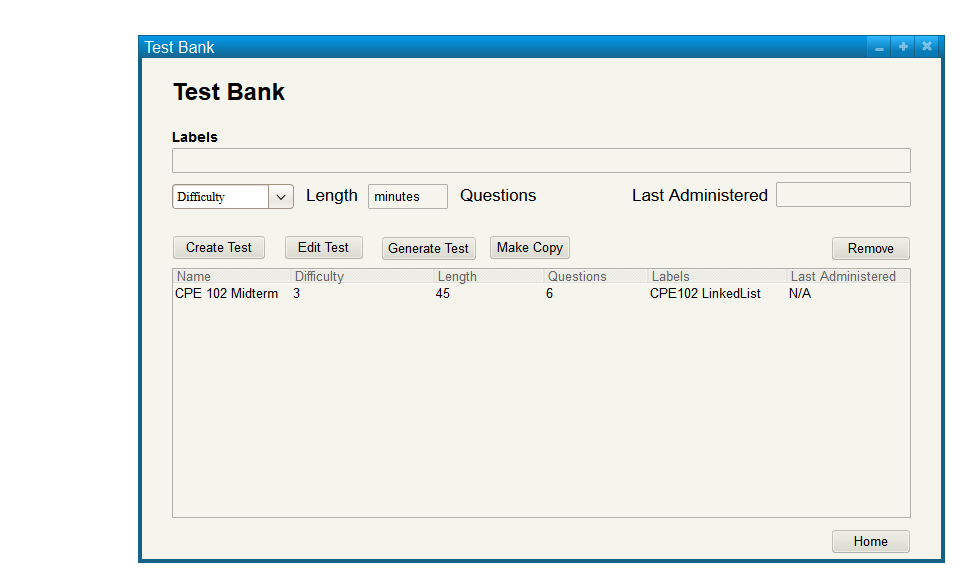
Figure 2: Populated Test Bank.