2.1. Intro Screen
This section shows what the user will find when first launching the Test tool
2.1.1 Administrator Intro Screen
When an administrator launches the Test Tool, the screen appears as shown in Figure 1.
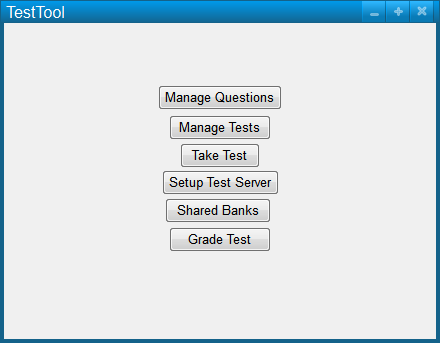
Figure 1: Administrator screen.
By clicking on the Manage Questions
button the user will be able to add, remove, and edit questions in the question bank.
By clicking on the Manage Tests
button the user will be able to create, generate, and edit tests in their test bank.
By clicking on the Take Test
button the user will be able to take tests in the same way a student would take a test.
By clicking on the Setup Test Server
button the user will be able to setup a test server.
By clicking on the Shared Banks
button the user will be able to view/upload/and download shared question banks.
By clicking on the Grade Test
button the user will be able to view administered tests, grade tests, and view test grades.
2.1.2 Student Intro Screen
When a student launches the Test Tool, the screen appears as shown in Figure 2.
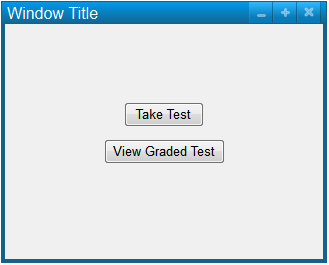
Figure 2: Student screen.
By clicking on the Take Test
button the student will be able to take any test available to them.
2.1.3 Proctor Intro Screen
When a proctor launches the proctor sub-application, the screen appears as shown in Figure 3.
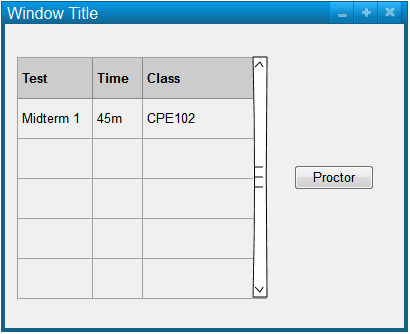
Figure 3: Proctor intro screen.
The proctor is given a lists of possible tests available to proctor. Once a test is chosen the proctor button
can be clicked to continue. When a test is chosen the proctor will be taken to the
Proctor View screen.
Prev: [none]
| Next: question-managing
| Up: intro
| Top: index